Settings
Overview
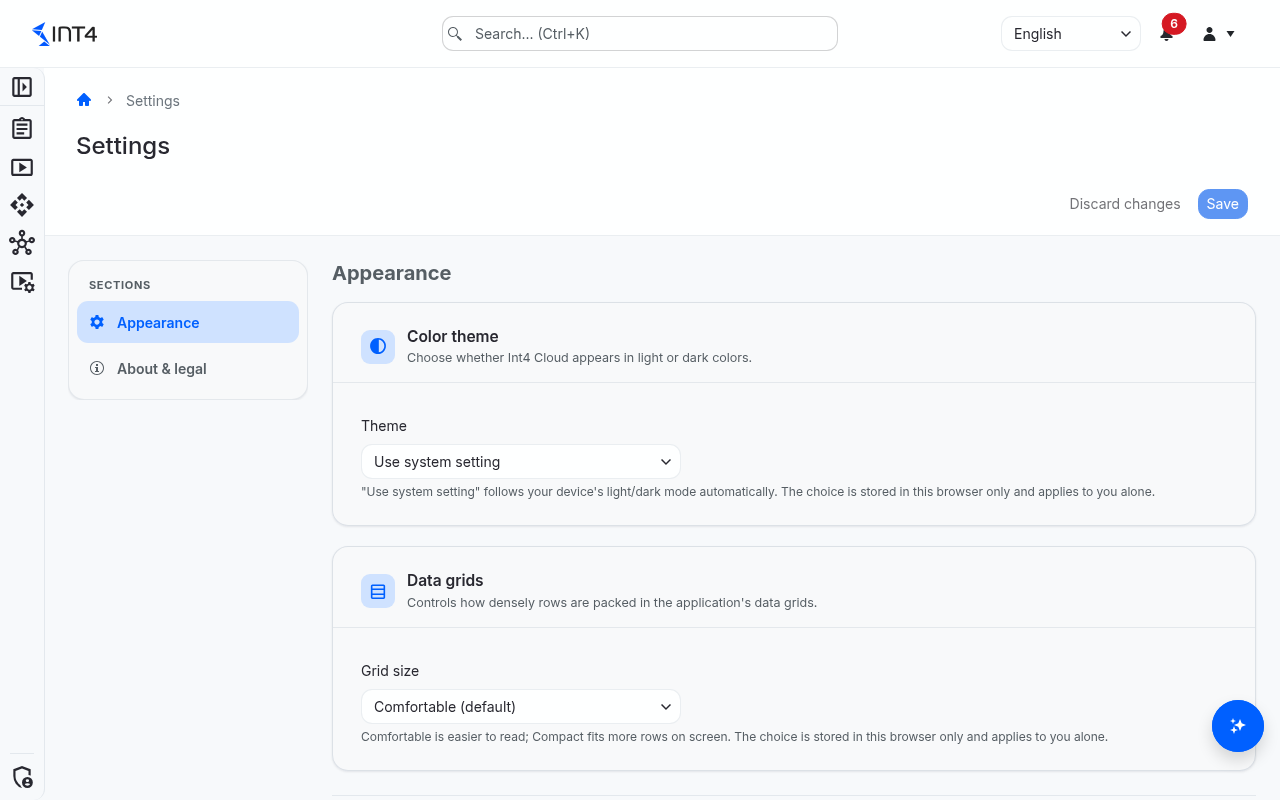
Settings holds your personal display preferences and the legal and version information of the installation. Open it from the user menu — the person icon at the top right of every page — and choose Settings. Every signed-in user can open it.
The page has two sections, listed on the left so you can jump between them:
- Appearance — the colour theme and how densely lists are packed.
- About & legal — the version of the installation and the open source software notice.
Your preferences are stored in the browser you are using, not in your user account. They apply only to you, and only in that browser — on another computer or browser you start with the defaults again. The display language is chosen separately, in the language selector at the top of every page.
Tasks
How to switch between light and dark colours
- Open Settings.
- In the Color theme card, pick a Theme:
- Use system setting — follows your device's light or dark mode and changes with it.
- Light
- Dark
- Click Save at the top right. The message Settings saved. confirms the change.
How to fit more rows on screen
- In the Data grids card, set Grid size to Compact. Choose Comfortable (default) to go back to the more spacious layout.
- Click Save.
How to undo a change before saving
As soon as a value differs from the saved one, the bar at the top shows Unsaved changes. Click Discard changes to return to the saved values.
Save before you leave the page. Changes that are not saved are lost when you move to another page; only reloading or closing the browser tab asks you to confirm first.
How to read the open source software notice
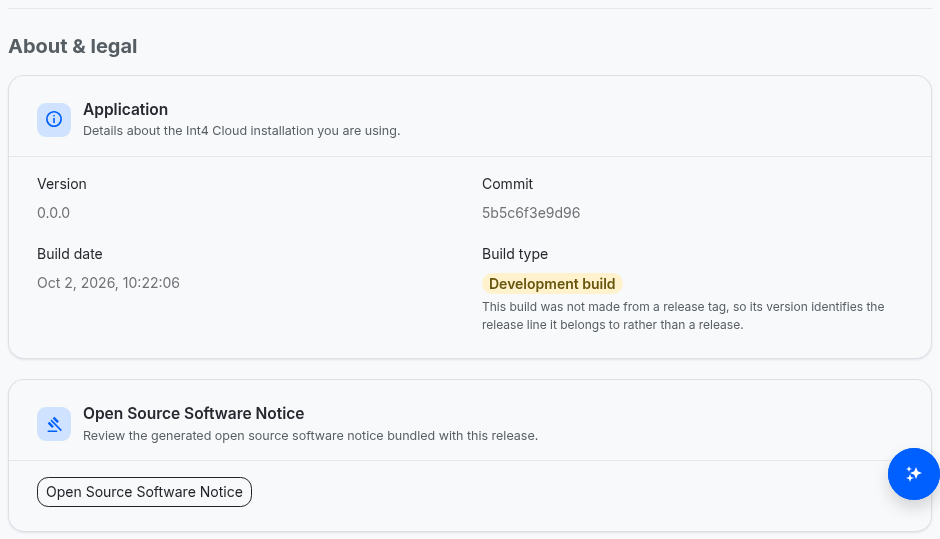
- Open Settings and go to About & legal.
- In the Open Source Software Notice card, click Open Source Software Notice.
- The notice of the build you are using opens inside the page. Use Open in New Tab to read or print it in a separate browser tab, or Reload to load it again.
The notice lists the third-party open source components included in this build of Int4 Suite and the licence terms under which they are used. It changes only when a new version is installed.
If the page shows Failed to load the open source software notice., click Retry. If the message stays, the notice may not be part of this installation — this is the case for development builds; ask your administrator.
How to look up the installed version
Go to About & legal. The Application card shows the Version, the Commit and the Build date — the same card as on your profile.
Field reference
| Field | Description |
|---|---|
| Theme | Light, dark, or following the device. Default: Use system setting. |
| Grid size | Row density of lists and tables: Comfortable (default) or Compact. |
| Version | The Int4 Suite version of the installation. |
| Commit | The code revision of the build (first 12 characters; point at it for the full value). |
| Build date | When the build was made. |
| Build type | Shown only on builds that are not an official release, labelled Development build. |
Tips & edge cases
- Preferences follow the browser, not the person. Clearing the browser's site data, using a private window, or switching to another browser resets them to the defaults.
- Compact also tightens the API Explorer. With Compact selected, the API Explorer's lists and editor use a denser layout as well.
- Nothing here needs a permission or a licence. Every signed-in user can change their preferences and read the notice.
Related features
- Profile — your account, licence and access.
Prerequisites & permissions
Every signed-in user can open Settings and the open source software notice. No role or licence is needed.