Data Store
LicenseIncluded in Int4 Shield LiteDetails
| Feature or limit | Int4 Shield Lite |
|---|---|
| Test data dynamization | Included |
Anything a license model does not include can be added through a custom license. The license installed for you is shown in the app under Profile → License. All features by license
Overview
The Data Store gives your test automation a memory that lasts beyond a single run. Integration tests often need values that no single test case owns: a counter that hands out unique reference numbers, a document number created by one test and needed by a later one, a lookup result worth keeping for a while, or a marker telling parallel runs that a setup step has already been done.
Values are kept as entries — a key and a value — inside named buckets. Aster scripts read and write entries with the DS_* functions wherever scripts run: in the script editor, in custom validations, in business dimension processing and in Messenger flows. This page is where you create buckets, decide how long their entries live, how much they may hold and what happens when they are full, and where you browse, download or remove what scripts have stored. Entries are written by scripts only; there is no form for typing values in by hand.
Every entry expires a set time after it was last written, so test data cleans itself up. A bucket can be global or placed in a project scope, which controls who may open it and which scripts may use its entries.
Tasks
How to create a bucket
- Click Create New in the toolbar. The button is disabled without permission to create buckets.
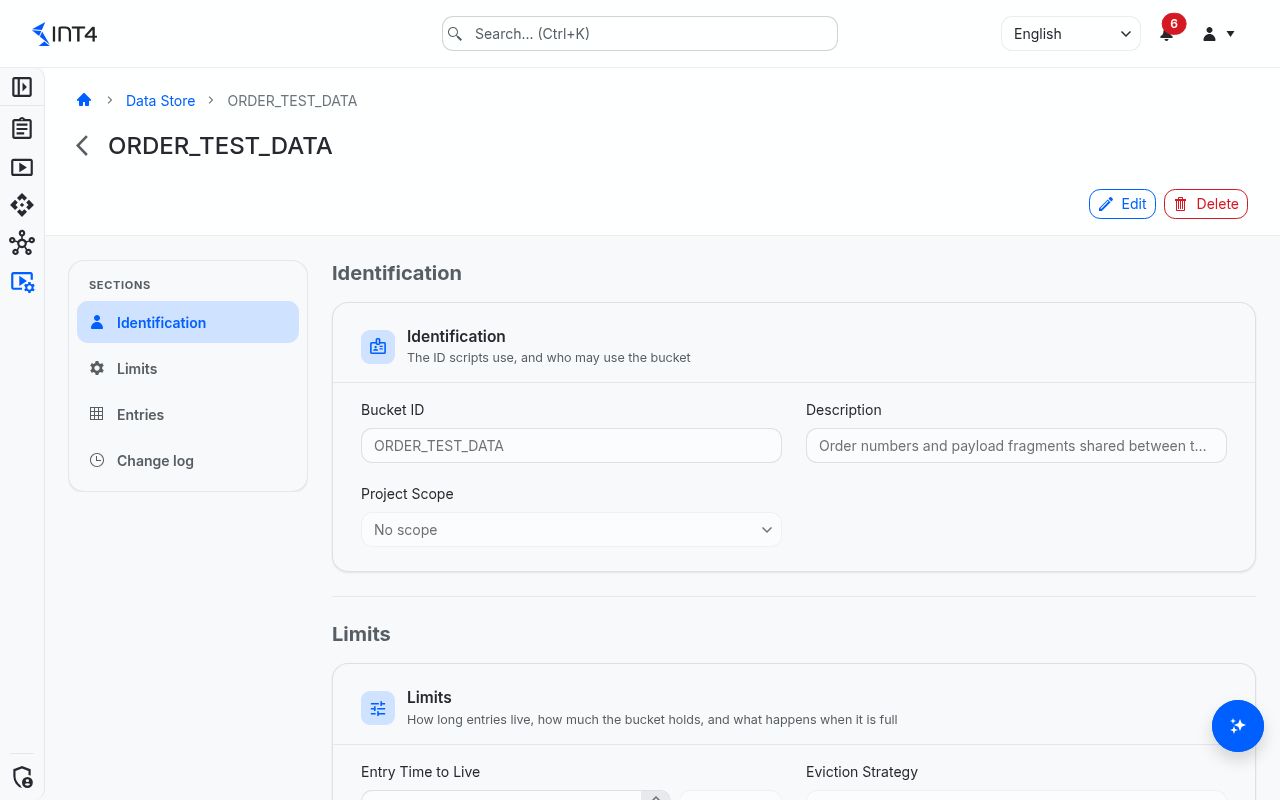
- Under Identification, enter the Bucket ID. It must start with an uppercase letter and use only
A-Z,0-9and_(for exampleORDER_TEST_DATA), up to 64 characters. Scripts use this ID, and it cannot be changed later. - Optionally add a Description and choose a Project Scope. Leave it at No scope for a global bucket.
- Under Limits, set:
- Entry Time to Live — an amount and a unit (days, hours, minutes or seconds), between 1 second and 180 days. The default is 30 days.
- Eviction Strategy — what happens when the bucket is full (see Field reference).
- Max Capacity (MB) and Max Entry Size (KB) — defaults are 100 MB and 1024 KB.
- Click Save. The new bucket opens in view mode, ready for scripts to use.
How to change a bucket's settings
- Open the bucket and click Edit.
- Change the description, project scope or limits. The Bucket ID stays locked.
- Click Save Changes.
New settings apply to future writes. Entries already stored keep their expiry date, and a smaller capacity does not remove anything until a script next needs room.
How to look at stored values
- Open the bucket. The Entries section lists the live entries in key order, with their type, size, when they were written and when they expire. The usage bar shows how full the bucket is.
- To narrow the list, type the start of a key in Filter by key prefix... — for example
orders/when your scripts use keys such asorders/4711. - Click View value next to an entry to open its value in a read-only viewer. Binary entries cannot be viewed; use Download value instead, which works for every entry.
Viewing or downloading a value does not change the entry, its expiry or its eviction order.
How to remove entries
- To remove one entry, click Delete entry next to it and confirm with Delete.
- To empty the whole bucket, click Clear bucket above the list and confirm. The bucket and its settings are kept.
Removing entries a running test still needs makes that test's script fail or fall back to its default value, depending on how it reads them.
How to delete a bucket
- Open the bucket and click Delete.
- Confirm in the Delete Bucket dialog. The bucket is deleted with all its entries.
Scripts that still use the bucket fail from then on with a message that the bucket does not exist.
How to use a bucket from a script
In an Aster script, name the bucket by its ID (upper or lower case both work) and the key as text:
| Function | What it does |
|---|---|
DS_SET(bucket, key, value) | Stores the value under the key. The entry expires the bucket's time to live after this write. |
DS_GET(bucket, key) | Returns the stored value. The script fails if the key is missing or expired. |
DS_GET_DEFAULT(bucket, key, default) | Returns the stored value, or the default when the key is missing or expired. |
DS_EXISTS(bucket, key) | Returns X when the key holds a live value. |
DS_SET_IF_ABSENT(bucket, key, value) | Stores the value only when the key is free; returns X when it wrote. Safe when several runs race for the same key. |
DS_SET_IF_EQUAL(bucket, key, expected, value) | Stores the value only when the key currently holds exactly expected, character for character; returns X when it wrote. |
DS_INCREMENT(bucket, key, by) | Adds by (default 1) to a number and returns the new value; a missing key starts at 0. Safe for counters shared by parallel runs. |
DS_DELETE(bucket, key) | Removes the key; returns X when a live value was removed. |
DS_KEYS(bucket, prefix, limit) | Returns the live keys starting with the prefix, in key order (1,000 by default, at most 10,000). |
DS_GET_PREFIX(bucket, prefix, limit) | Returns a table of key and value for the live keys starting with the prefix (1,000 entries by default, and at most 32 MB of values). |
For example, DS_INCREMENT('COUNTERS', 'invoice-number') returns the next number of a counter every run can share, and DS_GET_DEFAULT('ORDER_TEST_DATA', 'orders/last', '') reads a value another test stored, or an empty text when there is none yet.
Keys can be up to 255 characters from A-Z, a-z, 0-9 and . _ : / = -. Use / or : to group related keys so you can list or clear them by prefix. The script editor suggests these functions as you type; see Scripts.
Field reference
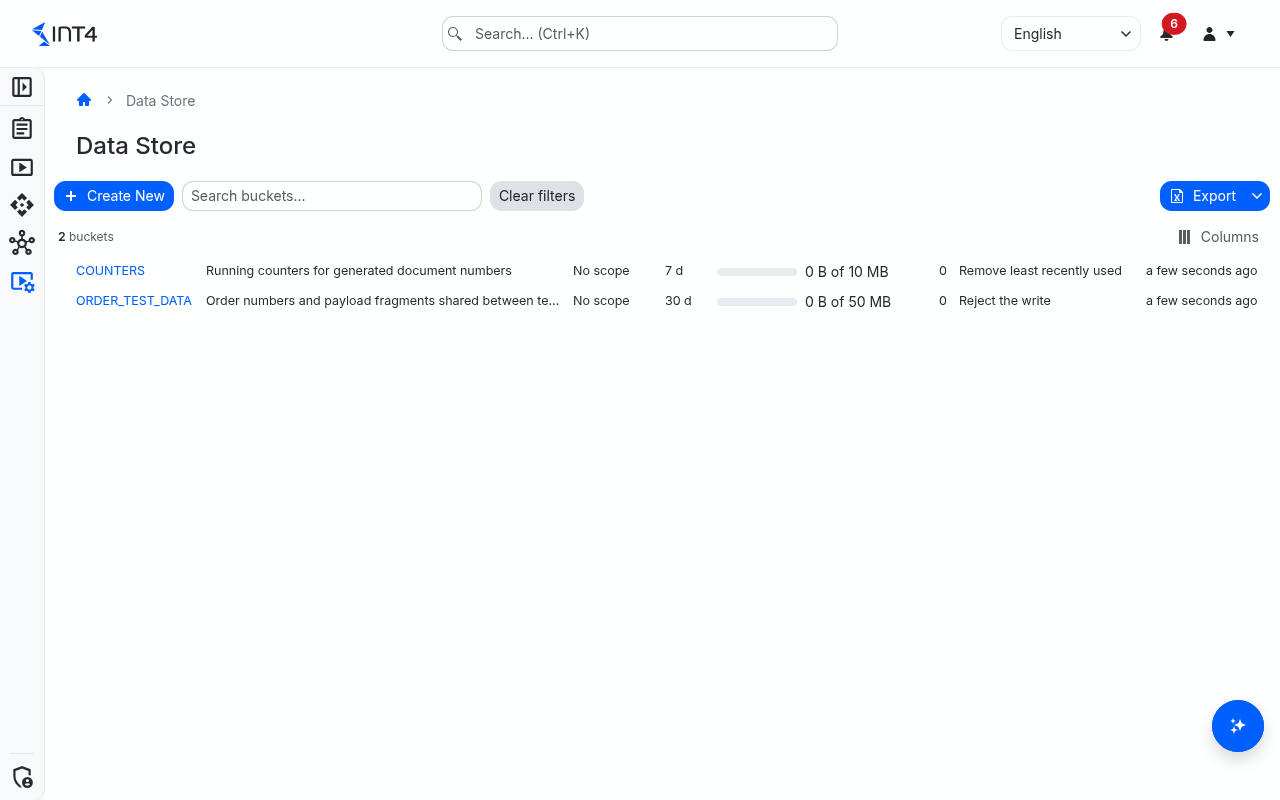
Bucket list
| Column | Description |
|---|---|
| Bucket ID | The ID scripts use to reach the bucket. |
| Description | Free text describing what the bucket holds. |
| Project Scope | The project scope the bucket belongs to, or No scope for a global bucket. |
| Time to Live | How long an entry lives after its last write. |
| Usage | Space used out of the bucket's capacity, with a usage bar. |
| Entries | Number of entries currently held, including expired ones not yet cleaned up. |
| Eviction Strategy | What a write does when the bucket is full. |
| Updated | When the bucket's settings were last changed. |
Use Search buckets... to find buckets by ID or description. The list can be exported from the toolbar.
Bucket settings
| Field | Description |
|---|---|
| Bucket ID | Uppercase letters, digits and _, starting with a letter, up to 64 characters. Unique and fixed after creation. |
| Description | Optional, up to 255 characters. |
| Project Scope | Restricts who can open the bucket and which users' scripts can use its entries. Saving is refused if you may not create buckets in the chosen scope. |
| Entry Time to Live | How long an entry lives after it was last written: 1 second to 180 days, default 30 days. Reading an entry does not extend it. |
| Eviction Strategy | Reject the write (default): When the bucket is full, a write fails and nothing is removed. Remove least recently used: When the bucket is full, the entries read or written longest ago are removed. Remove oldest: When the bucket is full, the entries written longest ago are removed. |
| Max Capacity (MB) | Total space for keys and values. Default 100 MB; your installation sets the maximum (1024 MB unless your administrator changed it). |
| Max Entry Size (KB) | Largest single entry, key included. Default 1024 KB; cannot exceed the capacity or the installation maximum (16384 KB unless changed). |
Entries
| Column | Description |
|---|---|
| Key | The entry's key. |
| Type | Set automatically from the value the script stored: Text, XML, JSON, Number, Boolean, Binary, or Structure (a script table or list, kept as JSON). |
| Size | Size of the key and value together — what counts against the bucket's limits. |
| Written | When a script last wrote the entry. |
| Expires | When the entry disappears unless it is written again. |
| Actions | View value, Download value and Delete entry. |
The Change log section shows who changed the bucket's settings and when. Changes to entries are not logged.
Tips & edge cases
- Expiry counts from the last write. An entry that is only read still expires on time. Write it again to keep it alive.
- Expired entries disappear at once. Scripts and the entries list stop seeing an entry the moment it expires. The space it used is freed by a clean-up that runs every 15 minutes, or sooner when a write needs room.
- Choose the eviction strategy to match the data. Reject the write is safest for data a test must not lose — a full bucket makes the writing script fail instead of silently dropping entries. Remove least recently used suits caches: entries that scripts have not read or written for the longest time go first. Remove oldest removes the entries written longest ago. The entry being written is never removed to make room for itself, and the script gets a warning naming how many entries were removed.
- Only scripts count as use. For the least-recently-used strategy, script reads and writes count; looking at a value on this page does not.
- Parallel runs are safe. Writes to one bucket happen one at a time, so counters and the conditional set functions give each run a consistent answer. If another write holds the bucket for more than 5 seconds, the waiting script fails with a message that the bucket is busy.
DS_SET_IF_EQUALcompares text exactly.000123matches a stored000123but not123.- Numbers keep their digits. A number is stored exactly as the script had it, so leading zeros and decimals survive a round trip.
- Empty values cannot be stored. Use
DS_DELETEto remove a key instead. - Settings changes are not retroactive. A shorter time to live, a smaller entry size or a smaller capacity applies to future writes only.
- Scripts need permission and the licence. A script uses the bucket with the permissions of whoever runs it — you in the script editor, the owner of a test run during execution, or the author of a Messenger flow. Without the matching Data Store entry permission in the bucket's project scope, or without the test data dynamization licence feature, the script stops with an error.
- Every bucket appears in the list. The list shows all buckets to anyone allowed to see buckets at all; opening a bucket and using its entries is limited by its project scope.
- The bucket ID is permanent. Because scripts name it, the ID cannot be renamed. To move to a new ID, create a new bucket, update the scripts, and delete the old one.
Related features
- Scripts — write the Aster scripts that read and write bucket entries.
- Automation Objects — run scripts as custom validations, find expressions and business dimension processing.
- Project Scopes — control who may use a scoped bucket.
Prerequisites & permissions
About permissions. What you can see and do is decided by the roles assigned to your user. Each role bundles permission groups, and each permission group allows activities — Read, Write, Delete, Execute and, for schedules, Change owner — on a kind of record (for example Test Case, Automation Object, System Under Test). A role grants its groups per project scope, so you may be allowed to change records in one project but only view, or not see, those of another.
If a button is disabled, a page says you don't have access, or a list comes back empty, missing permissions are the most likely cause — or, for whole product areas, the installed licence. You can review your own access under Profile → My access; an administrator can change your roles under IAM → Users.
Specifically for this page:
- The page is available when your licence includes the test data dynamization feature.
- Seeing the list and opening a bucket requires Data Store Bucket: Read (in the bucket's project scope to open it).
- Creating a bucket and changing its settings requires Data Store Bucket: Write in the target project scope; deleting a bucket requires Data Store Bucket: Delete.
- Listing, viewing and downloading entries requires Data Store Entry: Read; deleting entries and clearing a bucket requires Data Store Entry: Delete.
- Scripts need Data Store Entry: Read to read, Write to store or increment, and Delete to remove keys, in the bucket's project scope.