Profile
Overview
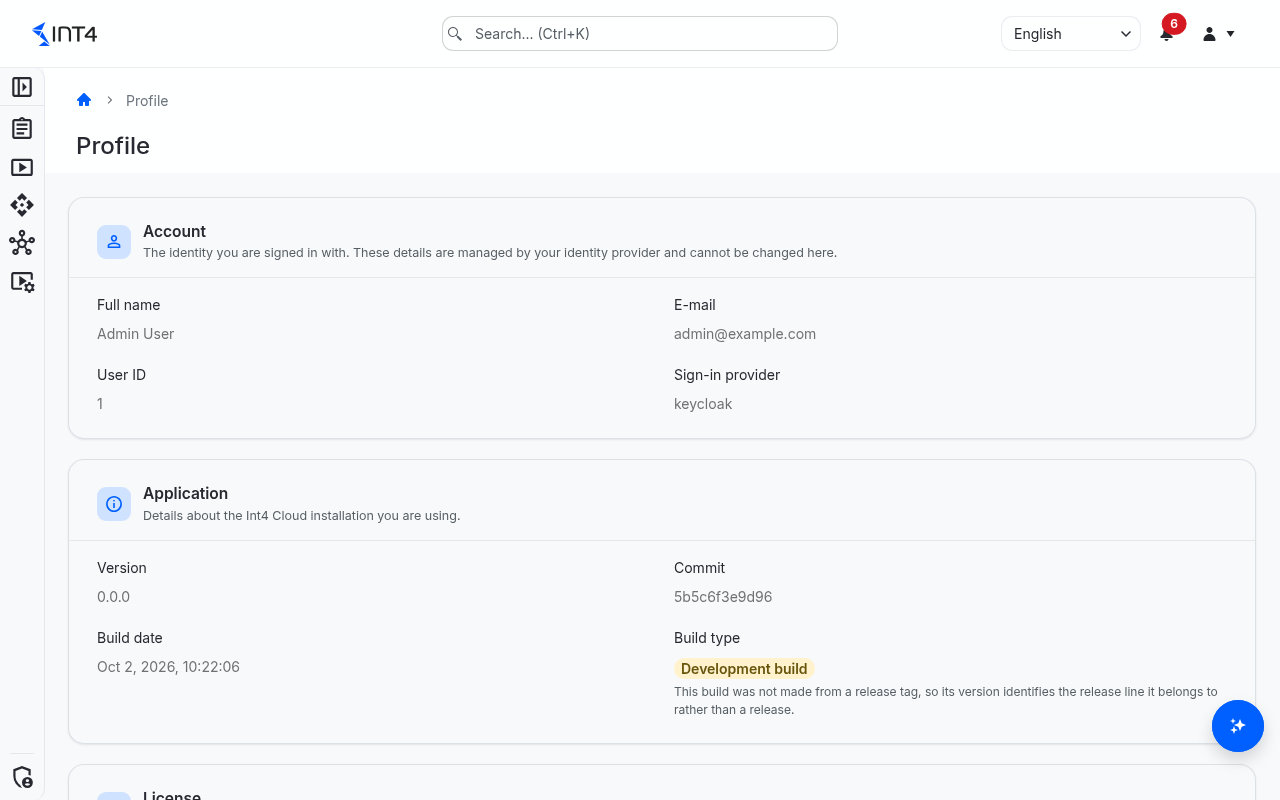
Your profile shows, on one read-only page, who you are signed in as, which Int4 Suite build you are using, what the installed licence allows, and what your roles let you do. It is the quickest way to answer "why can't I do this?" before you ask an administrator, and the place to look up the version number when you contact support.
Open it from the user menu — the person icon at the top right of every page — and choose Profile. Every signed-in user can open their profile; no permission is needed.
The page has four cards:
- Account — your identity as received from your organization's sign-in service.
- Application — the version and build of the installation.
- License — the active licence, its capabilities and limits.
- My access — the activities your roles currently allow, per kind of record.
Tasks
How to check what you are allowed to do
- Open Profile.
- Scroll to My access. Each row is a kind of record (the Resource column); each further column is an activity with Yes, No, or N/A where the activity does not exist for that kind of record.
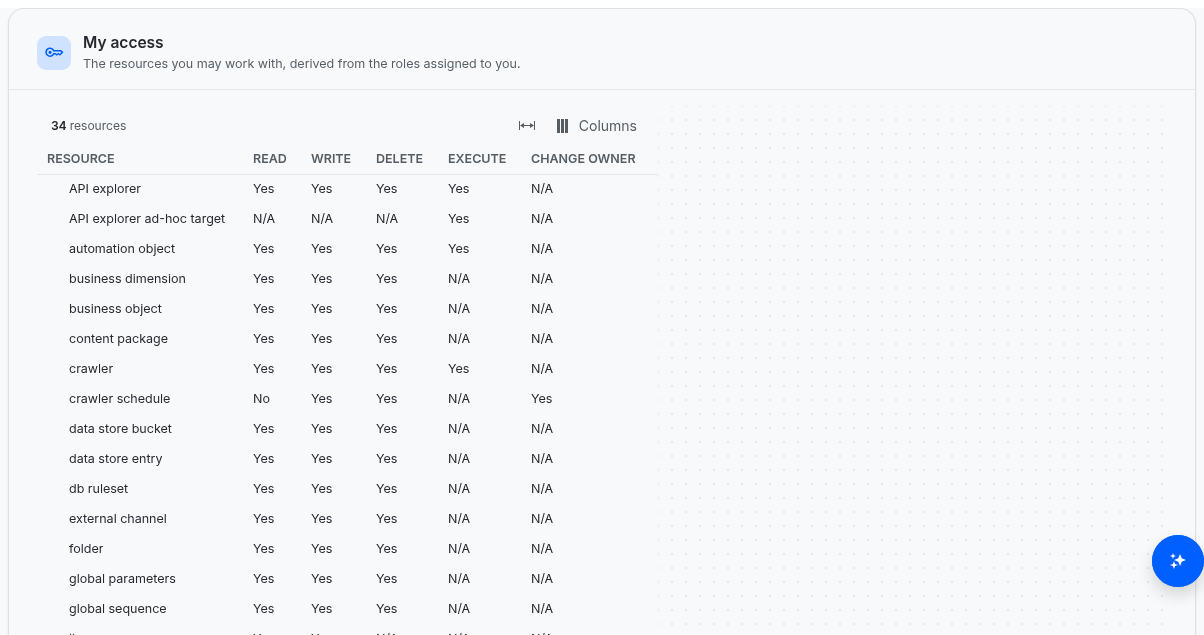
The card combines all of your roles. A Yes means you hold the activity in at least one project scope; whether you may use it on a particular record still depends on that record's project scope. If the card says You have no resource permissions assigned., you have no role (or none that is currently valid) — ask an administrator to assign one.
How to see what the licence includes
- Open Profile.
- Read the License card: who the licence is issued to, the edition, the expiry date, every licensed capability and every limit.
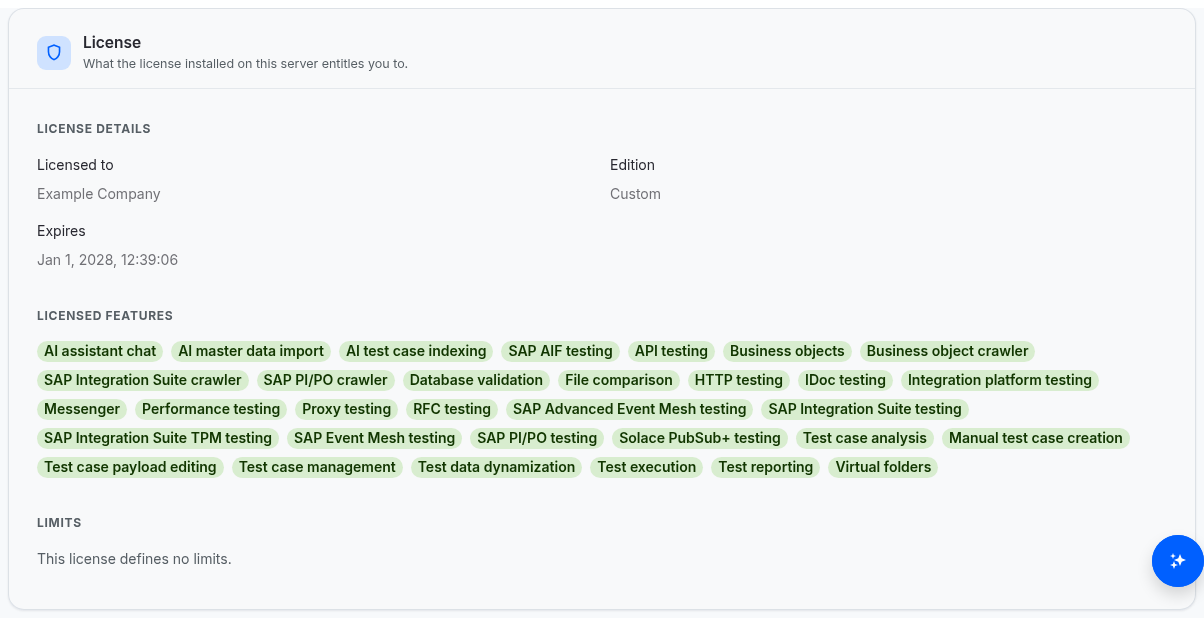
If a capability you expected is missing from Licensed features, it is not part of your organization's licence. The Licenses page explains each capability.
How to tell support which version you use
Give the Version from the Application card. If support asks for the exact build, add the Commit; point at the field to see the full value.
How to change your name or e-mail address
You can't change them in Int4 Suite. They come from your organization's sign-in service and are refreshed every time you sign in. Ask the team that manages your sign-in account to change them.
Field reference
Account
| Field | Description |
|---|---|
| Full name | First and last name from the sign-in service, or your e-mail address if no name is known. |
| The address you sign in with. | |
| User ID | Your internal user number in this installation. Useful when an administrator or support needs to identify your account. |
| Sign-in provider | How you signed in: keycloak for the standard sign-in service, xsuaa when Int4 Suite runs on SAP BTP. |
| Administrator | Shown only for technical administrator accounts of the installation. It is not the same as holding the Administrator role; your roles are reflected in My access. |
Application
| Field | Description |
|---|---|
| Version | The Int4 Suite version, for example 4.0.0. |
| Commit | The first 12 characters of the code revision the build was made from. Point at it to see the full value. |
| Build date | When the build was made. |
| Build type | Appears only on builds that are not an official release, with the label Development build. This build was not made from a release tag, so its version identifies the release line it belongs to rather than a release. |
Values that the build does not provide show N/A.
License
| Field | Description |
|---|---|
| Licensed to | The organization the licence is issued to. |
| Edition | The edition the licence is based on, for example Int4 Shield Lite, or Custom for a licence without an edition. |
| Expires | When the licence stops working. |
| Licensed features | Every capability the licence switches on — the edition's plus any added in the licence file. |
| Limits | Numeric limits, such as Maximum systems under test or SAP PO test-case execution window (days). |
When no valid licence is installed, the card shows No active license is installed. Licensed features stay unavailable until a valid license is uploaded. If the licence cannot be read at all, it shows No active license could be read. Licensed features stay unavailable until a valid license is uploaded.
My access
| Field | Description |
|---|---|
| Resource | A kind of record you hold at least one activity on. Kinds you have no activity on are not listed. |
| Read, Write, Execute, Delete, Change owner | Whether you hold the activity in at least one project scope. |
Tips & edge cases
- Only currently valid roles count. A role assignment that has not started yet or has already ended does not appear in My access.
- Recent changes may need a reload. If an administrator has just changed your roles or uploaded a licence, reload the page to see the new state.
- Some capability names are technical. Capabilities without a display name appear with their technical name, for example
api_testing. The Licenses page lists what each one unlocks. - Access and licence work together. A capability must be licensed and allowed by your roles before you can use it.
Related features
- Settings — colour theme, list density and the open source software notice.
- Licenses — install and review licence files.
- Users and Roles — where administrators manage access.
Prerequisites & permissions
Every signed-in user can open their own profile.
About permissions. What you can see and do is decided by the roles assigned to your user. Each role bundles permission groups, and each permission group allows activities — Read, Write, Delete, Execute and, for schedules, Change owner — on a kind of record (for example Test Case, Automation Object, System Under Test). A role grants its groups per project scope, so you may be allowed to change records in one project but only view, or not see, those of another.
If a button is disabled, a page says you don't have access, or a list comes back empty, missing permissions are the most likely cause — or, for whole product areas, the installed licence. You can review your own access under Profile → My access; an administrator can change your roles under IAM → Users.