External Channels
LicenseCustom add-onDetails
| Feature or limit | Int4 Shield Lite |
|---|---|
| Messenger | Add-on |
Anything a license model does not include can be added through a custom license. The license installed for you is shown in the app under Profile → License. All features by license
Overview
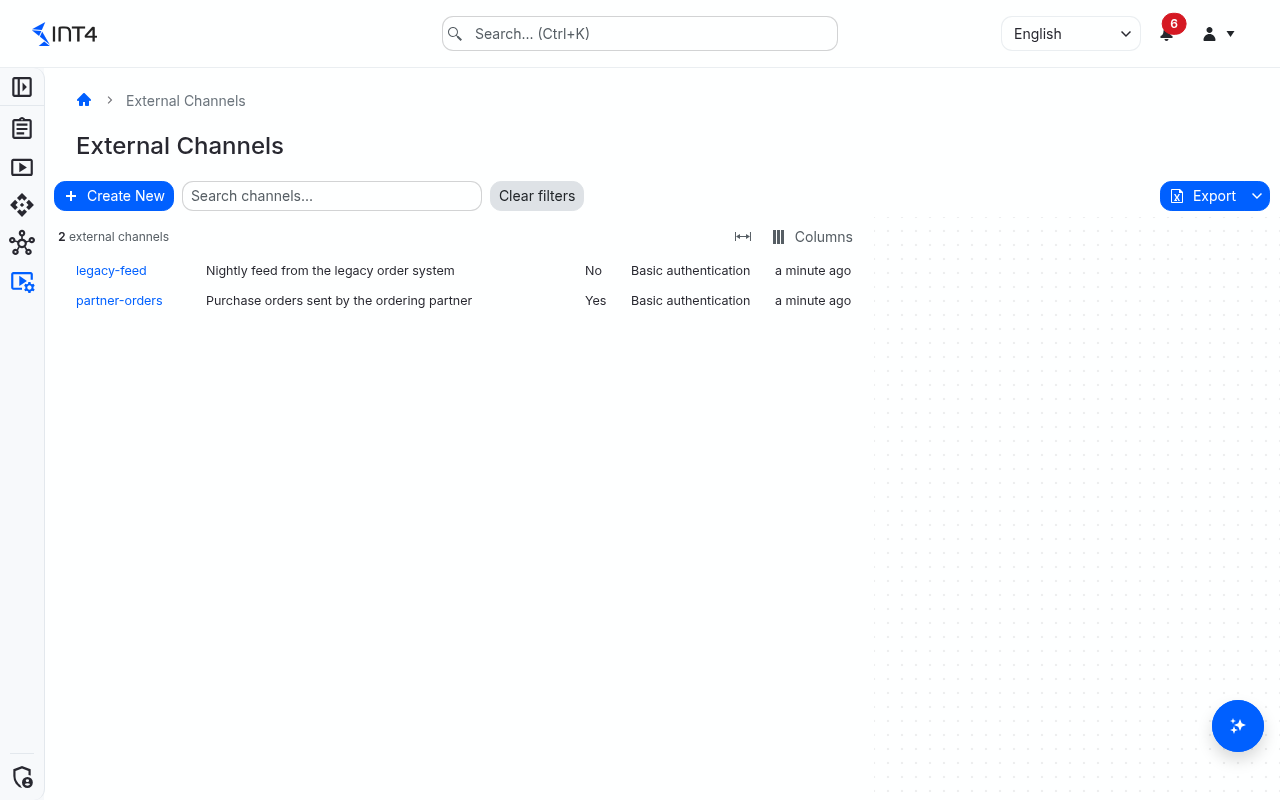
A system under test describes how Int4 Suite calls out to another system. An external channel is the opposite direction: an entry point through which an external system — an integration flow, a middleware adapter, a partner application — calls into Int4 Suite.
A channel holds two things: a name, which becomes part of the address callers use, and the credentials callers must present. Today channels are used by Messenger: a synchronous virtualization instance is published on a channel under its own endpoint name, at https://<your Int4 Suite host>/messenger/v1/<channel>/<endpoint>. Every call is checked against the channel's username and password.
Keeping the credentials on the channel rather than on each instance lets you give one partner team one login and publish several virtual endpoints behind it, change the password in one place, or shut every endpoint on a channel at once by disabling it.
Tasks
How to create a channel
- Open Configuration → External Channels and select Create New.
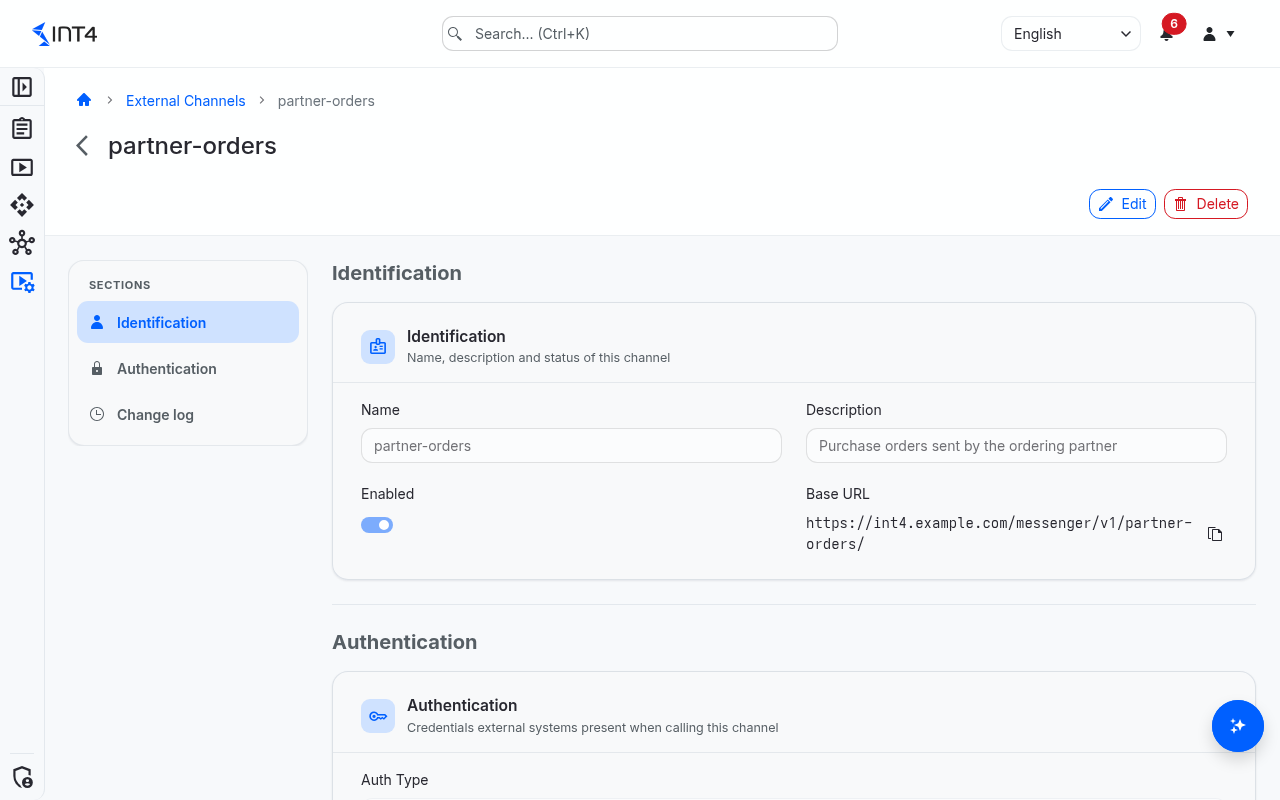
- Under Identification, enter the Name and optionally a Description. Leave Enabled on unless the channel should refuse calls for now. The name cannot be changed later, because it is part of the address callers use.
- Under Authentication, enter the Username and Password the caller will send. The password must be 16 to 256 characters long.
- Select Save. The channel page opens and shows the Base URL; copy it with Copy URL.
How to change the password or username
- Open the channel and select Edit.
- Enter a new Password. Leave the field empty to keep the stored password.
- If you change the Username, you must also enter a new password — the stored password belongs to the old login.
- Select Save Changes and pass the new credentials to the callers.
How to block all calls on a channel
Open the channel, select Edit, switch Enabled off and save. Every call on the channel is refused, whatever endpoint it addresses. Synchronous instances on a disabled channel cannot be switched on.
How to delete a channel
Open the channel, select Delete and confirm. The stored password is removed with it. A channel that a virtualization instance still uses cannot be deleted — move or delete those instances first.
Field reference
| Field | Description |
|---|---|
| Name | Unique name, 1–40 characters: letters, digits, ., - and _. Unique regardless of case. Becomes part of the address and cannot be changed after creation. Shown as Channel in the list. |
| Description | Free text, up to 100 characters — for example which partner uses the channel. |
| Enabled | A disabled channel refuses every call. |
| Base URL | The address prefix of the channel. Instances add their endpoint name after it. |
| Auth Type | How callers prove who they are. Currently always Basic authentication. Shown as Authentication in the list. |
| Username | Login the caller sends, up to 128 characters. Messenger records it with every call as the caller. |
| Password | 16–256 characters. Stored in the secret manager and never shown again. |
| Change log | Who changed the channel and when. |
Tips & edge cases
- Callers get the same refusal for every credential problem. An unknown channel name, a disabled channel and a wrong username or password all receive
401 Unauthorized, so a caller cannot probe which channels exist. - Use a long, generated password. The channel is reachable from outside without a user login; the minimum length of 16 characters is deliberate.
- One channel, several endpoints. Several synchronous instances can share one channel, each under its own endpoint name.
- Channels are not limited by project scope. Everyone who may read channels sees all of them.
- The address must be reachable. Callers outside your network can only reach the address if your Int4 Suite installation exposes the
/messenger/path. Ask your administrator if calls never arrive.
Related features
- Instances — publish a synchronous virtualization object on a channel.
- Virtualization objects — define how a synchronous call is answered.
Prerequisites & permissions
About permissions. What you can see and do is decided by the roles assigned to your user. Each role bundles permission groups, and each permission group allows activities — Read, Write, Delete, Execute and, for schedules, Change owner — on a kind of record (for example Test Case, Automation Object, System Under Test). A role grants its groups per project scope, so you may be allowed to change records in one project but only view, or not see, those of another.
If a button is disabled, a page says you don't have access, or a list comes back empty, missing permissions are the most likely cause — or, for whole product areas, the installed licence. You can review your own access under Profile → My access; an administrator can change your roles under IAM → Users.
The page is shown when Messenger is included in your licence. Seeing channels needs External Channel: Read; creating and changing them needs External Channel: Write; deleting needs External Channel: Delete. Choosing a channel for an instance needs External Channel: Read.