Content Packages
Overview
Int4 delivers ready-made configuration with the product — today a catalogue of business dimensions with their roles and expressions for common messages. A content package is the file this content travels in: a ZIP archive that you upload, preview and apply. The same format can be exported from your own installation, so you can copy configuration from one Int4 Suite installation to another, for example from a sandbox to production.
Applying a package is safe to repeat. Before anything is written you see, object by object, what the package would do: create something new, update something it delivered before, skip what is already identical, or stop at a conflict because the object was changed in your installation or came from somewhere else. Conflicts are left alone unless you decide to overwrite them, and a package never deletes anything.
Packages published by Int4 are signed. Int4 Suite checks the signature without contacting anyone, so packages also work in installations without internet access; a package that claims to come from Int4 but is not correctly signed is rejected.
The feature has three pages in Configuration:
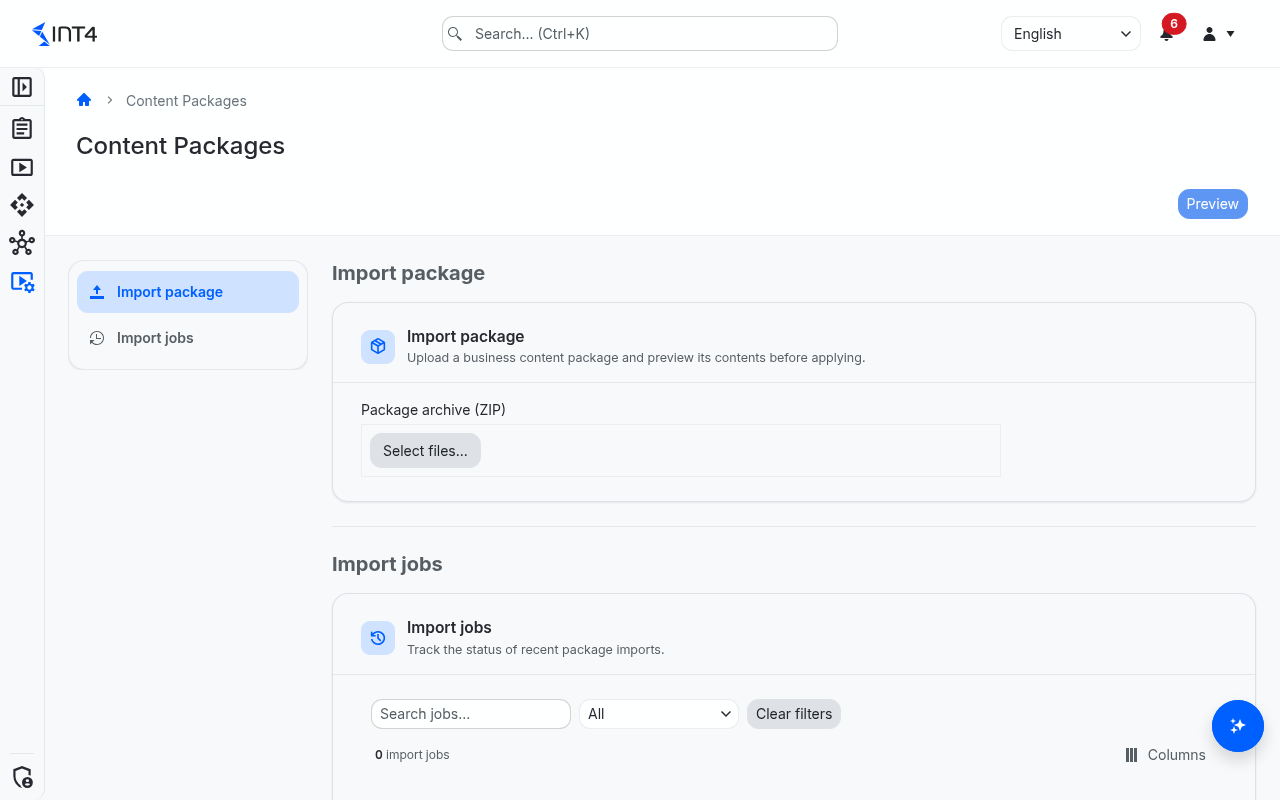
- Content Packages — upload, preview and apply a package, and follow its import.
- Installed Packages — which packages have been applied.
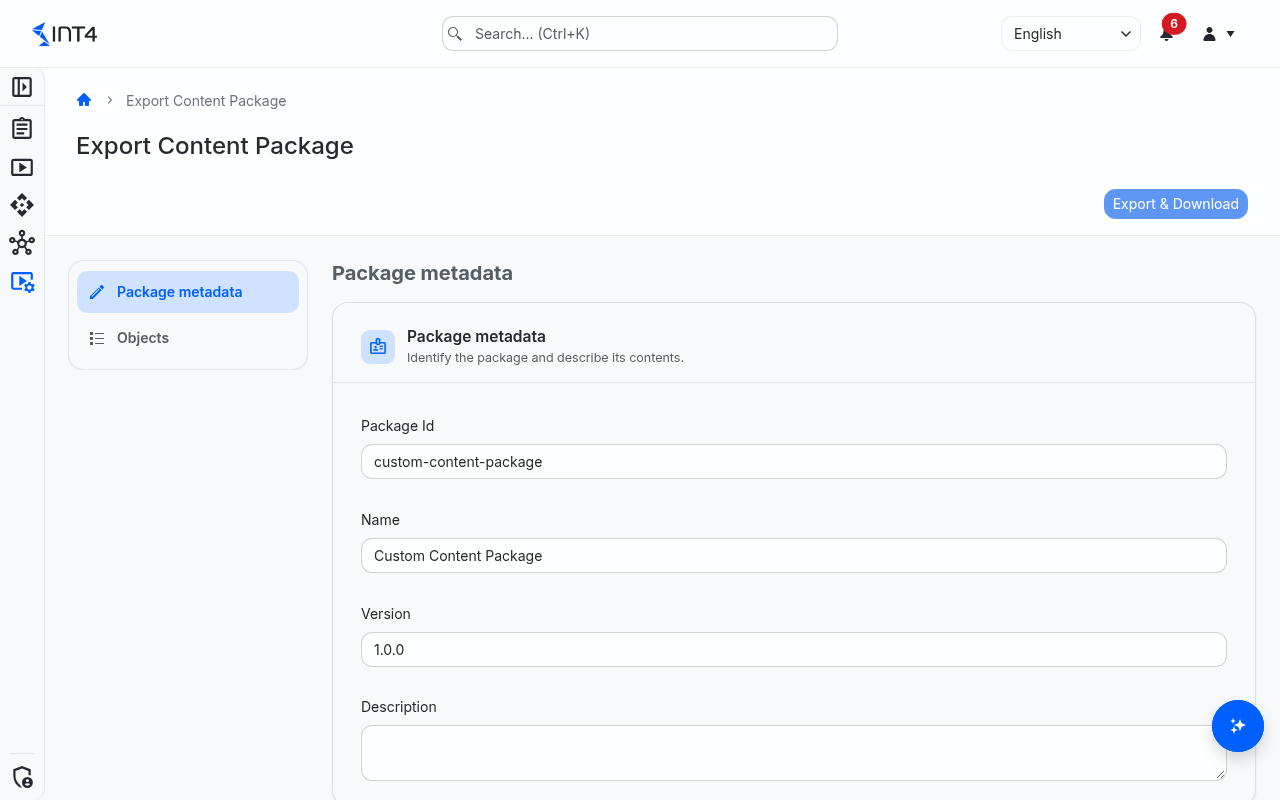
- Export Package — build a package from objects of this installation.
Tasks
How to import a package
- Open Configuration → Content Packages.
- Under Import package, select the ZIP file in Package archive (ZIP).
- Select Preview. The package is checked — its contents, checksums, signature and the Int4 Suite version it needs — and the Package Preview opens. A package that fails a check is refused with the reason.
- Review the package: its Name, Version and Publisher (Verified int4 or Unverified origin), the Planned actions, any Warnings, and the object list. Expand an object to see field by field what would change.
- Decide about conflicts (see the next task), then select Apply.
The import runs in the background and appears under Import jobs, which updates by itself until it is finished. Select a job to see its details, including how many objects were created, updated, skipped, adopted, left as conflicts or failed. Each object is applied on its own, so a failure on one does not undo the others.
How to handle conflicts
A conflict means the package wants to change an object that you should look at first. The preview names the reason:
- Exists locally, never delivered by a package — an object with the same key was created in your installation.
- Modified since last delivery — someone changed the object after a package delivered it.
- Last delivered by a different package — another package took the object over.
By default every conflict is skipped and reported. To overwrite, either tick the individual conflicts in the object list, or switch on Overwrite all customer-modified objects before you select Apply.
How to stop an import before applying it
In the preview, select Discard: the upload is removed and nothing is applied. Close only closes the dialog — the upload is kept, and Preview opens it again.
How to see which packages are installed
Open Configuration → Installed Packages. Each applied package version is listed with its Name, Package ID, Version, Publisher, Description and when it was Applied. Applying the same version again refreshes its entry.
How to export a package
- Fill the export basket from the list screens of the objects you want to export. Today these are business dimensions: on the business dimensions list, select rows and add them to the basket. The basket is kept in your browser until you clear it, also after an export.
- Open Configuration → Export Package, or select Export basket on the list screen.
- Under Package metadata, enter the Package Id (lower-case letters, digits and hyphens), Name, Version (numbers separated by dots, for example
1.0.0) and optionally a Description. - Check the objects under Objects; remove single ones with Remove from basket or empty the basket with Clear all.
- Select Export & Download. The ZIP file is downloaded, named after the package ID and version.
Field reference
Preview
| Field | Description |
|---|---|
| Entity type | The kind of object, currently Business Dimension. |
| Key | The object's key — for a business dimension its code. Objects are matched by this key, never by internal IDs. |
| Action | Create, Update (the object still matches what a package of the same origin delivered, so it can be updated safely), Skip (unchanged) or Conflict (customer-modified). |
| Adopted | The object already exists with exactly the package's content but was not delivered by a package; from now on it is tracked as delivered. |
| Changes | Field-by-field differences between Current and Incoming. |
| Errors | Problems with the object, for example a reference to something that is neither in the package nor in your installation. |
Import jobs
| Column | Description |
|---|---|
| Archive | The uploaded file name. |
| Package, Version | The package and version from its manifest. |
| Status | Pending (uploaded, not applied), Running, Completed or Failed. |
| Mode | Skip modified objects and report or Overwrite modified objects. |
| Results | Counts of created, updated, skipped, adopted, conflicting and failed objects. |
| Started, Completed, Duration | When the apply ran and how long it took. |
Tips & edge cases
- A job can be applied once. To apply a package again — for example after resolving conflicts — upload it again. A job left in Pending cannot be applied from the job list; upload the file again and delete the old job.
- Version requirements. A package can require a minimum Int4 Suite version or a newer content format. Such a package is refused with a message saying which version is needed.
- Your own exports are unsigned. Exported packages carry the publisher
customand show Unverified origin in the preview. That is expected; only Int4's packages are signed. - Same origin updates quietly. A newer version of the same package, or any Int4 package for content Int4 delivered, updates objects you have not changed without asking. Once you change an object yourself, later packages stop at a conflict.
- Limits. Archives can be up to 100 MB and hold up to 2000 objects. Packages that depend on other packages are not supported yet.
- What can be packaged. Currently business dimensions, each with its label, description, default role, tags, message definitions and expressions.
Related features
- Business dimensions — the content packages deliver today, and where you add objects to the export basket.
Prerequisites & permissions
About permissions. What you can see and do is decided by the roles assigned to your user. Each role bundles permission groups, and each permission group allows activities — Read, Write, Delete, Execute and, for schedules, Change owner — on a kind of record (for example Test Case, Automation Object, System Under Test). A role grants its groups per project scope, so you may be allowed to change records in one project but only view, or not see, those of another.
If a button is disabled, a page says you don't have access, or a list comes back empty, missing permissions are the most likely cause — or, for whole product areas, the installed licence. You can review your own access under Profile → My access; an administrator can change your roles under IAM → Users.
- Content Package: Read — see import jobs, previews and installed packages, and export packages.
- Content Package: Write — upload and apply packages.
- Content Package: Delete — delete import jobs and discard an uploaded package from the preview.