Process tests
LicenseIncluded in Int4 Shield LiteDetails
| Feature or limit | Int4 Shield Lite |
|---|---|
| Test case management | Included |
Anything a license model does not include can be added through a custom license. The license installed for you is shown in the app under Profile → License. All features by license
Overview
A process test checks one business flow from end to end — for example a sales order, its delivery, the goods issue and the invoice — by chaining the test cases of each step into one process. You build it in the Test Cases Cockpit, run it as one thing, and read its result as a map of the flow.
Why chain test cases. Each step of a real flow works on the documents the step before it produced: the delivery belongs to the order, the invoice to the delivery. A process runs its steps in order, each after the one before it, and a step whose automation object reads a value from the step before — the order number, the delivery number — gets it from that step's run. That is what lets one run create and check a whole flow of fresh documents instead of testing each interface in isolation. Typical processes mix test types: an inbound order, an outbound confirmation, a business object that posts the delivery, a database check after the invoice.
What a process is.
- It has a name, a number shown as
Pand the number, and an optional description used as its business name on maps. - It lives in a folder, like a test case, and takes its project scope from that folder. The folder lists its processes above its other test cases.
- Its steps are test cases. Each step has a key —
S1,S2, … — that never changes and is never given to another step, and each step except the first runs after one step before it. A process is linear when it is one chain, and branching when a step is followed by more than one step (for example a database check off the sales order beside the delivery). - It is versioned: every change to its steps writes a new version, so a past run always shows the process as it ran.
- A test case can be a step of one process at most, and must be filed in the same project scope as the process. While it is a step, it cannot be deleted.
Processes and parent test cases. Before processes, related test cases were grouped under a parent test case. A parent tree still works, and you can turn one into a process. Once a test case is a step, its process decides what runs before it; the parent link is kept but no longer used for the run.
Help while you build. You rarely assemble a process by hand. Int4 Suite suggests which test case fits before or after a step and says why, can create the missing test case for a step from the neighbouring step's documents, and can complete the chain for you by looking up the follow-on documents in your systems.
Tasks
How to read a folder's processes
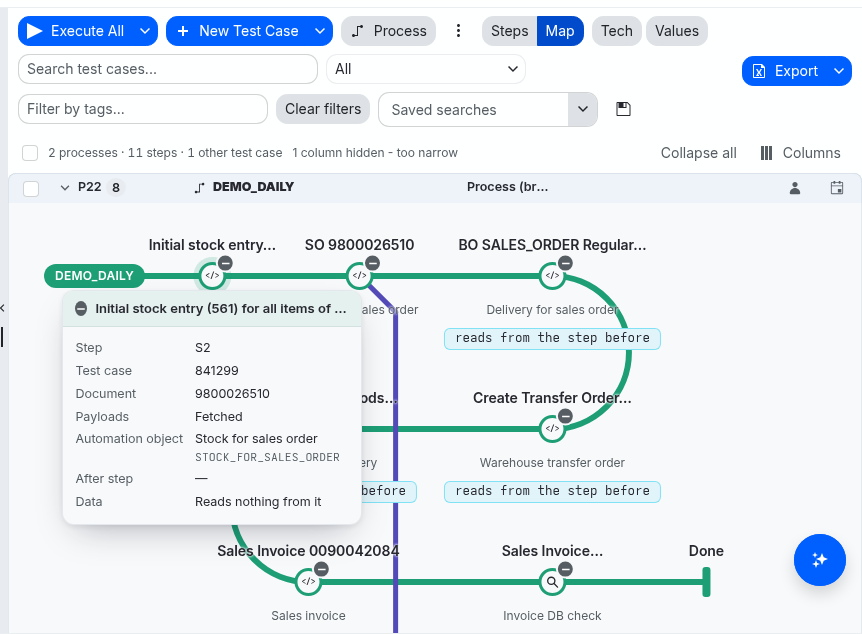
Open a folder in the cockpit. If it holds processes, each is listed as a row — its name in bold, its number in the first column and Process or Process (branching) as its type — followed by the folder's other test cases. Two buttons above the list choose how processes are shown:
- Map draws each process as a line of stations, one per step, ending in Done. A branch leaves the line where a step is followed by more than one step. Point at a station to open its card; click it to open the step's test case. Notes under a station flag what needs attention: No payloads: fetch them before running, Fetching payloads… (the map follows the fetch live), and reads from the step before where data is handed over.
- Steps lists each process's steps beneath it as ordinary test case rows, in step order, including steps whose test cases are filed in other folders.
Next to the buttons, in the Map view, two switches change every process map, here and in test run reports, and are remembered in your browser: Tech shows technical names — automation object names, dimension codes and process names — instead of business names; Values shows each step's business dimension values, such as its order or delivery number, under its station.
Process rows can be collapsed like any group. Search, type and tag filters narrow only the other test cases; the processes stay listed. A test case that is a step of a process kept in another folder appears in its own folder with a label naming its step and process.
The commands for processes are in two places: the Process menu in the list toolbar, which works on the ticked rows, and the menu of each row or station — right-click it, or press Shift+F10 or the Menu key on it. A menu entry you may not use stays disabled and tells you why.
How to create a process from test cases
- In the cockpit, open the folder and tick the test cases that should become the steps. They must be in no process yet.
- Open Process and choose Create process from selection.
- The Create process dialog lists the test cases in the order they will run — the order of the list. Enter a name (1–40 characters: letters, digits,
.,-and_, starting with a letter or digit) and an optional description. - Click Create process. The process is created in the open folder as one chain.
To start from a single test case, right-click it and choose Start a process from here…; it becomes the first step, and you add the rest with the commands below. To append a test case that is in no process to a process of the folder, right-click it and choose the process under Add to process; it becomes the last step.
How to convert a parent tree into a process
- Tick the test case at the top of the tree (or of the part of the tree you want).
- Open Process and choose Convert tree to process.
- The Convert tree to process dialog proposes a name — the folder's name when the tree is all the folder holds, otherwise the top test case's description — and shows the steps as the tree orders them, indented where it branches. Steps marked reads from the step before take data from the step above them.
- Read the message at the top:
- Steps read data from the steps before them, so this tree is a process.
- No step reads data from the one before it: this tree may only group test cases. It can become a process all the same. — such a tree may have grouped related test cases without any running order; convert it only if the order matters.
- A warning appears when you convert only part of a tree: its top test case loses the parent above it. If that test case reads data from its parent, it fails until you add a step before it.
- Converting is blocked while a test case of the tree belongs to another process or is filed in another project scope; the message names them.
- Adjust the name and description, then click Convert.
The test cases keep their parent links. If the tree changed since the dialog opened, converting is refused and the dialog shows the new proposal to review.
How to add a step before or after a step
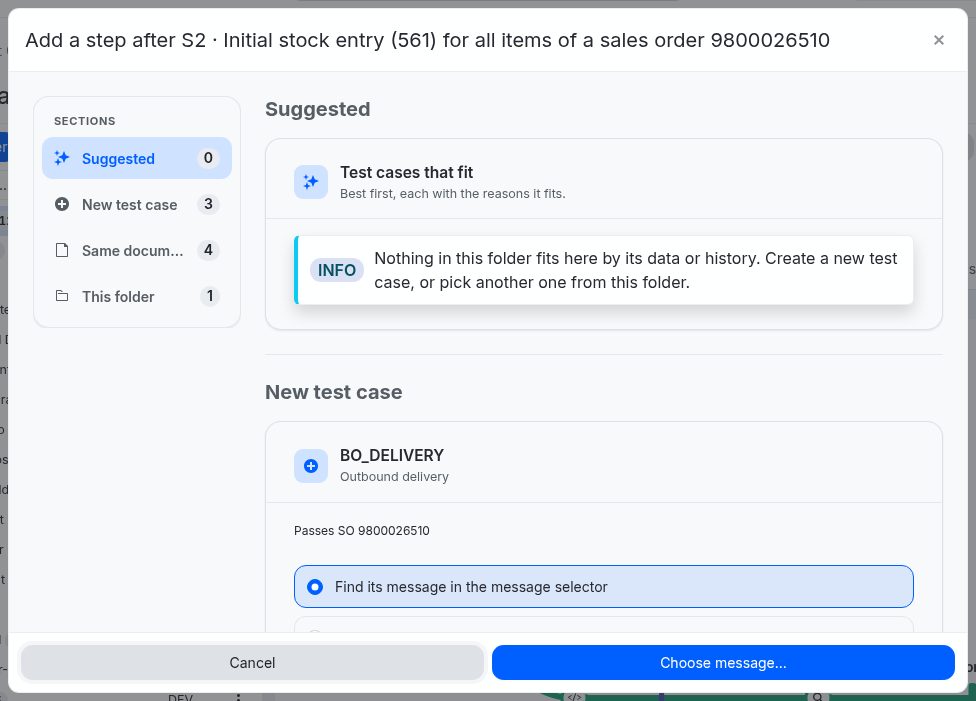
- Right-click a step — its row in the Steps view or its station on the map — and choose Add step before… or Add step after….
- The dialog collects every way to fill that place, in sections you can jump between on the left. One choice covers all sections; the best suggestion is preselected.
- Suggested — Test cases that fit: test cases of the folder that are in no process, best first, each with the reasons it fits (see Why a step is suggested).
- New test case — one card per automation object that could make the step, with the reasons. A card can offer test cases of that automation object that already carry the value the two steps share — for example the delivery's order number — and the ways to create a new one:
- Create it: nothing to pick — for test cases that need no input, such as a database check that reads the values of the step it follows.
- Create it with document number — tick one or more of the Document numbers taken from the neighbouring step, or type Another document number. Each number becomes one step.
- Find its message in the message selector — opens the message selector already set to the automation object, the system and the filters that match the neighbouring step.
- Fetch its payloads from SUT group — optionally choose where the new test case's payloads are fetched from; empty uses the folder's group.
- Same document — automation objects that work on the step's own document, such as stock for a sales order's items. They can go before or after the step.
- This folder — other test cases of the folder in no process, when nothing better fits.
- Click Add step (or Choose message… to pick in the message selector first).
A step added after a step takes over the steps that followed it; a step added before a step takes over its place in the chain. New test cases are filed in the same folder as the step they are added to, and their payloads are fetched straight away — watch the station's note on the map.
How to complete the chain
Complete the chain… finds the steps that continue a process after its last step, one after another, and adds the ones you keep.
- Right-click the process row and choose Complete the chain…. The search starts at once and you watch it work:
- Each step appears as soon as it is found: an existing test case of the folder (its number and description), or New with the document number found for it in your systems.
- The step being searched is shown underneath with what the search is doing right now and how long it has taken.
- The Search log lists every move: which step it looks after, which system it asks and with which values, what came back.
- Check each step:
- When several documents were found, pick another in the step's document list; the steps after it are searched again from that document.
- When another automation object could make the same step, pick it in the step's automation object list; the search continues from it. The list explains its order — This step first, then the others by: test case in this folder, match, ready to run, history and name — and shows for each one whether it is a Test case in this folder, how well it matches, whether it is Ready to run, and how many steps usually run before it in earlier chains.
- A step marked No execution system line: this step cannot run yet. can be added, but it cannot run until the business object behind it has an execution connection with a system line.
- Each step builds on steps before it. Untick a step to keep only the steps above it.
- Click Stop if you have seen enough; the steps found so far can still be added.
- Click Add
countsteps (the button counts the steps you keep). The steps are appended after the last step in the order shown; new test cases are created and their payloads fetched from the group the documents were found in.
How the search works: after each step it first looks for a test case of the folder that fits; if none does, it looks for an automation object that handles the next kind of document and asks the system — usually a business object's list action — for the documents that belong to the step's document (the deliveries of an order, the goods issue and invoice of a delivery). When nothing follows the last step, it goes back to earlier steps, newest first. Each kind of document is proposed once. The search only reads from your systems; nothing is created until you add the steps.
Warnings at the top name lookups that could not run, and an automation object you preferred that could not make its step. When nothing can follow, the dialog says so: Nothing continues the process: no test case fits after its steps and no business object lists a document for them.
How to reorder or remove steps
Tick one step and use the Process menu, or right-click the step:
- Move step up / Move step down — move the step one place along the chain. Only the steps of a linear process can be reordered here.
- Remove step from process — take the step out of the process. The steps that followed it now follow the step before it. The test case itself stays where it is. A process needs at least one step; to get rid of the last one, delete the process.
Every change writes a new version of the process.
How to run a process
- Run it now: right-click the process row and choose Run process.
- Run it with parameters: tick the process row and choose Execute Selected w/ Parameters from the list's run button.
- Run part of it: right-click a step and choose Run up to this step — the step runs with every step before it.
- Run a folder: running a folder runs the processes that live in it, with all their steps, wherever those test cases are filed. A folder or saved search that holds a step of a process also brings the steps before it.
The steps run in order: each starts when the step before it has finished, and a step that fails stops the steps after it on its branch, which are skipped. A step ticked on its own needs the steps before it ticked too. A scheduled run that names a process deleted since fails and names the process.
How to read a process run
Open the test run. Its Processes section shows each process that ran as a card:
- the process name, the process version that ran, the iteration (when the run repeated), the overall status, and counts of passed, failed and skipped steps;
- Partial run:
ranofcountsteps when the run took only some of the process's steps; - a map of the run: one station per step execution, marked by its outcome, with the document each step produced written on the track after it. Steps the run never reached are greyed. Click a station to open that execution. The same Tech and Values switches apply.
A legend under the cards names the marks shown:
| Mark | Meaning |
|---|---|
| Passed | The step ran and its output matched the reference. |
| Passed with warnings | It matched, with differences marked as warnings to review. |
| Output differs | It ran, but its output differs from the reference. The steps after it still run. |
| Not compared | It ran without a comparison verdict (validation switched off, or nothing to compare). |
| Stopped the run | The step itself failed, so the steps after it were skipped. |
| Not reached | The step was skipped because a step before it stopped. |
| Waiting / Running | The run has not finished this step yet. |
Runs started before processes existed show their parent chains the same way, marked Built from the run's parent chain.
How to delete a process
Right-click the process row (or tick it and open Process) and choose Delete process, then confirm with Delete. The test cases stay where they are. A process that has run is archived instead, so its results stay in the test runs; an archived process disappears from the cockpit and frees its name.
Why a step is suggested
Suggestions come first from the folder — test cases that already live next to the step — and are ranked by how well the two automation objects fit together. Each suggestion lists its reasons:
| Reason | What it means |
|---|---|
| Linked in the test case tree | The two test cases are already parent and child. |
| Named as its follow-up | The earlier automation object names the later one as the one that follows it. |
Paired in count chains | Other test case trees and processes put these two automation objects one after the other this many times. |
Passes dimensions | The later step reads a document number the earlier one produces — the strongest data link. |
Same dimensions | Both steps share business data such as material or customer. |
Reads dimensions | The later step reads a value the earlier one produces. |
| Usual order for these types | The two test types usually follow each other (for example inbound before outbound). This only ranks a suggestion; it never makes one on its own. |
count test cases with the same dimensions | Existing test cases of a suggested automation object already carry the value the steps share. |
How strong the data reasons are depends on the role each business dimension plays in the automation objects — document number, reference, business data or other attribute — as set in their business dimensions. Well-described automation objects get better suggestions.
Field reference
Process
| Field | Description |
|---|---|
| Number | Assigned by the system, shown as P and the number. Never reused. |
| Name | 1–40 characters: letters, digits, ., - and _, starting with a letter or digit. Unique among all processes of the installation. Cannot be changed in the cockpit. |
| Description | Optional, up to 128 characters. Used as the process's business name on maps. |
| Type | Process for one chain, Process (branching) when it branches. Follows from the steps. |
| Folder | Where the process lives; its project scope applies to the process and all its steps. |
Station card
| Field | Description |
|---|---|
| Step | The step key. |
| Test case | The number of the step's test case. |
| Document | The test case's document number. |
| Payloads | Fetched, Being fetched or Missing. A step without payloads cannot run. |
| Automation object | The step's automation object, with its business and technical names. |
| After step | The step it runs after. |
| Data | Reads from the step before or Reads nothing from it. |
On a step's own detail page, a strip under the top bar shows the process and step, the step it comes After and the steps it comes Before, or First step.
Tips & edge cases
- Choose the name with care. Names are unique across the installation and cannot be changed in the cockpit afterwards.
- One process per test case. To reuse a test case in a second flow, copy it first.
- Steps stay in the process's project scope. Test cases from another scope cannot be added, and a step's test case cannot be moved to a folder of another scope.
- Remove before you delete. A test case that is a step cannot be deleted or archived until you remove it from its process.
- Fetch payloads before running. A station marked No payloads: fetch them before running cannot run; open the test case and use Fetch payloads, or check its document number and groups.
- The first step has nothing before it. A test case that read data from its parent fails as the first step of a process; add the step it reads from before it.
- Branching processes can be extended and shrunk, not reordered, in the cockpit.
- Complete the chain adds in a line. Steps it finds after an earlier step are still appended after the last step; reorder them afterwards if the process is linear.
- Suggestions improve with good metadata. Declared document-number and reference roles on automation objects' business dimensions, and earlier chains in your test estate, make suggestions and Complete the chain more accurate.
- Past runs keep their shape. Changing a process writes a new version; a test run always shows the version that ran.
Related features
Prerequisites & permissions
- Seeing processes needs Process: Read in the project scope of their folder.
- Creating, converting, adding and removing steps, reordering and completing the chain need Process: Write there; deleting needs Process: Delete.
- Creating a new test case as a step also needs Folder: Write on the folder and Automation Object: Read on its automation object.
- Complete the chain asks your systems for documents, which needs System Under Test: Execute on the systems it asks.
- Running a process is running its test cases: you need Test Case: Execute and execute rights on the systems and automation objects involved.
About permissions. What you can see and do is decided by the roles assigned to your user. Each role bundles permission groups, and each permission group allows activities — Read, Write, Delete, Execute and, for schedules, Change owner — on a kind of record (for example Test Case, Automation Object, System Under Test). A role grants its groups per project scope, so you may be allowed to change records in one project but only view, or not see, those of another.
If a button is disabled, a page says you don't have access, or a list comes back empty, missing permissions are the most likely cause — or, for whole product areas, the installed licence. You can review your own access under Profile → My access; an administrator can change your roles under IAM → Users.