AI Assistant
LicenseCustom add-onDetails
| Feature or limit | Int4 Shield Lite |
|---|---|
| AI assistant chat | Add-on |
Anything a license model does not include can be added through a custom license. The license installed for you is shown in the app under Profile → License. All features by license
Overview
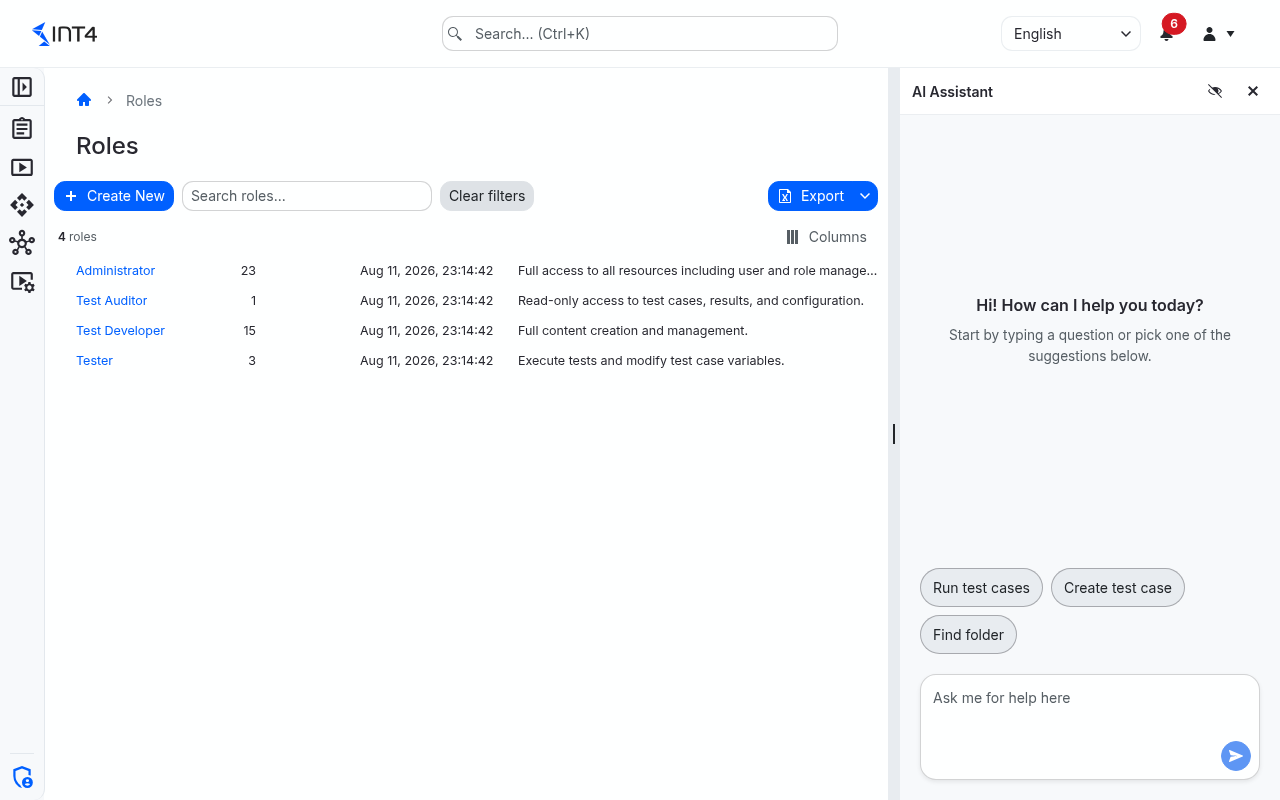
The AI Assistant lets you work with Int4 Suite by describing what you want in plain language — "run the failed test cases of last night's run", "which test cases use company code 1000?", "create a test case from the last hour of invoices" — instead of clicking through each screen. It is a chat panel you can open beside any page.
The assistant acts as you. It finds, reads, creates and changes the same records the screens show — test cases, folders, automation objects, systems under test, test runs and schedules, scripts and more — and every change goes through the same checks as the screen that normally makes it. It can never do something your own permissions or your license do not allow; when it is refused, it tells you why.
What it can help with:
- Finding test cases by their business content (for example a company code, material or customer), or by number, description, folder or automation object.
- Creating test cases from recent messages on a system, from content you paste, or as a copy of an existing test case.
- Changing test cases — fields, business values or payload text — either as a new version or as changed copies.
- Running and scheduling test cases, folders or automation objects, and reading results: which executions failed, what the logs and comparisons say, and what a run actually sent and received.
- Checking SAP Cloud Integration iFlows — whether an iFlow exists on a system, or which were deployed recently.
- Writing and fixing scripts directly in the script editor, and running scripts to check them.
- Looking up master data, when your administrator has connected a master data source.
The assistant needs a license that includes it, and an administrator must first choose the AI provider, model and API key in Global Parameters. Like any AI, it can misread a request: review what it proposes before you confirm a change.
Tasks
How to ask the assistant
- Click the sparkle button at the bottom right of any page. The AI Assistant panel opens at the right; drag its edge to make it wider or narrower.
- Type your request into Ask me for help here and send it, or click one of the suggestions such as Run test cases, Create test case or Find folder.
- Follow the progress: a chip appears for every step the assistant takes (for example Search test cases by business values or "Search folder"), with a tick when it succeeded and a cross when it failed.
- Read the answer. Records it found, created or ran appear as cards under the answer (up to three); click a card to open that record. When the assistant changed a record, the page you are on refreshes.
- To stop the assistant while it works, click Stop in place of the send button. Closing the panel also stops it.
Refer to what you are looking at with words like "here" or "this folder": the assistant always knows which page you are on, and when you are in a folder it knows which one. Give it the names, numbers or values it should use — it does not search with made-up terms, and it asks when something it needs is missing or when several records match.
How to let the assistant see your page
By default the assistant knows only which page you are on. To let it read what the page shows, turn on page context with the eye button in the panel header.
With page context on, every request also shares the page's content: the fields of the form you are editing (including changes you have not saved yet, which the assistant points out), the rows of the lists on screen, the script in the editor and its last run output, and run results. Credentials such as passwords and header values are never shared. The setting is remembered in your browser.
Turn page context on when you ask about the record in front of you ("why does this run fail?", "explain this script"); turn it off when the page shows data you do not want to send to the AI provider.
How to confirm or answer the assistant
Before the assistant saves something, it usually asks you. The question appears with buttons under its answer:
- Apply / Cancel — shown before it creates a record, changes a record other than the one you have open, or changes several test cases at once. Nothing is saved until you click Apply.
- Change or copy — shown before it changes payloads or business values of test cases other than the one you have open: change them (each gets a new version) or create changed copies in an "AI Generated Test Cases" subfolder next to the originals.
- Options — for example the recent messages it found on a system. Choose an option to continue asks you to click one; Choose one or more options, then confirm lets you tick several and confirm.
- Folder — when a new test case needs a folder, Choose a folder lets you pick one and confirm with Use this folder.
You can also just type your answer. If you close the options without choosing, the assistant knows the question is still open.
How to create and change test cases with the assistant
- From recent messages: name the automation object and the system, and optionally a time window ("the last two hours"; the default is the last 24 hours). The assistant lists the recent messages as options; pick one or more and choose the folder. One test case is created per message (up to 20 at a time), and its payloads are fetched in the background. Ask the assistant afterwards whether the payloads are ready before running the new test cases.
- As a copy: "copy test case 1234 into folder Regression, with system X as source". The copy's payloads are fetched again from the source system, or taken over from the original when it has no source system.
- Business values: "change the quantity to 5 in test cases 1201 to 1205". When a test case holds several different values for the same business dimension, it is skipped until you say which value to change (or all of them).
- Payload text: the assistant first reads the payload, then replaces exactly the text you describe. If the text it should replace is missing or ambiguous in a test case, that test case is skipped and reported — the assistant never guesses. XML and JSON payloads must remain valid.
- Fields: move test cases to another folder, rename them or change their systems, for up to 20 test cases at once.
Each change saves a new version of the test case, with a version description starting "AI assistant:" (or "AI copy of TC …" for copies), so you can always see what the assistant changed and revert it on the test case page.
How to run test cases and read results with the assistant
- "Run all test cases in this folder", "run the test cases of automation object X" or "run 1201, 1202 and 1210" starts a test run right away; the run appears as a card. Saying "every day at 6:00" or "every 2 hours" creates a scheduled test run instead.
- "What failed in the last run?" or "what failed last night?" — the assistant finds the run, lists the failed executions, and reads their logs, errors and comparisons to explain the likely cause. It can also show what the run sent and what the system answered.
- "Stop the daily schedule for folder Regression" disables that scheduled test run.
How to get help with a script
- Open the script on the Scripts page and switch it to edit mode with Edit.
- Ask for the change in the panel, for example "add a check that the total is not negative".
- For scripts that can run, the assistant runs its draft first and fixes the errors it finds. It then shows the complete script in the editor as a difference to the current one, and the panel says Review the diff in the editor, then accept or reject it.
- Click Accept to take the change into the editor or Reject to keep your script. Nothing is saved until you save the script yourself.
While the editor is in edit mode, the assistant never saves the script itself. For ASTER scripts it checks the functions it uses against the bundled ASTER reference. Outside the editor you can ask it to run a saved script, optionally against a test case, or to save a script; it asks for confirmation first unless it is the script you have open.
How to manage the conversation
- Point at an answer to Copy it, Reply to it (your next message quotes it), Retry the last answer, or Pin it to the top of the conversation.
- Long answers are collapsed; click Show more to read them in full.
- Click Start new conversation in the panel header to clear the conversation and start over. The assistant then forgets everything said before.
The conversation stays while you move between pages, even when you close the panel. Reloading the browser page starts a new conversation.
Field reference
| Control | Description |
|---|---|
| Sparkle button (bottom right) | Opens the AI Assistant panel. Shown on every page. |
| Eye button (panel header) | Turns page context on or off. On: the assistant can read what the page shows. Off (default): it knows only which page you are on. |
| Start new conversation (panel header) | Clears the conversation. Shown once the conversation has messages and the assistant is not working. |
| Close (panel header) | Closes the panel and stops a request in progress; the conversation is kept. |
| Ask me for help here | The message box. Send with the button next to it, which turns into Stop while the assistant works. |
| Step chips | One per step the assistant took, named after what it did; green with a tick when the step succeeded, red with a cross when it failed. |
| Cards | Records the assistant found, created or ran; click one to open it. |
Tips & edge cases
- Changes to what you have open apply at once. When you ask the assistant to change the record on your screen (or the single test case you have open), it saves straight away without Apply. Everything else waits for your confirmation.
- Large results come in pieces. The assistant sees lists 20 records at a time and pages on when it needs more; the business-content search shows 10 matching test cases with counts for all of them; long payloads are read up to 20,000 characters. Scripts it runs stop after 60 seconds.
- Times are in your time zone. "Since Monday" or "at 6:00" are read in the time zone of your browser.
- Not everything is available. The assistant cannot manage users, roles, permission groups, project scopes or system lines, and it cannot start crawler or trace scheduler runs (it can read their results).
- When something goes wrong. The AI Assistant is not available with your current license. Please contact your administrator to enable this feature. means your license does not include the assistant. A message that the AI provider is not configured, or that a model "can't be used for chat", is for your administrator to fix in Global Parameters. The connection to the assistant was lost. Please try again. — send your request again. The assistant gives up on a request when it makes no progress for five minutes.
- The assistant elsewhere in Int4 Suite. The same AI also suggests file-name patterns in the Test Case Loader, writes the AI analysis on test run results (where it can only read, never change anything), and answers the ASTER function
LLM_BASIC_REQUESTin scripts. All of these need the same license. - Other AI applications. Your administrator can make the assistant's capabilities available to AI applications that support the Model Context Protocol (MCP). You then sign in with your Int4 Suite account, and the same permissions and license apply.
Related features
- Global Parameters — where an administrator sets up the AI provider, model and master data source
- All Test Cases and Test Cases Cockpit — the screens behind most test case requests
- Scripts — the editor the assistant writes into
- All Test Runs — runs and results the assistant reads
- Test Case Loader — pattern suggestions by the same AI
Prerequisites & permissions
About permissions. What you can see and do is decided by the roles assigned to your user. Each role bundles permission groups, and each permission group allows activities — Read, Write, Delete, Execute and, for schedules, Change owner — on a kind of record (for example Test Case, Automation Object, System Under Test). A role grants its groups per project scope, so you may be allowed to change records in one project but only view, or not see, those of another.
If a button is disabled, a page says you don't have access, or a list comes back empty, missing permissions are the most likely cause — or, for whole product areas, the installed licence. You can review your own access under Profile → My access; an administrator can change your roles under IAM → Users.
The panel needs a license that includes the AI Assistant; without it, the panel opens with The AI Assistant is not available with your current license. Please contact your administrator to enable this feature.. The assistant has no permissions of its own — each request needs the permission you would need on the matching screen, for example:
- Find and read test cases, runs and results: Test Case: Read. Reading execution details and the messages a run sent and received also needs a license that includes test reporting.
- Create or change test cases: Test Case: Write, plus Folder: Write on the target folder and Automation Object: Read for new test cases.
- Run or schedule test cases: Test Case: Execute.
- List recent messages on a system: Automation Object: Read and System Under Test: Execute on that system.
- Check iFlows: System Under Test: Read.
- Run scripts: Script: Execute; save scripts: Script: Write.