Test Case Loader
LicenseInt4 Shield Lite (1 of 2) · Custom add-on (1)Details
| Feature or limit | Int4 Shield Lite |
|---|---|
| Test case management | Included |
| AI assistant chat | Add-on |
Anything a license model does not include can be added through a custom license. The license installed for you is shown in the app under Profile → License. All features by license
Overview
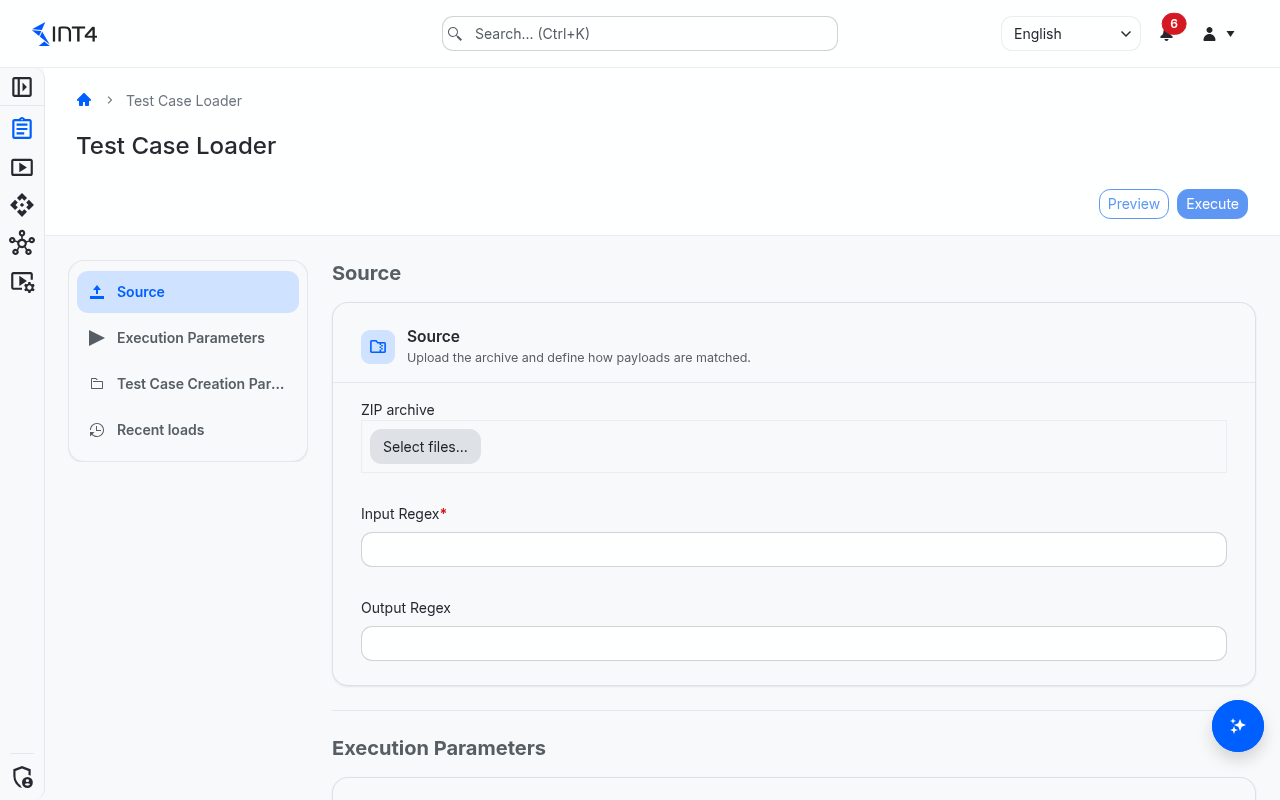
The Test Case Loader creates many test cases at once from a single ZIP archive of message files, instead of building each test case by hand. It is the quickest way to bring an existing library of sample documents — for example messages exported from another tool, or files a partner sent you — into Int4 Suite.
A test case pairs an input (the message that enters the integration flow) with one or more expected outputs (what the flow should produce). Normally Int4 Suite captures both from a connected system using a document number; the loader is the alternative when you already hold them as files. The expected outputs you load become the reference each later run compares its fresh result against, so loading curated input/output pairs records the expected behaviour of a flow in bulk.
You describe which files in the archive are inputs and which are their outputs with two file-name patterns (regular expressions). The loader pairs every input with its outputs, recreates the archive's folder layout under a target folder you choose, and creates one test case per matched input. Before anything is created you can preview the pairings and adjust the patterns as often as you like. The load itself runs in the background, and Recent loads at the bottom of the page shows its progress, counts and log.
If your license includes the AI Assistant, the preview can also suggest matching patterns from the file names in your archive.
Tasks
How to load test cases from a ZIP archive
- Open Test Cases → Loader.
- In Source, select your file under ZIP archive. Only
.zipfiles up to 100 MB are accepted. - Enter the Input Regex: a pattern that matches the names of the input files, for example
^IN_(\d+)\.xml$. - Optionally enter the Output Regex: a pattern that matches each input's output files.
$1,$2, … insert what the input pattern's groups in parentheses captured, so^OUT_$1\.xml$pairsOUT_42.xmlwithIN_42.xml. - In Execution Parameters, switch on Skip Inputs Without Outputs or Dry Run if you need them (see Field reference).
- In Test Case Creation Parameters, choose the Target folder and, under Input file, the Automation object the test cases use. For automation objects that talk to a system, you can also pick a System Line.
- Under Output file, choose the Output handling: keep the outputs as expected payloads of each test case, or create a child test case per output (then pick its Output automation object).
- Click Preview to check the pairings first (recommended), or Execute to start the load directly.
Preview and Execute stay disabled until you have selected an archive, a target folder and an automation object and entered an input pattern. When the load is queued, the message Job queued. Track its status below. appears and the archive field is cleared; the other settings stay for your next load.
How to preview and refine the pairings
- Fill in the form as above and click Preview. The archive is uploaded and the Preview window opens. Nothing is created yet.
- Read the counts at the top: entries in the archive, matched inputs, paired outputs, and — with Skip Inputs Without Outputs on — the inputs that would be skipped.
- Check the tree below: the target folder, the subfolders that would be created, and each test case (marked TC) with its input and outputs — or its child test cases, if outputs become child test cases.
- To try other patterns, edit Input file pattern and Output file pattern in the window and click Refresh preview. The patterns you settle on are copied back to the form.
- When the result looks right, click Run. To throw the upload away instead, click Cancel job.
The preview shows at most the first 50 matched inputs and 5 outputs per input; a banner says when the list is cut. The load itself processes every match.
How to let the assistant suggest patterns
- Open the preview as above, so the loader has the archive's file names.
- Click the sparkle button next to the pattern fields (Suggest input/output regex pair). The assistant looks at the file names and returns up to five input/output pattern pairs, each with a short explanation.
- Click a pair to fill both pattern fields, then click Refresh preview to see what it matches.
The suggestions are offered only in the preview window, because they are built from the uploaded archive. They need a license that includes the AI Assistant and an AI provider set up by your administrator; asking again for an archive with the same file names returns the same suggestions.
How to check on a load
- Scroll to Recent loads at the bottom of the page. It lists your own loads, newest first, ten per page.
- Narrow the list with Search archive name or error… or the status list.
- Click a load to open Load job details: the archive, status, start and end time, how many test cases, inputs and outputs were created, the error if the load failed, and the step-by-step log — every input file, the output pattern searched for it and the outputs found. The window refreshes while the load is running.
Field reference
| Field | Description |
|---|---|
| ZIP archive | The ZIP archive with your input and output files. Only .zip, at most 100 MB. Required. |
| Input Regex | Regular expression selecting the input files by file name. Each matching file becomes one test case. Groups in parentheses can be reused in the output pattern. Required. |
| Output Regex | Optional regular expression selecting each input's output files by file name. $1…$N insert the text the input pattern's groups captured. Leave it empty when you only have inputs. |
| Skip Inputs Without Outputs | When on (and an output pattern is set), inputs without any matching output are skipped instead of becoming test cases without expected output. |
| Dry Run | When on, the load walks the whole archive and logs every pairing it would make, but creates no test cases. |
| Target folder | The folder under which the archive's folder layout is recreated and the test cases are filed. The test cases take their project scope and system environment from it. Required. |
| Automation object | The automation object every created test case uses; it defines the test type and which system the test runs against. Required. |
| System Line | Optional; shown only for automation objects that talk to a system. The system line (column of the system landscape) the test cases use, so a run picks that line's system in the chosen environment. Only lines of the matching system type are offered, and the field is cleared when you change the automation object. |
| Save Input As Expected | When on, each input file is also stored as an expected payload of its test case — useful for flows that should pass a message through unchanged. |
| Output handling | Add as expected payloads on the parent test case: the outputs become expected payloads of the input's test case. Create a separate child test case for each output: every output becomes its own test case, filed under the input's test case as its child, with the output file as its input payload. |
| Output automation object | Shown only when outputs become child test cases. The automation object of those child test cases; when left empty they use the main automation object. |
Recent loads columns: Archive, Status (Pending, Running, Completed or Failed), Test Cases Created, Inputs Created, Outputs Created, Started, Completed and Duration. A load stays Pending after a preview until you run or cancel it.
Tips & edge cases
- Patterns look at file names only. Folder names inside the archive are ignored when matching, and a pattern matches anywhere in the name unless you anchor it with
^and$. The output pattern is searched across the whole archive, not just the input's folder, so give paired files names that identify them uniquely. - Keep outputs out of the input pattern. A file that matches the input pattern becomes a test case, even if it is also meant as an output. Make the two patterns exclusive, for example with distinct prefixes.
- Names and folders come from the archive. Each test case is named after its input file (the first 128 characters), child test cases after their output files. Subfolders are created under the target folder as in the archive; an existing subfolder with the same name is reused.
- Loaded payloads are the files as they are. Nothing is fetched from a system: the test cases hold the file contents, with no document number. The character encoding of each file is detected from its bytes. Each test case gets the version description "Loaded from archive".
- A load is all or nothing. If any test case cannot be created, none of the load's test cases are kept; the load ends Failed and the details show the error and the file it failed on.
- Pair your files to get a real test. A test case with an input but no expected output has nothing to compare a run against. Use Skip Inputs Without Outputs to leave such inputs out.
- Each upload runs once. The stored archive is released when a load finishes, including a dry run. To load again — for example the real load after a dry run — select the archive again.
- Cancel unused previews. Closing the preview window keeps the uploaded archive as a Pending load, and Execute on the page then runs it. Cancel job discards it and frees the stored archive. A load that is running cannot be cancelled.
- You see only your own loads. Recent loads lists the loads you started, not your colleagues'.
Related features
- Test Cases Cockpit — open the target folder to review and run the loaded test cases
- All Test Cases — find loaded test cases across folders
- AI Assistant — the assistant behind the pattern suggestions
- System Landscape — environments and system lines
Prerequisites & permissions
About permissions. What you can see and do is decided by the roles assigned to your user. Each role bundles permission groups, and each permission group allows activities — Read, Write, Delete, Execute and, for schedules, Change owner — on a kind of record (for example Test Case, Automation Object, System Under Test). A role grants its groups per project scope, so you may be allowed to change records in one project but only view, or not see, those of another.
If a button is disabled, a page says you don't have access, or a list comes back empty, missing permissions are the most likely cause — or, for whole product areas, the installed licence. You can review your own access under Profile → My access; an administrator can change your roles under IAM → Users.
- Load test cases: Test Case: Write, Folder: Write on the target folder, and Automation Object: Read on the automation object — and on the output automation object, if you set one. Your license must include test case management.
- Preview, check loads and get suggestions: Test Case: Read. Pattern suggestions also need a license that includes the AI Assistant.