Business Dimensions
Overview
A business dimension is a named business concept that appears in your messages — a material, a sales organisation, a customer, a purchase order number. Inside a payload each of these is just a value at some position; a business dimension gives it a name that means the same thing everywhere. MATERIAL is then the same concept in an order, a delivery and a material master, whichever interface carries it.
Naming values this way is what lets Int4 Suite work with test cases by their business content instead of only by name or number:
- Finding test cases. Every time a test case is saved, Int4 Suite reads the values of the dimensions its automation object declares and stores them with the test case. You can then search for "all test cases with material X" in saved searches, the crawler and message search can filter messages by dimension values, and Test Case Analysis can break your test cases down by dimension.
- Dynamic test data. An automation object's data processing refers to dimensions by name — keep the original order number, generate a fresh one, write it back into the payload, hand it to the next test case in a chain. This is what lets a recorded test be replayed with valid, non-colliding data.
- Process tests. Each dimension has a role — whether it identifies the business document, refers to another one, or describes it. Step suggestions for process tests use these roles to propose which test cases belong together.
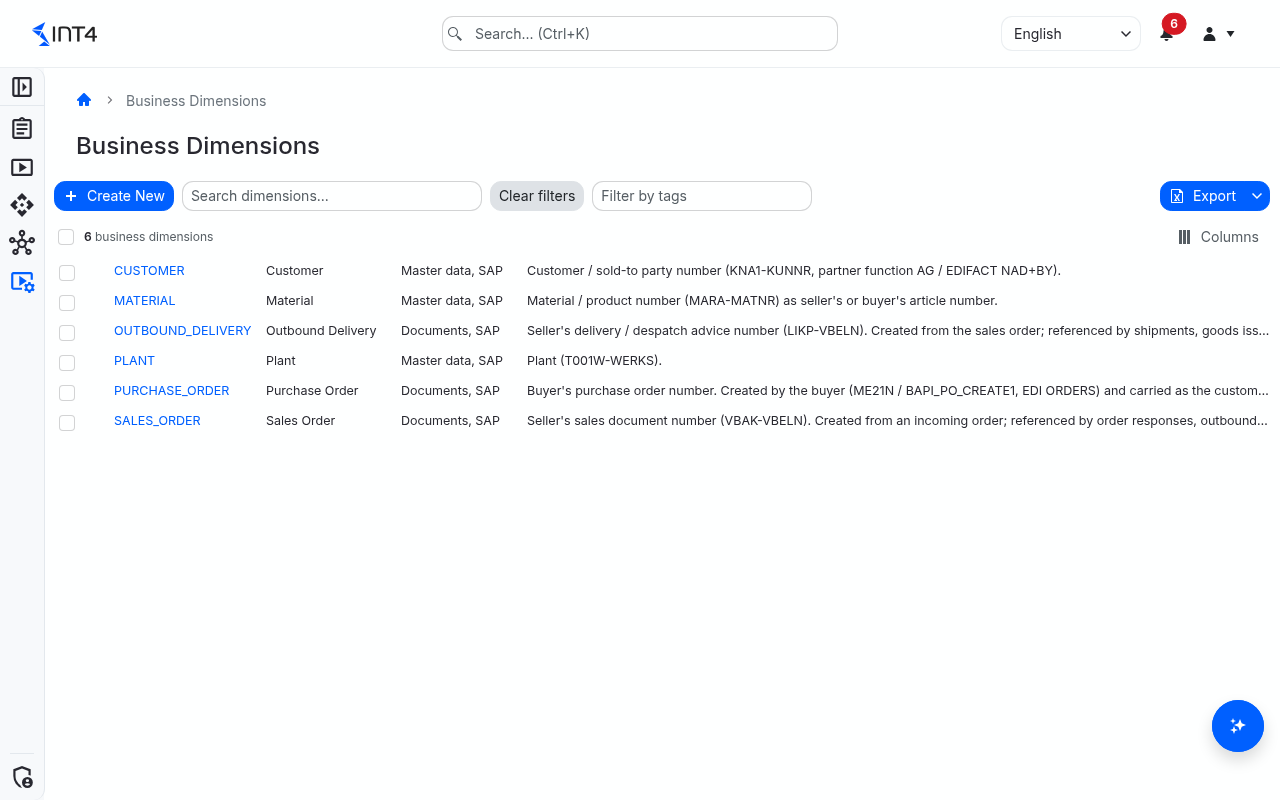
This page is the catalog: the shared list of dimensions every automation object can use. A catalog entry holds the dimension's identity (code, label, description, default role, tags) and, for each message format and type you define, the role it plays there and the typical expressions that usually find it in that message. The catalog does not decide where a value sits in a particular interface — each automation object declares that itself on its Business Dimensions tab. The catalog's expressions are suggestions an author can pick from or load in one go, so the same XPath does not have to be worked out again for every interface that carries the same message.
An automation object may also use a code the catalog does not know. It then gets a local dimension that only that automation object sees; local dimensions never appear in this list.
Tasks
How to create a business dimension
- Open Configuration → Business Dimensions and click Create New.
- Under Details, enter the Code — upper case words joined by single underscores, for example
SALES_ORG. What you type is converted to upper case. Choose carefully: the code cannot be changed after saving. - Enter a Label (the name people see in pickers and grids) and, optionally, a Description and Tags.
- Optionally set the Default role — the role the dimension has wherever a message definition does not set its own (see Role types).
- Optionally add message definitions (next task).
- Click Save. You return to the list.
How to define a dimension's role and expressions per message
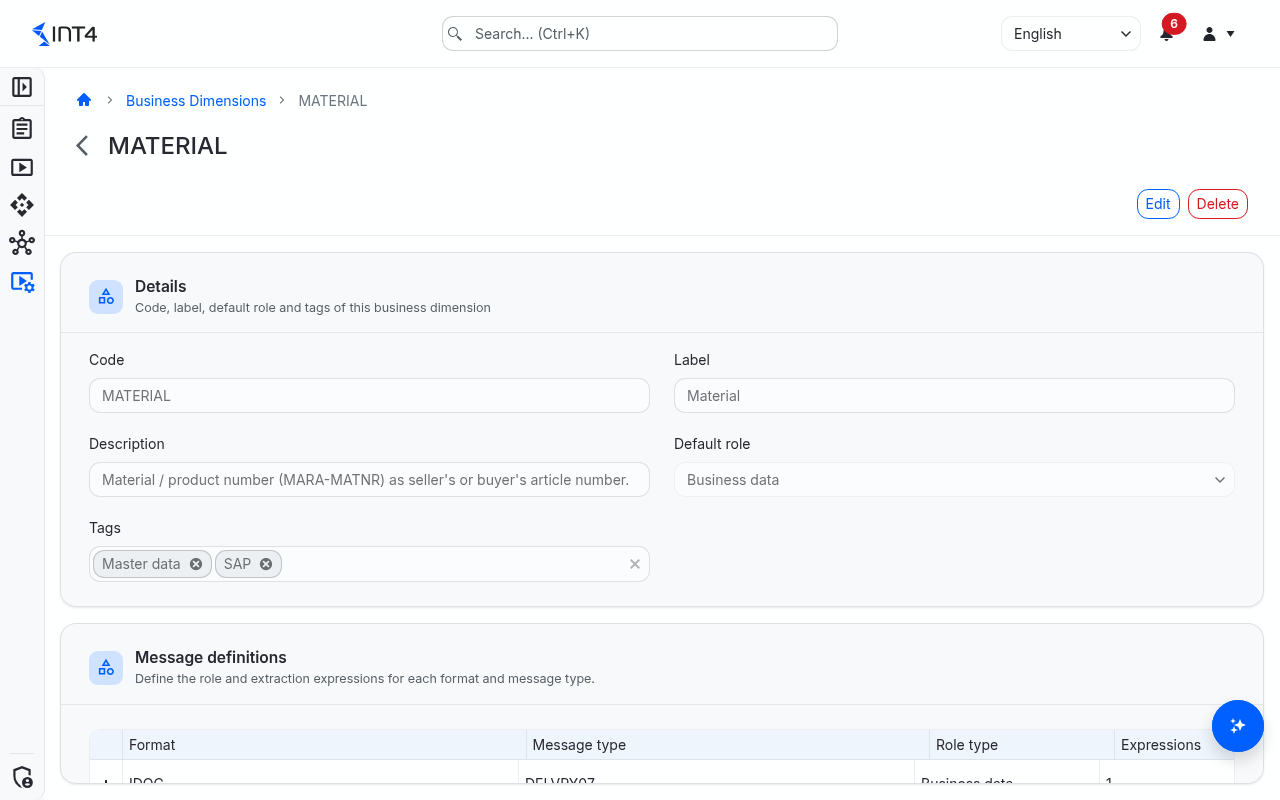
A message definition says what the dimension is in one concrete message — for example MATERIAL is business data in an order but the primary identifier in a material master — and lists the expressions that usually find it there.
- Open the dimension and click Edit.
- Under Message definitions, click Add message definition.
- Pick or type the Format (for example
IDOCorJSON) and the Message type (for exampleORDERS05). A name that does not exist yet is offered as a new entry and created when you save. - Choose the Role type, or leave Use dimension default to use the dimension's default role.
- Expand the row and click Add expression for each typical expression: choose the Expression type (XPath, JSONPath or regular expression), enter the Expression and, optionally, a Description such as "item segment". Use Test expression next to the expression to try it against a payload or an existing test case before saving.
- Click Save Changes.
If a row is incomplete, two rows name the same format and message, or one expression appears twice, saving stops with the message Choose a format and message, avoid duplicate definitions, and complete each expression. and the rows in question are expanded and highlighted. An expression can belong to one message only, so the same expression cannot be listed under two messages either.
How to use catalog dimensions in an automation object
The catalog pays off when you configure an automation object's Business Dimensions tab (see Automation objects):
- Load several dimensions at once. Click Load from template, pick the Format tags and Message tags the interface handles, review the dimensions offered, and click Load. Every catalog dimension that has an expression for one of the selected formats and one of the selected message types is added with those expressions as locators and with its role for that message. Dimensions the automation object already has are skipped. When the selected messages give a dimension different roles, it is loaded as Unclassified and you choose the role yourself. A dimension that arrives with several expressions all reading the same payload needs its extra locators re-targeted after loading — one dimension can read each payload only once.
- Pick one dimension. When you add a dimension by hand, the code field offers the catalog. Typing a code the catalog does not have creates a local dimension for this automation object, marked (New local dimension); existing local dimensions are marked Local.
- Pick an expression. The expression field of a locator suggests the catalog's typical expressions for the chosen dimension. You can always type your own instead.
Loading copies the expressions into the automation object. Later changes in the catalog do not change automation objects that already use the dimension.
How to delete a business dimension
- Open the dimension and click Delete.
- Confirm in the Delete Business Dimension dialog.
A dimension cannot be deleted while any test case version still carries extracted values for it — the deletion is refused with an error. Removing the dimension from an automation object clears the values of that automation object's current test cases, but older test case versions keep theirs, so in practice only dimensions that were never extracted can be deleted. To retire a dimension that is in use, remove it from the automation objects and leave the catalog entry in place.
How to add dimensions to a content package
Business dimensions can be moved between installations in a content package. Select one or more rows in the list and click the add-to-export button that appears in the toolbar. The selected dimensions — with their roles, message definitions, expressions and tags — go into the Export basket, from where you export the package.
Role types
Roles are set per message under Message definitions, with the Default role as the fallback. Leaving a role empty means unclassified, which is not the same as Other.
| Role | Pick it when the dimension… | Example |
|---|---|---|
| Primary | identifies the business document or object the message is about — its document number. | ORDER_NUMBER in an order message |
| Secondary | is another identifier of the same object, or a reference to a different document. | The order number quoted in a delivery |
| Business data | describes the object — master data such as material, customer, plant or sales organisation. | MATERIAL in an order |
| Other | is an attribute that does not link test cases together — a date, a quantity, a technical message id. | DELIVERY_DATE |
Process-test step suggestions read the role an automation object declares for each dimension. When an automation object leaves a dimension unclassified, suggestions fall back to guessing the role from the code's name, so declaring roles — most easily by loading them from the catalog — gives better suggestions.
Field reference
List columns
| Column | Description |
|---|---|
| Code | The dimension's unique code. Click it to open the dimension. |
| Label | The human-readable name. |
| Tags | Tags for grouping; filter by them with Filter by tags. |
| Description | What the concept means. |
The search box matches code, label and description.
Details
| Field | Description |
|---|---|
| Code | Up to 40 characters: an upper case letter first, then upper case letters and digits, words joined by single underscores. Unique in the catalog. Cannot be changed after saving. |
| Label | Required, up to 128 characters. Shown wherever the dimension is picked or listed. |
| Description | Optional explanation of the concept. |
| Default role | The role used where a message definition does not set one. Empty means unclassified. |
| Tags | Free tags for grouping and filtering the catalog. |
Message definitions
| Column | Description |
|---|---|
| Format | The payload format, for example IDOC, XML or JSON. |
| Message type | The concrete message, for example an IDoc basic type or an interface name. |
| Role type | The dimension's role in this message, or Use dimension default. |
| Expressions | How many typical expressions the message has. Expand the row to see and edit them. |
Typical expressions (inside an expanded message definition)
| Column | Description |
|---|---|
| Expression type | XPath, JSONPath or regular expression. Aster scripts cannot be catalog expressions. |
| Expression | Where the value usually sits in the message. The syntax is checked when you save. |
| Description | Optional note on what the expression matches. |
Dimensions imported from older content packages may have expressions that name no message. They are shown in a separate Expressions without a message card; new expressions are always added under a message definition.
Tips & edge cases
- Values are compared exactly. Extracted values are stored as found, only trimmed of surrounding spaces.
000000000000000123and123, or20260101and2026-01-01, are different values for searches and filters. If one interface pads a number and another does not, normalise the value in the automation object's locator (for example with an Aster script locator that strips leading zeros). - Values follow the test case automatically. Whenever a test case is created, edited or its payloads change, its dimension values are re-read in the background. They are shown on the test case's Business Dimensions tab under Extracted from payloads. Changing an automation object's dimension locators re-reads its current test cases; older versions keep the values they had.
- Values computed by Aster scripts are not refreshed on their own. When a locator runs a script and you change that script, existing test cases keep the old values until an administrator triggers a re-read.
- Editing the catalog does not touch test case values. Labels, descriptions, roles and expressions only affect how dimensions are presented and suggested; nothing is re-read.
- A local dimension wins inside its automation object. If an automation object has its own local
MATERIALand you later create a catalogMATERIAL, that automation object keeps using its local one. Local dimensions disappear automatically when no automation object setting refers to them any more. - The code is permanent. To rename a code, create a new dimension and switch the automation objects over to it. The old entry usually has to stay in the catalog, because older test case versions still carry values for it.
- Exports contain what is loaded. The Excel and PDF export of the list covers the rows loaded so far; scroll to the end of the list first to include everything.
Related features
- Automation objects — where each interface declares where its dimensions sit and how its data processing uses them.
- Global sequences — number ranges a data-processing step can draw fresh dimension values from.
- Cockpit — a test case's dimension values, and saved searches that filter test cases by dimension values.
- Crawlers — business filters that keep only messages carrying given dimension values.
- Test case analysis — break test cases down by dimension values.
Prerequisites & permissions
About permissions. What you can see and do is decided by the roles assigned to your user. Each role bundles permission groups, and each permission group allows activities — Read, Write, Delete, Execute and, for schedules, Change owner — on a kind of record (for example Test Case, Automation Object, System Under Test). A role grants its groups per project scope, so you may be allowed to change records in one project but only view, or not see, those of another.
If a button is disabled, a page says you don't have access, or a list comes back empty, missing permissions are the most likely cause — or, for whole product areas, the installed licence. You can review your own access under Profile → My access; an administrator can change your roles under IAM → Users.
To open this page you need Business Dimension: Read. Business Dimension: Write enables Create New and Edit, and Business Dimension: Delete enables Delete. The catalog is shared reference data: these permissions are not limited by project scope.
Entering the values a test case supplies for its dimensions is governed by the test case permissions, not by these.