Business Objects
LicenseCustom add-onDetails
| Feature or limit | Int4 Shield Lite |
|---|---|
| Business objects | Add-on |
| Business object crawler | Add-on |
Anything a license model does not include can be added through a custom license. The license installed for you is shown in the app under Profile → License. All features by license
Overview
A Business Object is a reusable bundle of scripted, system-driven steps that you build yourself, so you can drive integration scenarios the built-in test types do not cover. Think of it as a small, named recipe: you declare the parameters a tester will supply, and you arrange a set of ordered connections — each one an RFC call, an HTTP request, a database selection, or a script-only step — under five fixed actions.
The typical job a Business Object solves is provisioning bespoke test data. Where the built-in test types capture and replay an interface message, a Business Object scripts the calls that recreate a real business document — a Sales Order, Purchase Order, Delivery, or Material Master — repeatably in a test system, based on a reference document. In practice this lets you turn, say, a production Sales Order into a test case that reconstructs the same order on demand. The five actions are that provisioning lifecycle: list the candidate documents, build the input and the reference output, execute the creation, then fetch the result so it can be compared against the reference.
The five actions describe what a Business Object can do during a test run: Get List, Create Input, Execute, Reference Outputs, and Result Outputs. Each action runs its connections in order. You do not run a Business Object directly from this screen; instead you reference it by name from a Business Object automation object, which runs its actions while a test executes.
Business Objects are named, versioned, and scoped to a project. The name must be unique among the Business Objects that are currently active, and every change you save creates a new version while keeping the old ones available to view and restore. Each Business Object can also point each action at a System Line, so the concrete system a step talks to is resolved late — at run time, from the active SUT Group — rather than being hard-wired here.
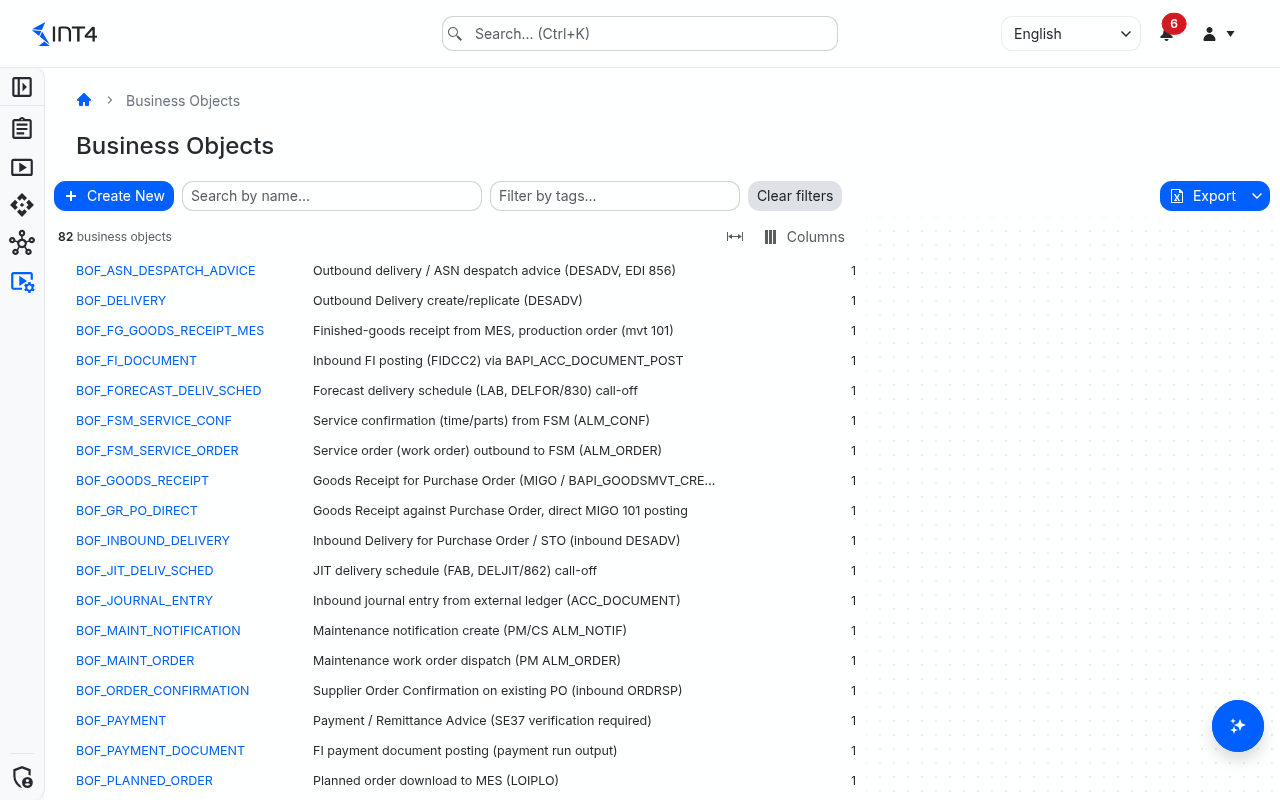
This screen lists every Business Object you can see; from it you open, create, edit, copy, delete, and review the version history of each one.
Besides single test cases, a Business Object can also feed a crawler that creates test cases in bulk: the crawler runs the Get List action once and then builds the input and reference output for every document it returns.
Tasks
How to create a Business Object
- Click Create New. (If the button is greyed out, you do not have Write permission — see Prerequisites & permissions.)
- In the General section, enter a Name (1–40 characters: letters, digits,
.,-and_, starting with a letter or digit) and an optional Description. - Choose a Project Scope, or leave it empty. The scope controls who can later read, edit, and delete this Business Object.
- Optionally set a Default System Line (fallback for all actions) — the system line used by any action that has no system line of its own.
- Optionally add Tags to group the Business Object with related configuration. Pick existing tags or type a new one.
- Optionally edit the JSON Config — free-form configuration in JSON that your scripts can read at run time. It must be valid JSON.
- Add Parameters and Connections as described below. The side navigation jumps between the sections of the page.
- Click Save. The new Business Object opens in view mode.
How to add parameters
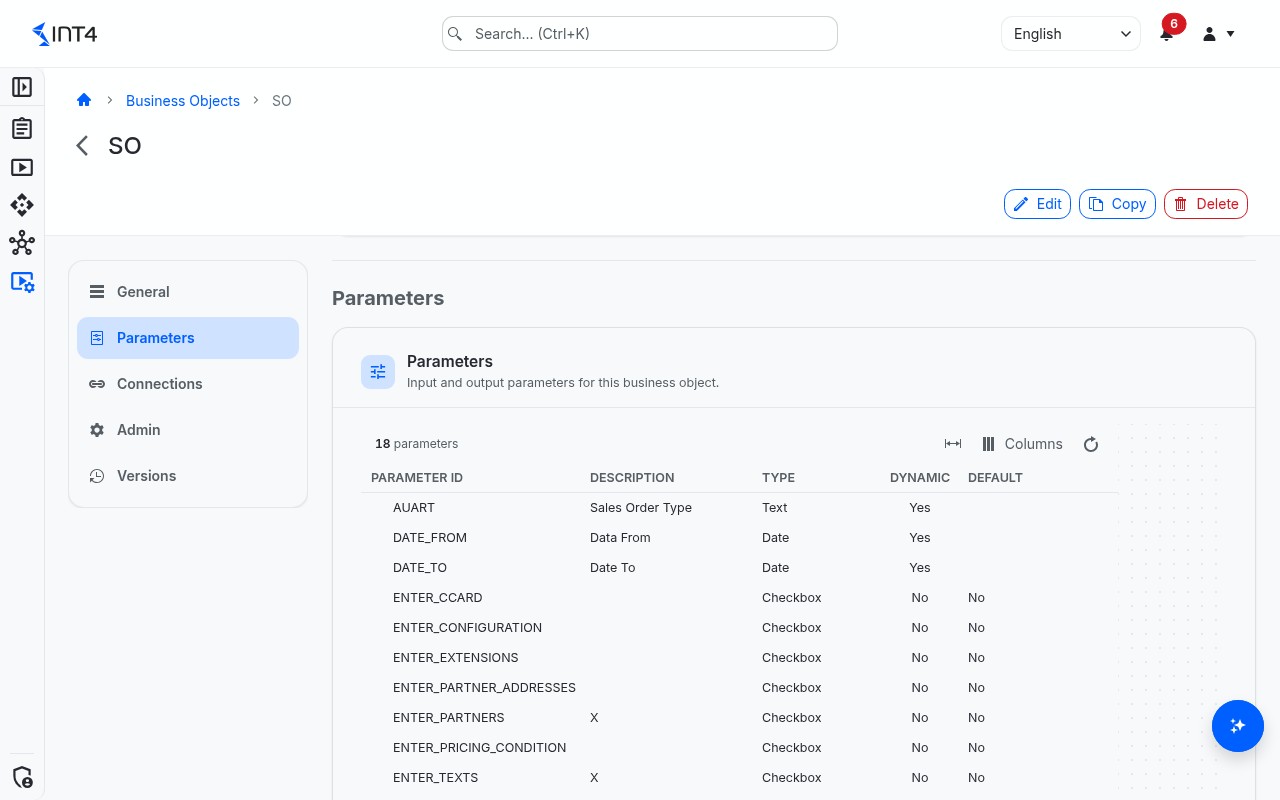
Parameters are the inputs your Business Object exposes to the test that uses it. In the Parameters section:
- Click Add Parameter.
- Fill in the Parameter ID (same rules as the name; must be unique within this Business Object, regardless of case) and an optional Description.
- Pick a Type: Text, Checkbox, Date, or List.
- Set the Default. For a List parameter, enter the allowed choices as a comma-separated list (for example
val1,val2,val3); the test that uses this Business Object then picks one of those choices. - Turn on Dynamic if the parameter should appear only on the Message Selector at test time, rather than on the automation-object screen.
- Use the remove control to delete a parameter row.
How to add connections
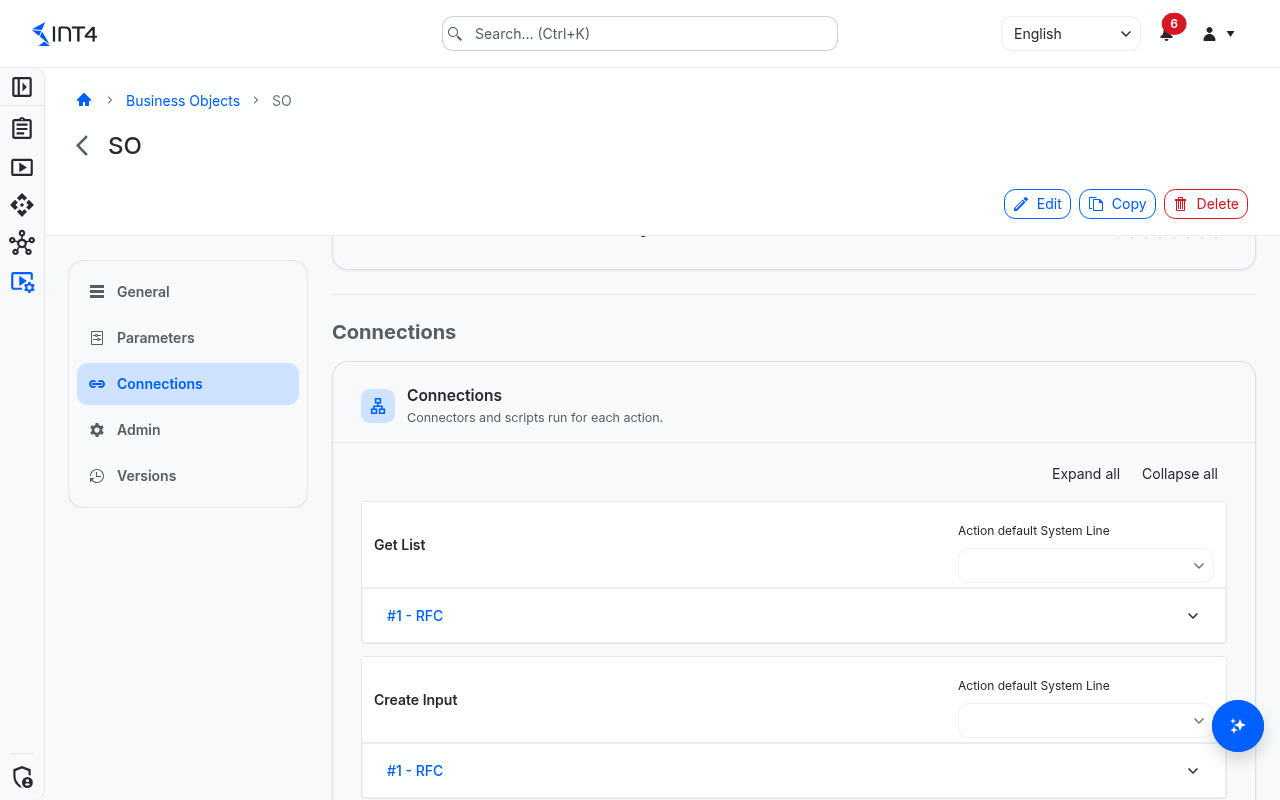
Connections are the individual steps that run inside each action. The Connections section has one group per action, in run order: Get List, Create Input, Reference Outputs, Execute, Result Outputs.
- In the group for the action you want, optionally set the Action default System Line — the system line that every connection in this action uses unless it overrides it.
- Click Add Connection to add a step. Each step is shown as a collapsible panel titled with its position and connector.
- Choose a Connector:
- Pass-through (scripts only) — runs only the before/after scripts, no system call.
- RFC — calls an SAP function module on an SAP ABAP backend. Enter the Function Module, and optionally tick Commit or Skip Client Role Check.
- HTTP — sends an HTTP request to an HTTP system. It takes no extra fields here; the request (address, method, headers, body) is built by the step's before-transform script, and the system supplies the base address and authentication.
- DB Selection — reads database rows from an SAP ABAP backend with a DB Ruleset. Pick the DB Ruleset.
- Optionally set a System Line override to point this one step at a different system line than the action default.
- Optionally set a Delay before (s) to pause before the step runs.
- Optionally pick a Before-Transform Script ID and/or After-Transform Script ID to transform data immediately before and after the step.
- Reorder steps within an action with the move-up and move-down controls, and remove a step with the delete control. Use Expand all / Collapse all to manage long lists.
How to change a Business Object
- Open the Business Object and click Edit.
- Change the fields, parameters, or connections. The Name cannot be changed.
- Optionally enter a Version Description under Version Information to note what changed.
- Click Save Changes. A new version is saved and becomes the current one.
How to copy a Business Object
- Open the Business Object and click Copy.
- In the Copy Business Object dialog, enter a New Name. It is pre-filled with the current name followed by
_COPY. - Click Copy. The copy opens with the same parameters, connections, configuration, project scope, and tags, starting at version 1.
How to view or restore an earlier version
- Open the Business Object and go to the Versions section.
- Select a version to open it read-only. A banner shows who created it and when.
- To make it current again, click Restore This Version and confirm with Restore. The content of that version is saved as a new current version; nothing is overwritten. Click Back to Current Version to leave without restoring.
How to delete a Business Object
- Open the Business Object and click Delete.
- Confirm in the Delete Business Object? dialog. The Business Object and all its versions are removed permanently.
Field reference
General
| Field | Description |
|---|---|
| Name | The business identifier, 1–40 characters: letters, digits, ., - and _, starting with a letter or digit. Used to reference this Business Object from an automation object. Must be unique among currently active Business Objects, regardless of case (older versions may reuse a freed name). Cannot be changed after creation. |
| Description | Free-text label, up to 200 characters. |
| Project Scope | The project scope that governs who can read, edit, and delete this Business Object. Leave it empty for a Business Object without a scope; only users whose permission is granted without a project scope can then work with it. |
| Default System Line (fallback for all actions) | The system line used by any action that does not set its own. The concrete system is resolved at run time from the active SUT Group. |
| Tags | Free-text labels for grouping and filtering. Tags belong to the Business Object as a whole, not to a version: restoring an older version keeps the current tags, and a copy takes the tags along. |
| JSON Config | Free-form configuration in JSON, made available to your scripts at run time. Must be valid JSON. |
| Version | The current version number (shown when the Business Object already exists). |
| Version Description | Optional note describing what changed in the version being saved. |
Parameter fields
| Field | Description |
|---|---|
| Parameter ID | The parameter's name, 1–40 characters: letters, digits, ., - and _, starting with a letter or digit. Must be unique within this Business Object, regardless of case. |
| Description | Free-text label for the parameter. |
| Type | Text, Checkbox, Date, or List. |
| Default | The default value. For List, this is the comma-separated set of allowed choices instead of a single default; at least one choice is required. |
| Dynamic | When on, the parameter is shown only on the Message Selector at test time; otherwise it also appears on the automation-object screen. |
Connection fields
| Field | Description |
|---|---|
| Action default System Line | The system line every connection in the action uses unless it overrides it. |
| Connector | The kind of step: Pass-through (scripts only), RFC, HTTP, or DB Selection. |
| System Line override | A per-step system line that takes priority over the action default and the Business Object's default system line. |
| Delay before (s) | Seconds to wait before the step runs. |
| Before-Transform Script ID | An optional script run just before the step, to transform its input. The current version of the script is always used. |
| After-Transform Script ID | An optional script run just after the step, to transform its output. The current version of the script is always used. |
| Function Module | (RFC only) The SAP function module to call. It must match the function module named in the step's input. |
| Commit | (RFC only) Commit the work in SAP after the call. |
| Skip Client Role Check | (RFC only) Skip the SAP client role check. Only takes effect on the Execute action; setting it on other actions is silently ignored. |
| DB Ruleset | (DB Selection only) The DB Ruleset to run. Referenced by name. |
Tips & edge cases
- Names are unique only among active Business Objects. If you delete a Business Object, its name becomes free for a new one. Saving a name that another current Business Object already uses — even with different upper/lower case — is rejected.
- The name is locked after creation. To change it, copy the Business Object under the new name.
- Parameter IDs ignore case.
doc_noandDOC_NOcount as the same parameter; the save is rejected if both are present. - Connection order matters and is set by the list. Steps run top-to-bottom within each action; use the move controls to arrange them. You cannot type an explicit position number.
- References are by name, not by identity. A Business Object is attached to a Business Object automation object by name, and a DB Selection step references its DB Ruleset by name. Deleting the referenced item breaks the link silently — it only fails when a test is saved or run.
- Systems are resolved late. Each action and step references a system line, not a concrete system. The actual system is chosen at run time from the active SUT Group, so the same Business Object can run against different landscapes. A step other than Pass-through (scripts only) with no system line, or a system line with no system assigned for the SUT Group in the System Landscape, stops the run with an error.
- Each connector needs the right kind of system. RFC and DB Selection steps need an SAP ABAP backend; HTTP steps need an HTTP system.
- Production systems are protected. Before the Execute action runs, every system its steps would reach is checked. If any of them is flagged as production, the whole action is refused before the first step runs, so nothing is half-created.
- System lines in use cannot be deleted. A system line that any version of a Business Object points to — including older versions — cannot be removed from the System Landscape.
- Deletion is permanent. Deleting removes the Business Object and all its versions with no recovery, and it is not blocked by automation objects that still reference the name.
- The list shows every Business Object. The list is not filtered by project scope, but opening a Business Object checks your permission on its scope, so you may see entries you cannot open. The name search matches any part of the name; the tag filter shows Business Objects that carry any of the selected tags.
- A Business Object produces test cases; it is not one. It sits on the reusable-configuration side of Int4 Suite, the same side as automation objects — its purpose is to create the documents that become test cases, not to be executed on its own. That is why you never run it directly from this screen: a Business Object automation object references it by name and drives its actions while a test runs.
- The before/after scripts keep test-execution data apart from test-data collection. Each connection's optional before-transform and after-transform scripts let you shape the data going into a step and the data coming out of it independently. This is what lets one Business Object present a clean, unified interface to the test while the connector-specific details (the function module, the HTTP destination, the DB Ruleset) stay hidden inside the step.
Related features
- Automation Objects — the Business Object automation-object type references a Business Object by name and runs its actions during a test.
- System Landscape — system lines and the SUT Groups that decide which concrete system each step reaches.
- Systems Under Test — the connection profiles that a Business Object's steps ultimately target.
- Scripts — the before- and after-transform scripts used by connections.
- DB Rulesets — the database reads used by DB Selection steps.
- Crawlers — create test cases from a Business Object in bulk.
Prerequisites & permissions
Access to this screen is controlled by the Business Object resource permission:
- Read — required to open the list and any Business Object's detail or version history. Opening a Business Object also checks Read against its project scope.
- Write — required to enable Create New and to edit, copy, or restore. Creating a Business Object, or moving it to another project scope, requires Write on the target scope; a Business Object without a scope needs a Write permission granted without a project scope.
- Delete — required to remove a Business Object and its versions.
Running a test case that uses a Business Object also requires the matching System Under Test permission on every system its steps reach in the chosen SUT Group.
The Business Object automation-object type is available only when your license includes Business Objects; bulk creation through a crawler additionally needs the Business Object crawler license.
About permissions. What you can see and do is decided by the roles assigned to your user. Each role bundles permission groups, and each permission group allows activities — Read, Write, Delete, Execute and, for schedules, Change owner — on a kind of record (for example Test Case, Automation Object, System Under Test). A role grants its groups per project scope, so you may be allowed to change records in one project but only view, or not see, those of another.
If a button is disabled, a page says you don't have access, or a list comes back empty, missing permissions are the most likely cause — or, for whole product areas, the installed licence. You can review your own access under Profile → My access; an administrator can change your roles under IAM → Users.