Mapping Objects
Overview
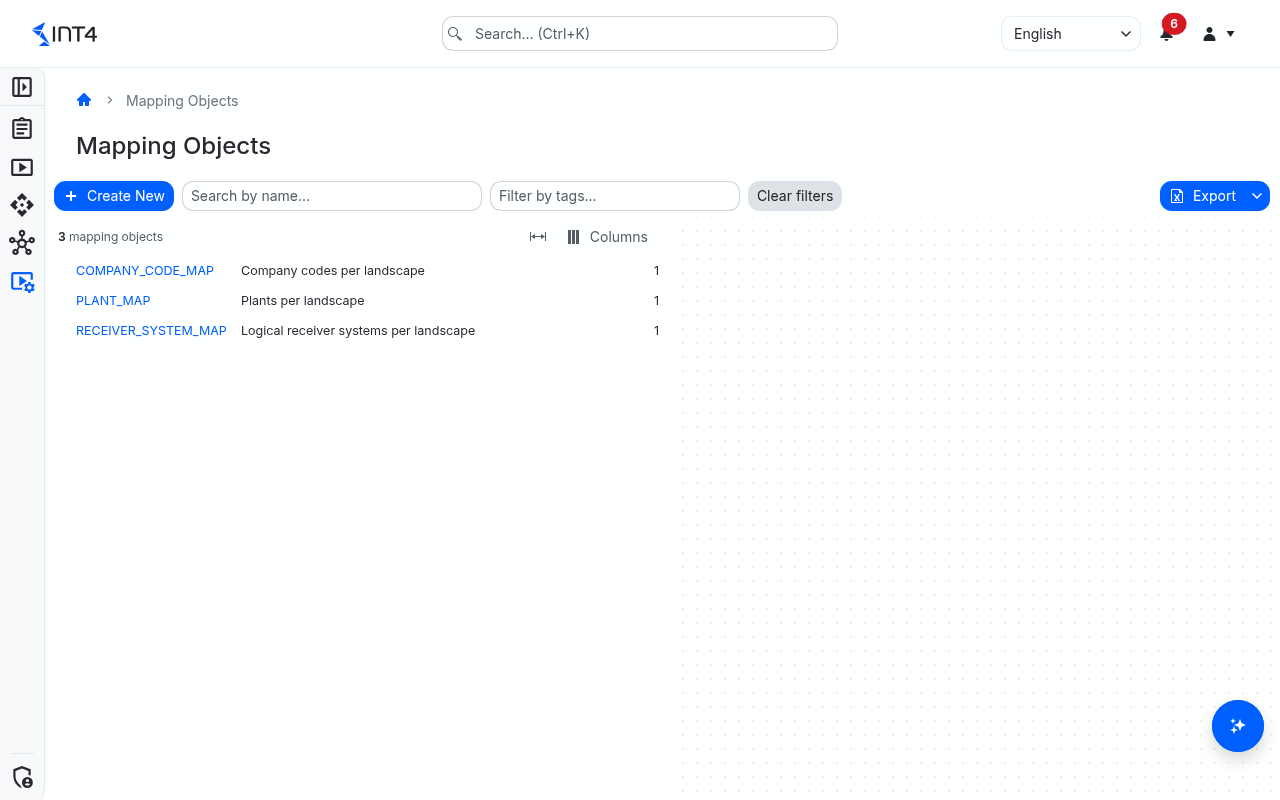
A mapping object is a small translation table for values that mean the same thing in different environments. Plant 1000 in your old ERP system may be plant DE01 in S/4HANA; a receiver system called QAS_100 in the test landscape is PRD_100 in production; a currency or unit code may be spelled differently by two systems. When you replay a captured message against another environment, such differences would otherwise turn every comparison red even though the integration behaves correctly.
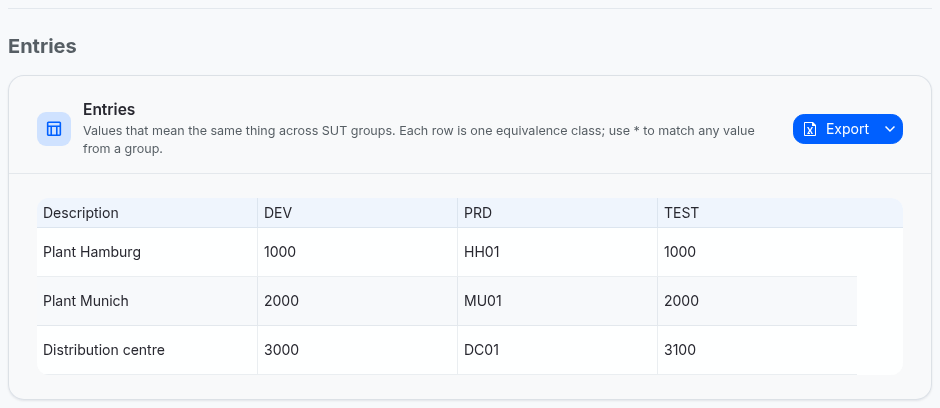
Each mapping object is a grid. Every column is a group from the System Landscape — an environment such as ECC-QA or S4-QA. Every row lists the values that belong together across those groups. You can leave a cell empty when a row does not apply to a group, and you can use * as a wildcard meaning "any value from this group".
A mapping object does nothing on its own. Automation objects refer to it by name in three places:
- a payload validation rule with the difference handling Warning (Mapping Object) — a difference is only a warning when the mapping object lists that expected/actual pair;
- a payload matching rule with the rule type Mapping Object — expected and actual messages are paired when their values correspond according to the mapping object;
- the Mapping Object value generator in a processing pipeline — before sending, the value read from the payload is translated from the environment the test case was captured in to the environment the test runs in, and written back.
This is especially useful in migration testing: the reference payloads come from the old landscape, the current payloads from the new one, and mapping objects bridge the master data and system names that changed in between.
Tasks
How to create a mapping object
- Click Create New above the list. The button is disabled if you do not hold the Mapping Object: Write permission.
- Under General, enter a name and, optionally, a description, a Project Scope and Tags. The name is what automation objects refer to, and it cannot be changed later.
- Under Entries, add the groups you need as columns: pick each one in the Add SUT group... list.
- Click Add Row for each set of corresponding values and type a value into each group's cell. Use the Description column for a label that helps you recognise the row, for example "Plant Hamburg".
- Click Save. The mapping object is saved as version 1.
How to paste entries from a spreadsheet
You can maintain the values in Excel or another spreadsheet and paste them in one go.
- Open the mapping object in edit mode (or start a new one).
- In the spreadsheet, select a range whose first row is a header row: one column titled
Description(optional) and one column per group, titled exactly like the group. Copy it. - Click into the entries grid and press Ctrl+V.
- If every pasted column matches and the grid is still empty, the rows are imported straight away. Otherwise the Import entries from clipboard dialog opens:
- For each pasted column, pick where it goes — the description, a group, or Ignore.
- If the grid already has content, choose under When importing whether to Replace all rows or Add to the existing rows. When adding, a pasted row that shares a value with exactly one existing row (and contradicts none) is merged into it; the preview marks each row as merging, new, or ambiguous.
- The summary line warns about rows without values, rows with only wildcards and values that are too long. These warnings do not block the import, but such rows must be fixed before you can save.
- Confirm with Replace or Append, then save the mapping object.
A single value pasted into one cell is pasted normally. At most 1,000 rows and 50 columns can be pasted at once.
How to change a mapping object
- Open the mapping object and click Edit.
- Change the description, project scope, tags or entries. To remove a group column, click the × in its header — all values in that column are removed. To remove a row, use its delete button.
- Optionally describe the change in the version description, then click Save Changes.
Every save creates a new version; the previous one stays available under Versions.
How to use a mapping object in an automation object
Open the automation object in edit mode and pick the mapping object by name:
- in Validation Rules, set Difference Handling to Warning (Mapping Object) and choose it in Mapping Object;
- in Payload Matching, set Rule Type to Mapping Object and choose it in Mapping Object;
- in Processing Pipelines, use the Mapping Object generator in a Replace block (Replace with) or a Generate block.
See Automation Objects for these sections.
How to copy, restore or delete a mapping object
- Copy: click Copy and enter a new name. The copy gets the same description, project scope, entries and tags, and starts at version 1.
- Restore an older version: under Versions, open the version and click Restore This Version. Its content becomes a new current version; nothing is overwritten.
- Delete: click Delete and confirm. This cannot be undone.
How values are resolved
For one comparison or translation, Int4 Suite looks at two sides:
- the source side is the environment of the test case's origin system — the system the test case was captured from;
- the target side is the environment the test runs in (the selected group, or the groups that contain the system the test runs against).
Each side must correspond to exactly one column of the mapping object. A row then says: "the value in the source column corresponds to the value in the target column".
| Situation | Result |
|---|---|
Expected value 1000 in the source column, actual value DE01 in the target column of the same row | A Warning (Mapping Object) rule shows the difference as a warning; a matching rule pairs the messages; the generator writes DE01. |
* in the source column, DE99 in the target column | Any source value corresponds to DE99. A row with an exact source value wins over a wildcard row when translating. |
* in the target column | Ignored — the wildcard only works on the source side. |
| Two rows translate the same source value into different target values | Comparison still works (both pairs are allowed), but the generator stops with an "ambiguous" error. The editor warns about this while you type. |
| No row, no matching column, or a system that belongs to several groups used as columns | Nothing is allowed: differences stay errors, and the generator fails with a message naming the problem. |
Field reference
| Field | Description |
|---|---|
| Name | The identifier automation objects refer to. 1–40 characters: letters, digits, ., - and _, starting with a letter or digit. Unique among current mapping objects regardless of case. Cannot be changed after creation. |
| Description | Free text, up to 200 characters. |
| Project Scope | Optional project scope. Only users with permissions in that scope can see and change the mapping object. |
| Tags | Labels for filtering the list. Tags are not versioned. |
| Version / Version Description | The current version number and an optional note describing the change. |
| Description (entries) | Optional row label, up to 200 characters. Never used to resolve values. |
| Group columns (entries) | One column per group from the System Landscape. Each cell holds up to 255 characters, or * for any value. An empty cell means the row does not apply to that group. |
Tips & edge cases
- References are by name. Automation objects store only the name. If you delete a mapping object, or an automation object names one that does not exist yet, nothing warns you at save time — the validation rule simply allows nothing and the generator fails during the run. There is no rename; to change a name, copy the mapping object and update every rule that uses it.
- Every row needs a real value. A row must hold at least one value that is not
*, and a group may appear only once per row. Empty rows added with Add Row block saving until you fill or delete them. - Empty columns are not kept. A group column without any value is dropped when you save.
- Groups in use cannot be deleted. A group that appears in any mapping object is protected from deletion in the System Landscape.
- Migrated rules need their mapping objects. Test assets migrated from Int4 Suite on ABAP keep their references to value-mapping objects, but the tables themselves are not migrated. Create mapping objects with the same names before running migrated test cases.
- A test case needs an origin system. The source side comes from the system the test case was captured from; without it, no column applies.
- Mapping objects appear in global search by name and description.
Related features
- Automation Objects — validation rules, payload matching and processing pipelines that use mapping objects.
- System Landscape — where the groups used as columns are defined.
- Systems Under Test — the systems that belong to those groups.
Prerequisites & permissions
You need the Mapping Object: Read permission to open the list and the detail page, Mapping Object: Write to create, edit, copy or restore, and Mapping Object: Delete to delete. Moving a mapping object to another project scope needs Write in both scopes. Mapping objects are not tied to a licence feature.
About permissions. What you can see and do is decided by the roles assigned to your user. Each role bundles permission groups, and each permission group allows activities — Read, Write, Delete, Execute and, for schedules, Change owner — on a kind of record (for example Test Case, Automation Object, System Under Test). A role grants its groups per project scope, so you may be allowed to change records in one project but only view, or not see, those of another.
If a button is disabled, a page says you don't have access, or a list comes back empty, missing permissions are the most likely cause — or, for whole product areas, the installed licence. You can review your own access under Profile → My access; an administrator can change your roles under IAM → Users.