Value Mappings - SAP PO
LicenseIncluded in Int4 Shield LiteDetails
| Feature or limit | Int4 Shield Lite |
|---|---|
| SAP PI/PO testing | Included |
Anything a license model does not include can be added through a custom license. The license installed for you is shown in the app under Profile → License. All features by license
Overview
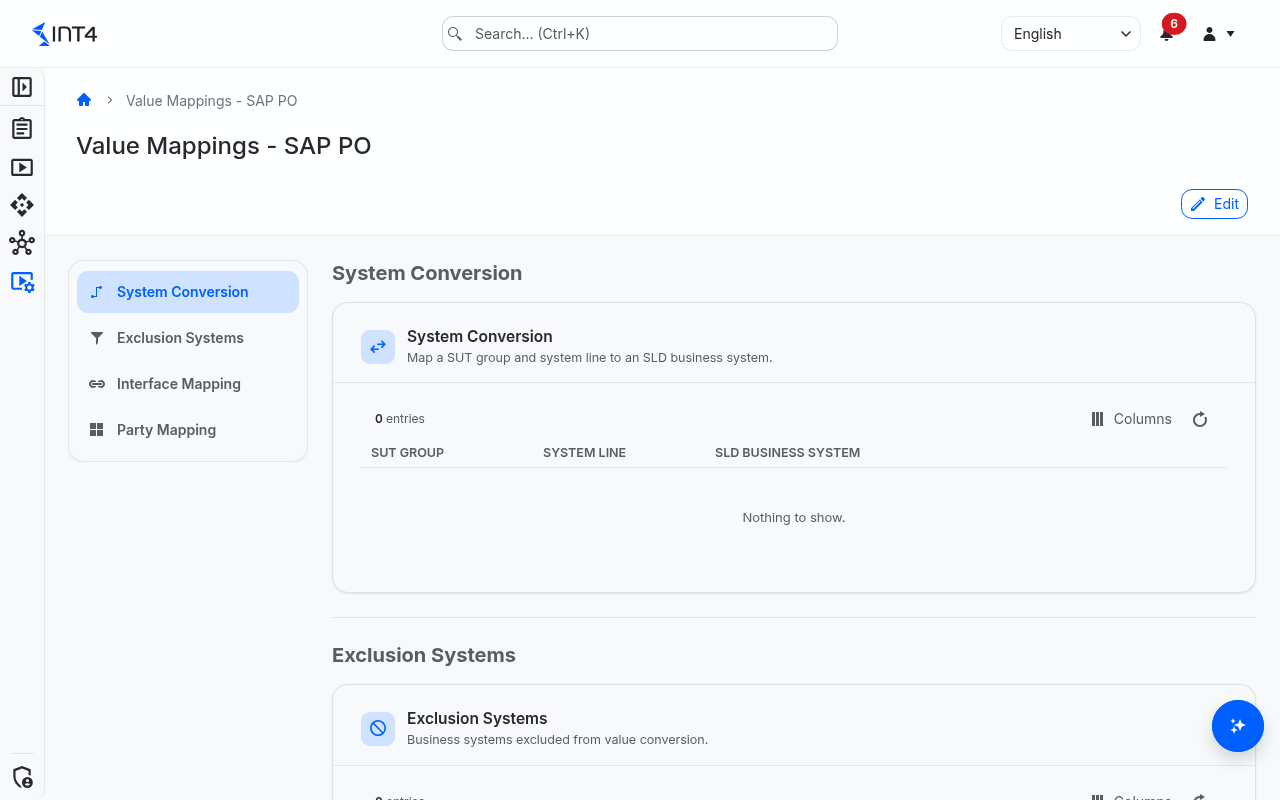
The Value Mappings - SAP PO page is where you maintain the four SAP PO landscape translation tables that let Int4 Suite replay a message captured in one environment (for example PROD) against another (for example QA). Without these tables, names that are environment-specific — business systems in the SLD, communication parties, interface names and namespaces — would not line up between source and target, and the comparison engine would flag every difference as a regression.
The page is organised as a single editable sheet with four sections, one per translation table:
- System Conversion — for each SUT Group (environment) and System Line, declare the SLD Business System name that environment uses. At run time the engine pivots through the System Line to translate a system name from the source environment into the target environment.
- Exclusion Systems — receiver systems that exist in one environment but not in another. Matching receivers are dropped from the comparison instead of being reported as differences.
- Interface Mapping — per-target environment rewrites of interface name and namespace. Applied both before message injection and before comparing actual versus expected output.
- Party Mapping — how a communication party translates between environments, scoped to a System Line. Multiple production parties may resolve to the same test party; an empty party stays empty.
The page opens in read-only mode. You must explicitly switch to edit mode to make changes, and all four tables are saved together with one click when you confirm.
A SUT Group is a horizontal slice of your landscape — one named environment like DEV, QA, PROD — containing one SUT per system type. A System Line is a vertical slice — all SUTs of the same type across environments (for example "all SAP CI tenants" or "all SAP PO servers"). Together they form the System Landscape Matrix; the SAP PO value mappings are anchored to specific cells of that matrix.
These tables exist because of how cross-environment testing works. When you capture a message in one environment and replay it against another — the core of migration testing, and a common shift-left pattern — the captured payload carries the source environment's names: its business systems, its communication parties, its interface and namespace identifiers. The target environment uses different names for the same logical things. The translation tables line those names up per environment so that the same logical interface, re-pointed at a different stage, still resolves correctly. The System Line is the pivot that makes this work: a name in the source environment is matched to its row in the System Line, then looked up again in the target environment's row of that same System Line, giving the equivalent name there. Without these tables every environment-specific name would differ between source and target, and the comparison engine would report each difference as a regression even though nothing actually broke.
Tasks
How to add a System Conversion row
Use this when an environment uses a different SLD Business System name for the same logical system (for example PRD_BACKEND in PROD vs QAS_BACKEND in QA).
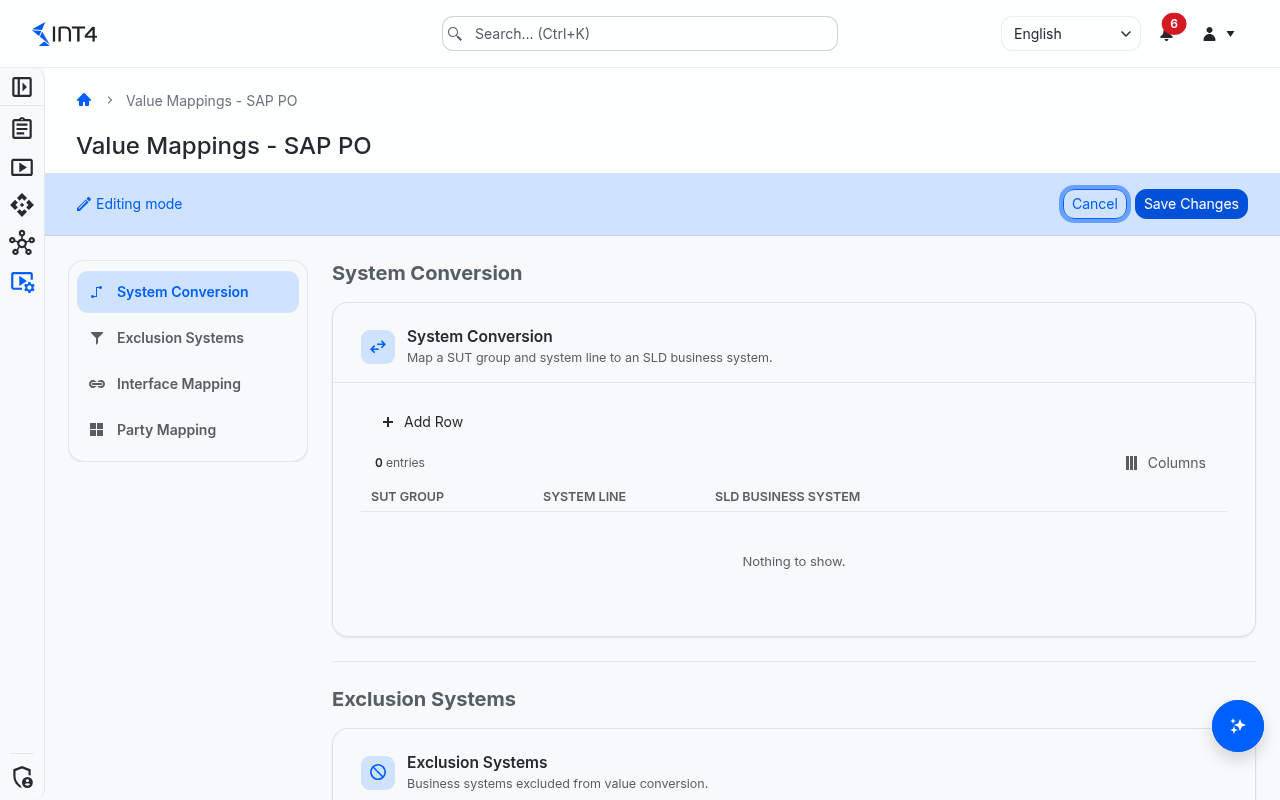
- Click Edit in the top-right corner to switch to edit mode.
- Scroll to the System Conversion section.
- Click Add Row in that section's toolbar.
- In SUT Group, pick the environment this row describes.
- In System Line, pick the System Line (system type column) the row belongs to. The combination of SUT Group and System Line must be unique.
- In SLD Business System, enter the SLD Business System name as it appears in that environment.
- Click Save Changes to commit, or Cancel to discard all changes.
How to add an Exclusion System row
Use this when a receiver system exists in one environment but does not exist (or is intentionally bypassed) in another, so that diff entries against it are noise.
- Click Edit in the top-right corner to switch to edit mode.
- Scroll to Exclusion Systems.
- Click Add Row.
- Pick the SUT Group in which the receiver should be excluded.
- In SLD Business System, enter the receiver name to skip.
- Click Save Changes.
How to add an Interface Name Mapping row
Use this when an interface or namespace was renamed between environments, or when test data must be rewritten before it can land in the target.
- Click Edit in the top-right corner to switch to edit mode.
- Scroll to Interface Mapping.
- Click Add Row.
- Pick Target SUT Group — the environment whose interface names are produced by the rewrite.
- Fill in Source Interface and Source Namespace — the names as they appear in the captured payload.
- Fill in Target Interface and Target Namespace — the names that should be substituted before injection and comparison.
- Click Save Changes.
The combination of Target SUT Group, Source Interface and Source Namespace must be unique.
How to add a Communication Party Mapping row
Use this when production communication parties must be replaced with test counterparts (or merged together) when replaying a message against a non-prod environment.
- Click Edit in the top-right corner to switch to edit mode.
- Scroll to Party Mapping.
- Click Add Row.
- Pick the System Line the mapping applies to.
- Pick the SUT Group (target environment).
- In Communication Party, enter the party name as it should appear in that environment.
- Click Save Changes.
The combination of System Line, SUT Group and Communication Party must be unique. Multiple source parties may resolve to the same target.
How to change or remove rows
- Click Edit.
- To change a row, edit its cells directly. Changed and added rows are marked until you save.
- To remove a row, click its delete button (trash icon) at the end of the row. The row stays visible, struck through, with an undo button in place of the delete button until you save — click undo to keep the row after all.
- Click Save Changes. Removed rows are deleted first, then changed rows are saved, then added rows — so you can delete a row and add a replacement with the same key in one go. Cancel discards everything since you clicked Edit.
If you click Save Changes without changing anything, the page tells you "No changes to save." and stays in edit mode.
Field reference
System Conversion
| Field | Description |
|---|---|
| SUT Group | The environment (SUT Group) this row applies to. |
| System Line | The system line (same system type across environments) the row belongs to. Each SUT Group + System Line pair may appear only once. |
| SLD Business System | The SLD Business System name as it appears in this environment. At run time the engine pivots from the source row's System Line to the matching target row in another SUT Group. |
Exclusion Systems
| Field | Description |
|---|---|
| SUT Group | The environment in which the receiver should be skipped. |
| SLD Business System | The SLD Business System name (receiver) to drop from comparison. Each SUT Group + System pair may appear only once. |
Interface Mapping
| Field | Description |
|---|---|
| Target SUT Group | The environment whose interface name and namespace are produced by this rewrite. |
| Source Interface | Interface name as it appears in the captured payload. |
| Source Namespace | Namespace as it appears in the captured payload. |
| Target Interface | Interface name to substitute before injection and comparison. |
| Target Namespace | Namespace to substitute before injection and comparison. |
The combination Target SUT Group + Source Interface + Source Namespace must be unique. A missing entry simply means "no rewrite needed".
Party Mapping
| Field | Description |
|---|---|
| System Line | The system line the mapping is scoped to. |
| SUT Group | The target environment. |
| Communication Party | The communication party name in that environment. Many source parties may resolve to a single target party. Empty stays empty. |
Tips & edge cases
- The whole page is landscape-aware: nothing here makes sense in isolation. You must first define SUT Groups and System Lines on the System Landscape Matrix page before you can populate value mappings — the dropdowns are otherwise empty.
- Value mappings are global, not per-project. Anyone with write access to system configuration can edit any row, even rows that affect SUT Groups belonging to a different project. In multi-project deployments this is worth coordinating with your team.
- Saving only deletes the rows you removed: nothing disappears because it was missing from what you edited. There is no CSV or Excel import to replace a whole table in one go.
- Saving is not all-or-nothing across the four tables. If one table's save fails — for example because a row repeats an existing unique combination — the error is shown and you stay in edit mode, but changes to the other tables may already be saved. Check the lists after fixing the error.
- Deleting a SUT Group or System Line on the System Landscape page cascades to all value-mapping rows that referenced it. Treat such deletions as configuration migrations.
- Each list shows its number of entries. Use it as a quick sanity check after large edits.
- The SUT Group pickers list your environments and also every individual system (each system counts as a single-system group). Pick the environment row from the System Landscape page unless you deliberately want to anchor a mapping to one system.
- The Interface Mapping section does not use a System Line — interface rewrites are a direct lookup keyed on the target group plus source interface/namespace.
- You only need these tables when source and target environments differ. If a test runs entirely within one environment — ordinary regression against a single stage — there is nothing to translate and these tables are not consulted. They come into play when a payload captured in one environment is replayed against another, which is exactly the migration and shift-left case. A missing entry is never an error: the engine simply keeps the original value, treating "no mapping" as "the name is the same in both environments."
- Think of each row as describing one environment's local name. A System Conversion or Party row records what a given logical system or party is called in that specific environment. The translation between environments is derived by matching two rows through their shared System Line, so you maintain the names environment by environment rather than entering source-to-target pairs directly. Keep each environment's rows complete and you can retarget tests across stages without the comparison flagging name differences as failures.
Related features
- System Landscape — define SUT Groups, System Lines, and the cell assignments these value mappings reference.
- Systems Under Test — register the individual SUTs that populate matrix cells.
Prerequisites & permissions
About permissions. What you can see and do is decided by the roles assigned to your user. Each role bundles permission groups, and each permission group allows activities — Read, Write, Delete, Execute and, for schedules, Change owner — on a kind of record (for example Test Case, Automation Object, System Under Test). A role grants its groups per project scope, so you may be allowed to change records in one project but only view, or not see, those of another.
If a button is disabled, a page says you don't have access, or a list comes back empty, missing permissions are the most likely cause — or, for whole product areas, the installed licence. You can review your own access under Profile → My access; an administrator can change your roles under IAM → Users.
To view the mappings you need the System Under Test: Read permission; without it the page opens but the lists cannot be loaded. To save changes you need System Under Test: Write, and removing rows additionally requires System Under Test: Delete. The Edit button is shown to everyone; missing permissions only surface as an error when you save. The Value Mappings page deliberately reuses the System Under Test permission family — there is no separate "Value Mapping" resource type.