Roles
Overview
A role is what you assign to people. It bundles one or more permission groups and says, for each of them, in which project scope it applies. When a user holds a role, they may do everything its permission groups allow — but only on records in the scopes the role names.
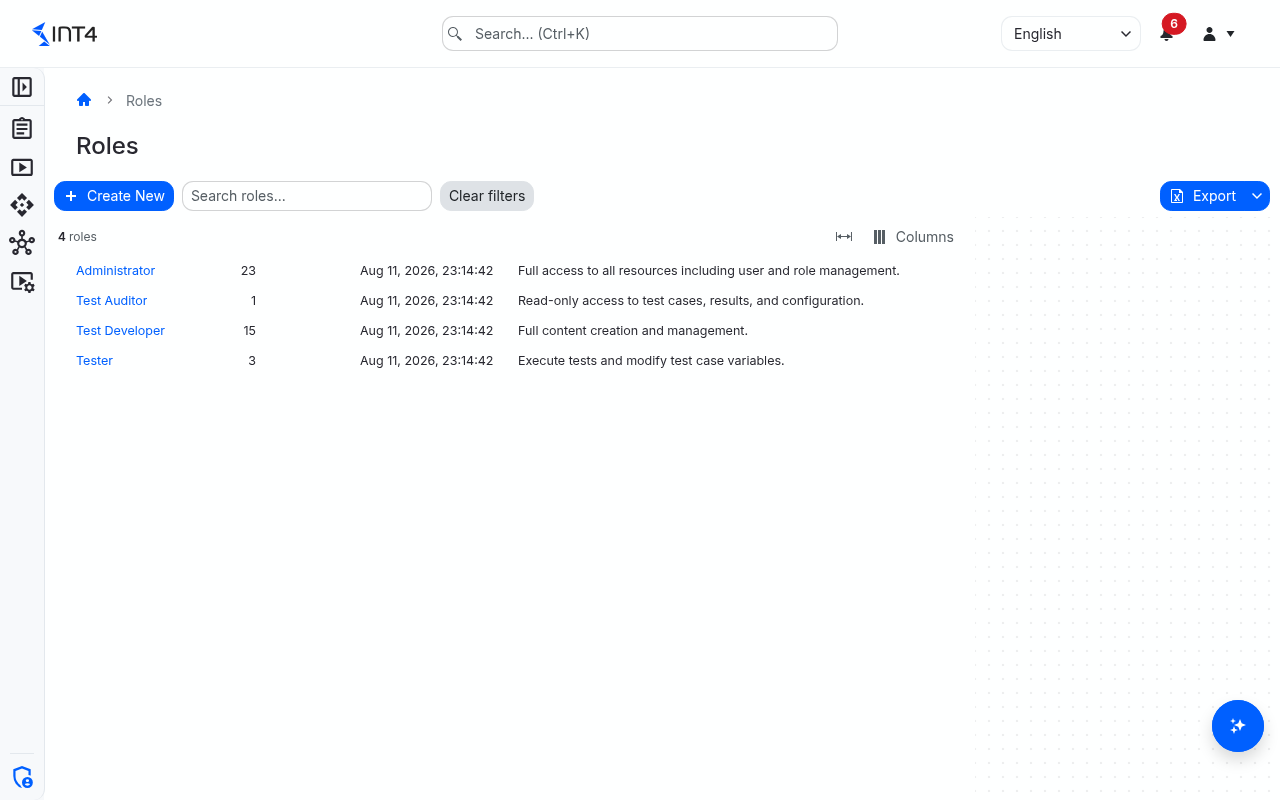
A typical setup has a few roles that mirror how people work: someone who only reviews results, someone who runs tests, someone who builds test content, and someone who administers the installation. Int4 Suite ships exactly these four roles:
| Role | Intended for |
|---|---|
| Test Auditor | Read-only access to test cases, results and configuration. |
| Tester | Everything a Test Auditor sees, plus running tests and changing test case dimension values and global sequence values. |
| Test Developer | Everything a Tester may do, plus creating and maintaining test content: test cases, processes, folders, automation objects, systems under test, crawlers, trace schedulers, scripts, DB rulesets, mapping objects, business objects, the business dimension catalog, content packages, data store buckets, global sequences, global parameters and the API Explorer. |
| Administrator | Everything a Test Developer may do, plus users, roles, permission groups, project scopes, licences, reassigning schedule ownership, system extensions, external channels and API Explorer requests to typed-in addresses. |
The shipped roles apply to records without a project scope. They are maintained by the product: each time Int4 Suite is installed or updated (and on some installations at every restart), their names, descriptions and permission groups are reset. If you need a variation — for example a Tester limited to one project scope — create your own role instead of editing a shipped one.
Open the screen from IAM → Roles.
Tasks
How to create a role
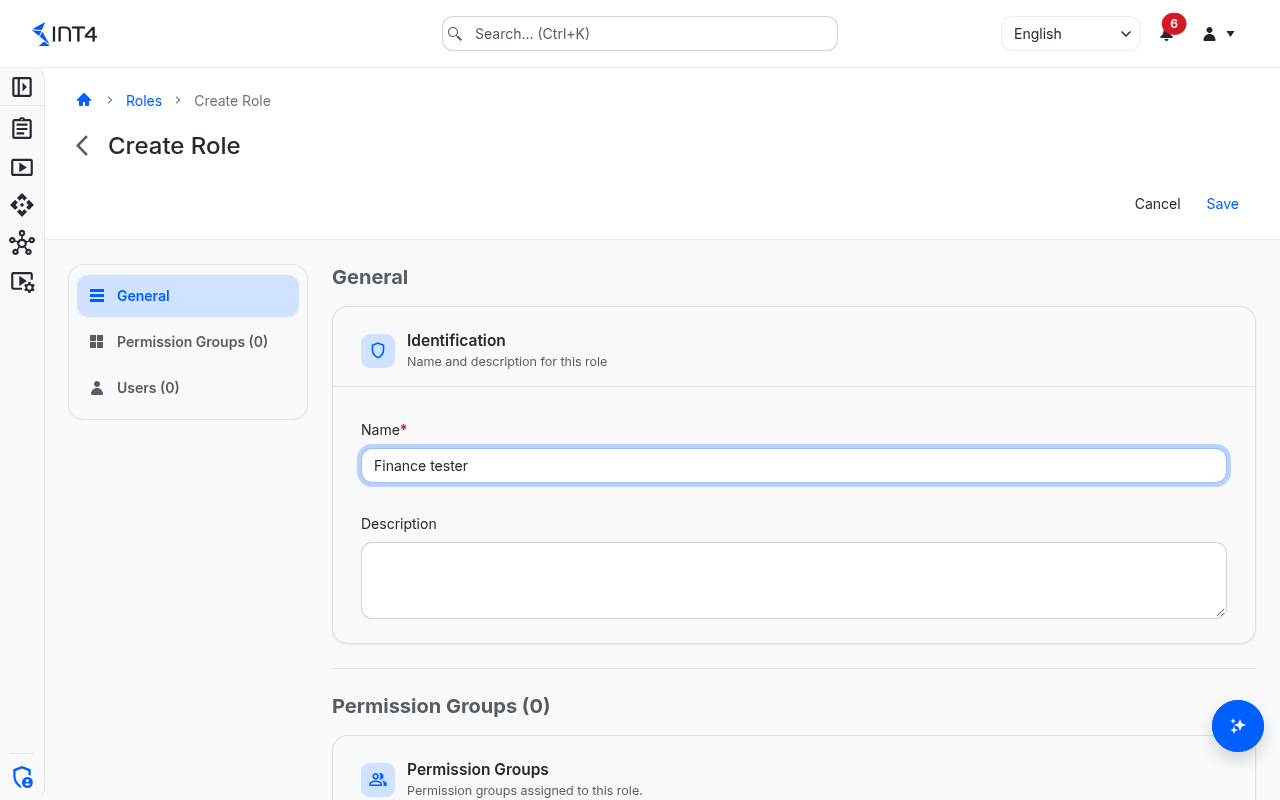
- Click Create New in the toolbar.
- In the Identification card, enter a Name and, optionally, a Description.
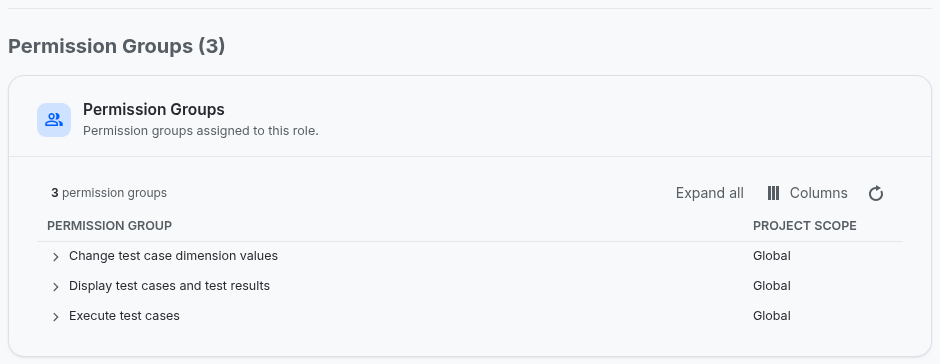
- In the Permission Groups card, click Add permission group.
- Pick the group in the Permission Group column.
- Pick the Project Scope in which the group applies. Global means records that have no project scope — see "Tips & edge cases".
- Repeat for every group the role needs, then click Save.
The role grants nothing until you assign it to users on the Users screen.
How to grant a permission group in several project scopes
Add the same permission group once per scope: one row with scope FINANCE, another with scope HR, and — if the role's holders also need records without a scope — one with Global. The same group and scope can appear only once in a role.
How to change a role
- Open the role and click Edit.
- Change the name or description, add rows with Add permission group, change a row's group or scope, or mark rows for removal with the delete control at the end of the row.
- Click Save. The permission groups you see are saved as a whole and replace the previous set.
Changes take effect for every user holding the role as soon as you save.
How to see what a role allows
Open the role. In the Permission Groups card, expand a permission group row to see its permissions: one row per resource, one column per activity, with Yes, No, or N/A where an activity does not exist for that resource.
The Users card lists everyone who holds the role, with the validity dates of each assignment. It is read-only; assignments are managed on each user's page.
How to delete a role
- Open the role and click Delete.
- Confirm in the Delete Role dialog.
A role that is still assigned to at least one user cannot be deleted; remove it from those users first. A deleted shipped role comes back at the next update.
Field reference
List columns
Search by name or description with Search roles.... Click a row to open the role. The list can be exported to Excel or PDF from the toolbar.
| Column | Description |
|---|---|
| Name | The role's name. |
| Permission Groups | Number of permission-group rows in the role. A group granted in two scopes counts twice. |
| Created By | Who created the role. Empty for the shipped roles. |
| Created At | When the role was created, as a relative time. |
| Description | The role's description. |
Role page
| Field | Description |
|---|---|
| Name | Unique name, up to 128 characters. |
| Description | Free text, up to 256 characters. |
| Permission Group | A permission group the role grants. |
| Project Scope | Where the group applies: a project scope, or Global for records without a project scope. |
| Email, First Name, Last Name | The users who hold the role. |
| Valid From, Valid To | The validity period of each user's assignment. Empty means unlimited. |
| Admin | Who created and last changed the role, and when. |
Tips & edge cases
- "Global" does not mean "every scope". A row set to Global covers only records that have no project scope. A row set to a scope covers only records in that scope. To give someone access everywhere, add one row per scope plus one Global row.
- Opening a screen needs the permission in just one place. If any of a user's roles grants, say, Test Case: Read in any scope, the test case screens open for them. Which records they can then open, change, delete or run is decided per record by the record's own scope.
- Don't customise the shipped roles. Changes to Test Auditor, Tester, Test Developer and Administrator — including scoped rows you add — are undone at the next update. Build your own roles from the same permission groups instead.
- Duplicate rows cannot be saved. If saving fails with "A role with this name already exists.", check also whether the same permission group appears twice with the same project scope.
- Changes reach open screens with a short delay. The server applies the new permissions immediately; people who are already working may need to reload the page before newly allowed buttons become active.
- Pickers show at most 300 entries. If your installation has more permission groups or project scopes than that, only the first 300 in alphabetical order can be picked.
Related features
- Permission groups — what each group allows.
- Project scopes — the scopes a role row can point to.
- Users — assign roles to people.
Prerequisites & permissions
About permissions. What you can see and do is decided by the roles assigned to your user. Each role bundles permission groups, and each permission group allows activities — Read, Write, Delete, Execute and, for schedules, Change owner — on a kind of record (for example Test Case, Automation Object, System Under Test). A role grants its groups per project scope, so you may be allowed to change records in one project but only view, or not see, those of another.
If a button is disabled, a page says you don't have access, or a list comes back empty, missing permissions are the most likely cause — or, for whole product areas, the installed licence. You can review your own access under Profile → My access; an administrator can change your roles under IAM → Users.
To use this screen you need:
- Role: Read — to open the list and a role.
- Role: Write — to create and change roles.
- Role: Delete — to delete a role.
Roles are not tagged with project scopes, so a grant in any project scope is enough. In the shipped roles, these permissions come with the Administrator role (permission group "Manage roles and permission groups").