Permission Groups
Overview
A permission group is a named list of things a person may do: for each resource (test cases, folders, systems under test, users, and so on) it says which activities are allowed. Permission groups are the building blocks of roles. On its own a permission group grants nothing; it takes effect once a role includes it — in a particular project scope — and that role is assigned to a user.
Keep each group focused on one capability, such as "Display test cases and test results" or "Execute test cases", and combine several groups in a role. That way the same group can be reused in several roles, and in several project scopes within one role.
The activities are:
| Activity | Meaning |
|---|---|
| Read | See the records and open their details. |
| Write | Create and change records. |
| Delete | Delete records (for users: deactivate them). |
| Execute | Run or use the record — start a test, a crawl or a script, or send to a system under test. |
| Change owner | Hand a schedule over to another user. Exists only for crawler and trace configuration schedules. |
Int4 Suite ships 23 permission groups, which make up the shipped roles. Like the shipped roles they are maintained by the product: each time Int4 Suite is installed or updated, their names, descriptions and permissions are reset. Create your own groups for anything the shipped ones do not cover.
Open the screen from IAM → Permission Groups.
Tasks
How to create a permission group
- Click Create New in the toolbar.
- In the Identification card, enter a Name and, optionally, a Description.
- In the Permissions card, click Add resource.
- Pick the resource in the Resource column. Each resource can be added once per group, so resources already in the group are not offered again.
- Tick the activities to allow. Activities that do not exist for the resource show N/A.
- Repeat for further resources, then click Save.
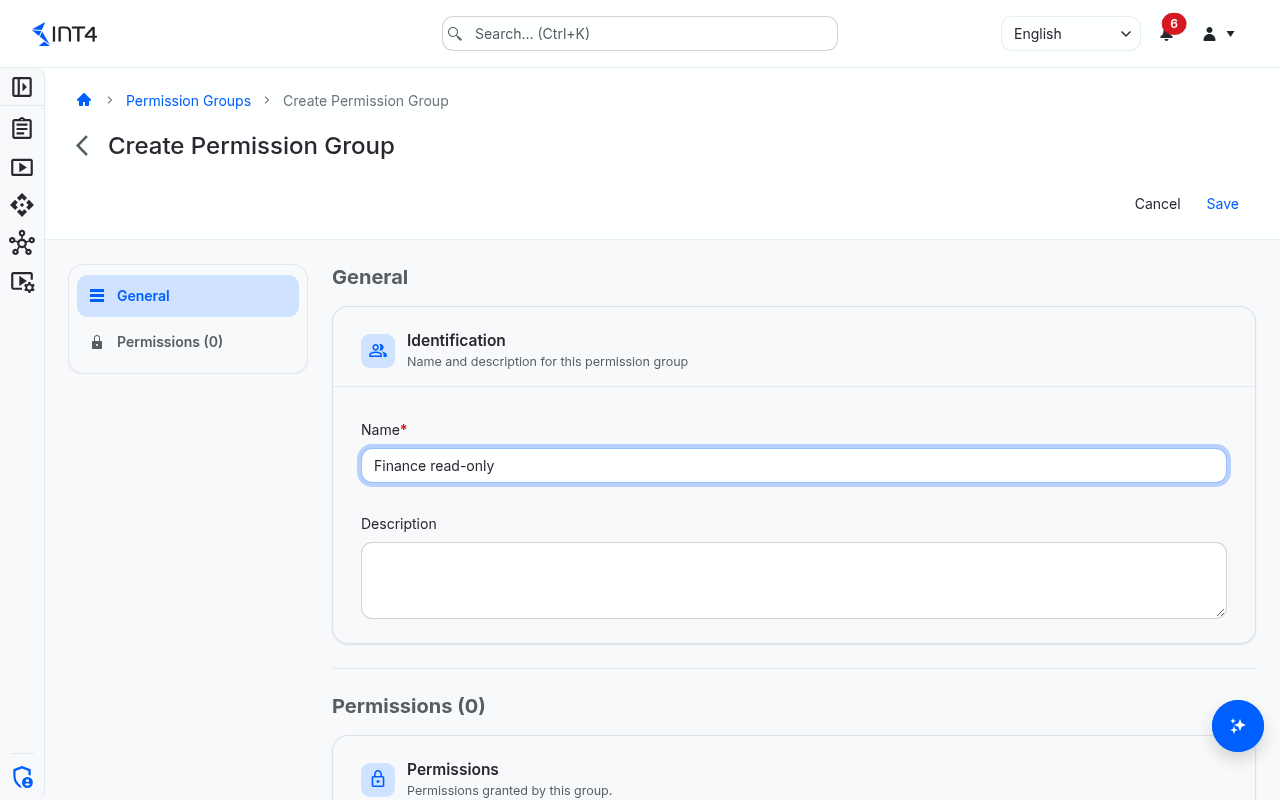
To make the group effective, add it to a role on the Roles screen.
How to change a permission group
- Open the group and click Edit.
- Change the name or description, tick or untick activities, add resources, or mark resources for removal with the delete control at the end of the row. Changing a row's resource clears its ticked activities.
- Click Save.
The change applies immediately to every user whose roles include the group, in every scope it is granted.
How to delete a permission group
- Open the group and click Delete.
- Confirm in the Delete Permission Group dialog.
A group that is still part of a role cannot be deleted; remove it from those roles first.
Resources and their activities
Use this table to decide which resource controls what. "R W D E" stands for Read, Write, Delete and Execute; "O" for Change owner.
| Resource | Activities | What it controls |
|---|---|---|
| test case | R W D E | Test cases, their messages, runs and results. Execute runs them. |
| folder | R W D | Folders of the test case tree and of the API Explorer. Test cases take their project scope from their folder. |
| process | R W D | Process tests. |
| test case dimension value | W | Changing business dimension values on test cases. |
| test case analysis | R W D E | Test case analyses. Execute builds an analysis's datasets and starts transfers from them. |
| saved search | R W D | Saved searches. |
| test run template | R W D E | Saved test run configurations used by scheduled test runs. |
| automation object | R W D E | Automation objects. Execute is needed to run tests that use them. |
| system under test | R W D E | Systems under test and their connection details. Execute is needed to send test traffic to them. |
| business object | R W D | Business objects. Running them is controlled by test case and automation object Execute. |
| business dimension | R W D | The business dimension catalog. |
| db ruleset | R W D | DB rulesets for database comparisons. |
| mapping object | R W D | Mapping objects. |
| script | R W D E | Reusable scripts. Execute runs them. |
| global sequence | R W D | Global sequences. |
| global parameters | R W D | Global parameters, including the AI provider settings. |
| data store bucket | R W D | Data Store buckets. |
| data store entry | R W D | Entries inside Data Store buckets, also when scripts read or write them during a run. |
| crawler | R W D E | Crawler configurations. Execute starts a crawl. |
| crawler schedule | R W D O | Crawler schedules. Change owner hands a schedule to another user. |
| trace configuration | R W D E | Trace scheduler configurations. |
| trace configuration schedule | R W D O | Trace scheduler schedules. |
| API explorer | R W D E | API Explorer requests: browse, edit, send and promote them. |
| API explorer ad-hoc target | E | Sending API Explorer requests to a typed-in address instead of a registered system under test. |
| virtualization object | R W D | Messenger virtualization objects. |
| virtualization instance | R W D E | Messenger instances. Execute enables and disables them and switches how they respond. |
| external channel | R W D | Inbound channels that external systems call. |
| content package | R W D | Importing and building content packages. |
| system extension | R W | Uploading and managing system extensions. |
| user | R W D | Users and their activation. Delete deactivates. |
| role | R W D | Roles, and assigning roles to users. |
| permission group | R W D | Permission groups. |
| project scope | R W D | Project scopes. |
| license | R W | Viewing and uploading licences. |
Some actions need permissions on several resources at once. Starting a crawl, for example, needs Execute on the crawler, the automation object and the system under test, plus Write on the target folder.
Field reference
List columns
Search by name or description with Search permission groups.... Click a row to open the group. The list can be exported to Excel or PDF from the toolbar.
| Column | Description |
|---|---|
| Name | The group's name. |
| Created By | Who created the group. Empty for the shipped groups. |
| Created At | When the group was created, as a relative time. |
| Description | The group's description. |
Permission group page
| Field | Description |
|---|---|
| Name | Unique name. |
| Description | Free text explaining the capability the group represents. |
| Resource | A resource the group covers, with one column per activity. |
| Admin | Who created and last changed the group, and when. |
Tips & edge cases
- Groups carry no project scope. Where a group applies is decided by the role row that includes it.
- Read is not implied. Write, Delete or Execute without Read rarely makes sense, because the screens that offer those actions need Read to open. Tick Read as well.
- Don't customise the shipped groups. Changes to them are undone at the next update. Create a new group instead.
- All changes are recorded. Creating, changing and deleting permission groups is kept in the change history with the user who did it.
Related features
Prerequisites & permissions
About permissions. What you can see and do is decided by the roles assigned to your user. Each role bundles permission groups, and each permission group allows activities — Read, Write, Delete, Execute and, for schedules, Change owner — on a kind of record (for example Test Case, Automation Object, System Under Test). A role grants its groups per project scope, so you may be allowed to change records in one project but only view, or not see, those of another.
If a button is disabled, a page says you don't have access, or a list comes back empty, missing permissions are the most likely cause — or, for whole product areas, the installed licence. You can review your own access under Profile → My access; an administrator can change your roles under IAM → Users.
To use this screen you need:
- Permission Group: Read — to open the list and a group.
- Permission Group: Write — to create and change groups.
- Permission Group: Delete — to delete a group.
Permission groups are not tagged with project scopes, so a grant in any project scope is enough. In the shipped roles, these permissions come with the Administrator role (permission group "Manage roles and permission groups").