Test Runs
LicenseIncluded in Int4 Shield LiteDetails
| Feature or limit | Int4 Shield Lite |
|---|---|
| Test reporting | Included |
| Test execution | Included |
Anything a license model does not include can be added through a custom license. The license installed for you is shown in the app under Profile → License. All features by license
Overview
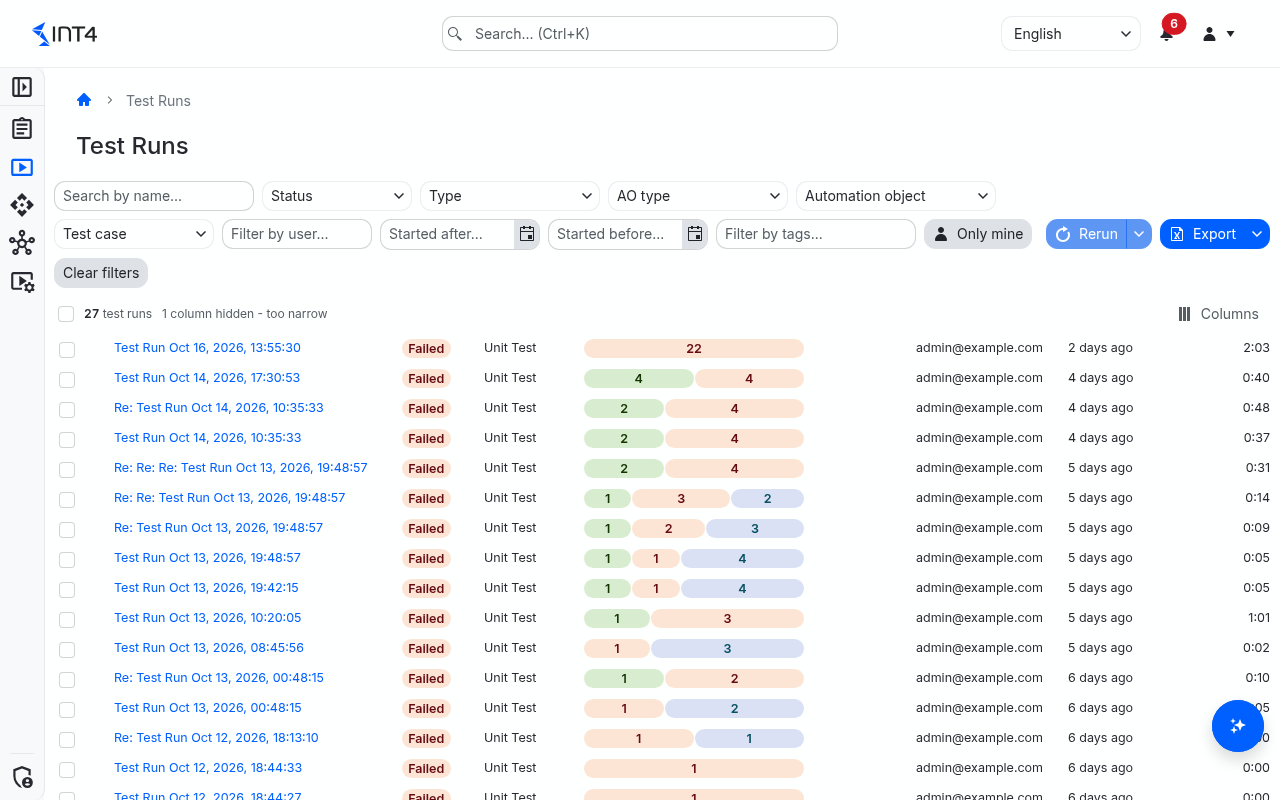
The All Test Runs screen is the historical and live record of every test run executed in this installation. A test run is created whenever a user launches a selection of test cases against the configured systems, whether triggered manually from a test case or folder, replayed from a previous run, or fired on schedule. Each row represents one such session.
The list is intended both for monitoring (knowing what is currently running and whether it is going well) and for triage (finding past runs to inspect failures, compare with newer attempts, or rerun a problematic selection).
The newest runs are at the top. The list loads further rows as you scroll down, so long histories stay quick to open. Select a run to open its results; what you find there is described in Test run details.
Tasks
How to find a specific test run
- Open Test Runs → All Test Runs.
- Type any part of the run name in Search by name.... The list filters as you type, after a short pause.
- Narrow further with the toolbar filters. They combine, so every filter you set must match:
- The status filter (it reads Status when nothing is chosen) keeps runs in one status — for example Running to see only what is in flight.
- The run type filter (Type) keeps runs of one type, such as Regression Test or User Acceptance Test.
- AO type, Automation object and Test case keep the runs that executed a test of that type, that automation object or that test case (any version of it). The pickers narrow each other: after you choose a type, the automation object picker offers only automation objects of that type, and after you choose an automation object, the test case picker offers only its test cases.
- Filter by user... finds runs started by a colleague; Only mine keeps only the runs you started.
- Started after... and Started before... limit the list to runs that began executing in that window.
- Filter by tags... keeps runs carrying the tags you pick.
- Click Clear filters to reset every filter in one step.
Everything you set here is kept in the page address. Copy the address to share the exact filtered view with a colleague, or bookmark it to return to the same slice of history later. Opening a run and going back brings you to the same filters.
How to follow a run that is still executing
Runs that are still executing show Running and a partly filled bar in Progress. Status changes arrive live — you do not need to refresh.
Hover the progress bar to see how many test cases are currently in each status (Pending, Preparing, Executing, Retrieving Results, Comparing, Completed, Passed, Failed, Skipped).
When a run you started finishes, Int4 Suite also tells you under Notifications, with View results to open it.
How to rerun one or more past runs
- Tick the checkbox at the start of each finished run you want to run again. The header checkbox ticks every loaded row.
- Click Rerun. The button is available once at least one row is ticked.
- A new run starts for each ticked run, named Re: <original name>, with the same settings as the original. While the requests are placed, the button reads Rerunning....
- The Rerun Test Runs dialog summarises the result. On success it shows Test run started successfully or
counttest runs started successfully, and lists every new run under Started test runs — select one to open it. If any rerun was refused, the dialog shows Failed to rerun selected test runs with the reason per run; the runs that did start are still listed. - Close the dialog with Close. The new runs appear at the top of the list.
How to rerun with different settings
- Tick exactly one finished run.
- Open the menu next to Rerun and choose Rerun with Parameters. With more than one run ticked, the entry is unavailable (Select a single test run to rerun with parameters).
- The Rerun Test Run dialog opens with the original run's name (prefixed Re:), settings and system group filled in. Change what you need — for example the Group, Execution Mode or Iterations. The test cases stay the same; a rerun cannot be scheduled.
- Click Rerun.
What a rerun runs
A rerun is not a literal replay: it works out the original selection again at the moment you press the button.
- Test cases that have since been added to the selected folders, to the selected automation objects, to a selected saved search or to a selected process are included; test cases removed from them are left out.
- Test cases that were picked one by one behave differently: if any of them has been deleted or archived since, the rerun is refused with an error naming them, rather than running without them.
- A test case that depends on another — a child test case on its parent, or a process step on the step before it — can only run together with it. If that test case is missing from the selection now, the rerun is refused with an error naming each test case and what it needs.
- The licence and permission checks that applied to the original run are made again, so a rerun can fail where the original succeeded if a permission has been removed.
How to export the list
- Filter the list so it shows the rows you want, and scroll until all of them are loaded.
- Click the export button in the toolbar for an Excel file, or open its menu and choose Export to Excel or Export to PDF. The file is named after test-runs.
The file contains the rows loaded so far, with the columns in the order you see them. Export is unavailable while the list is empty.
Field reference
| Column | Description |
|---|---|
| Name | The run's name. Defaults to Test Run <date and time> when the person starting it did not choose one. Reruns are named Re: <original name>, scheduled runs [Scheduled] <schedule name>. You can rename a run on its results page. |
| Status | Pending until the run is picked up, Running while test cases are executing, Passed when every test case finished and passed its comparison — including any custom validations of its automation object —, Completed when every test case finished but some were skipped or not compared (for example with Skip Validation), and Failed when at least one test case failed, either because its output differed or because it could not be executed. |
| Run Type | The type chosen when the run was started: Regression Test, Test Build/Development, Technical Check, Undefined, User Acceptance Test or Unit Test. It labels the run for reporting and filtering and does not change how the run executes. |
| Progress | A bar split by outcome, with the count on each part: green for passed, red for failed, then test cases that finished without a verdict or were skipped, test cases in progress, and an empty tail for those not started yet. Hover it for the count per status. |
| Tags | The tags given to the run on its results page. |
| Created By | The user who started the run. A rerun belongs to the user who pressed Rerun; a scheduled run to the schedule's owner. |
| Started | When the run began executing, as a relative time (for example "2 hours ago"). Empty until the run is picked up. |
| Completed | When the run finished. Empty while it is still running. |
| Duration | How long the run took from start to finish. Empty for runs that have not finished. |
Tips & edge cases
- Your selection follows your filters. Ticked rows stay ticked while you scroll, but changing any filter (including Clear filters) clears the selection, so you never rerun rows you can no longer see.
- Columns adapt to the window. When the window is narrow, the least-read columns step aside first; the list says how many are hidden. Use the Columns menu in the column headings to move or remove columns.
- Filters on test case and automation object look inside the run. A run is listed when one of its test cases matches all of the test case, automation object and type filters you set — not when different test cases match different filters.
- A rerun with nothing left to run is refused. If none of the original test cases can be found any more, the rerun is refused with an error. A run started with Execute New TCs Only is different: when every test case has run before, it is created and closes at once as Completed, without any test cases.
- Test cases you may not execute are skipped, not failed. When a run covers a folder that mixes test cases you can and cannot execute, the run starts; the test cases you lack the permission for show as Skipped in the results.
- There is no "stop" action. A run that is Running finishes on its own. Closing the browser or leaving the page does not affect it.
- Live updates need wide read access. The list updates live only for users who may read test cases in every project scope. Others see the latest state when the list refreshes, for example when they return to the page.
Related features
- Test run details
- Performance report
- Scheduled test runs
- Test Cases cockpit — where test runs are started
Prerequisites & permissions
To see this page you need the Test Case: Read permission and a licence that includes test reporting. The list shows every run in the installation; opening a run additionally requires Test Case: Read in every project scope that the run's test cases are filed in.
To rerun you also need the Test Case: Execute permission and a licence that includes test execution, plus read and execute permission on the systems under test and automation objects the run uses. Test cases you may not execute are skipped inside the new run rather than failing it. A rerun with more than one iteration or with a performance report also needs a licence that includes performance testing.
About permissions. What you can see and do is decided by the roles assigned to your user. Each role bundles permission groups, and each permission group allows activities — Read, Write, Delete, Execute and, for schedules, Change owner — on a kind of record (for example Test Case, Automation Object, System Under Test). A role grants its groups per project scope, so you may be allowed to change records in one project but only view, or not see, those of another.
If a button is disabled, a page says you don't have access, or a list comes back empty, missing permissions are the most likely cause — or, for whole product areas, the installed licence. You can review your own access under Profile → My access; an administrator can change your roles under IAM → Users.