All Test Cases
LicenseInt4 Shield Lite (2 of 3) · Custom add-on (1)Details
| Feature or limit | Int4 Shield Lite |
|---|---|
| Test case management | Included |
| Test execution | Included |
| Virtual folders | Add-on |
Anything a license model does not include can be added through a custom license. The license installed for you is shown in the app under Profile → License. All features by license
Overview
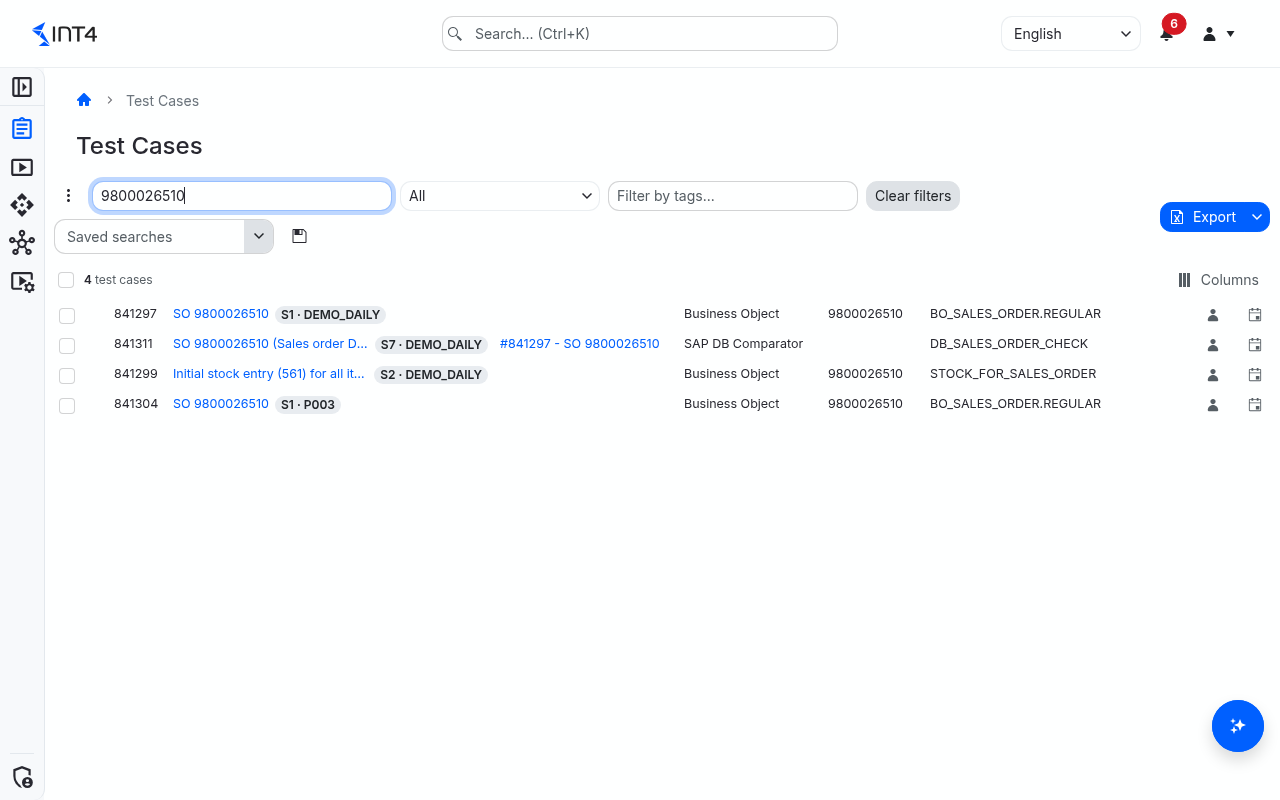
All Test Cases is the cross-folder inventory of test cases in Int4 Suite. Where the Test Cases Cockpit shows one folder at a time, this page lists test cases from every folder in one place, so you can find test cases by text, type or tag wherever they are filed, run a batch that spans several projects, move a set of test cases onto a new automation object after an interface change, or export the list for a report.
Each row is one test case at its current version. Rows are ordered hierarchically: a parent test case is listed directly before its child test cases. Test cases that were deleted but kept for their run history (archived) are not listed.
This page is for finding and acting on test cases that already exist. You create test cases elsewhere: in a folder of the cockpit, from an archive with the Test Case Loader, with a crawler, or by asking the AI Assistant.
Tasks
How to narrow the list
- Open Test Cases → All Test Cases.
- Type into Search test cases.... The search looks at the description, the document number and the legacy ID. When you type a number, the test case with exactly that number is listed first.
- Optionally pick an automation object type in the type list next to the search box.
- Optionally choose one or more tags in Filter by tags.... A test case is listed when it carries any of the chosen tags.
- Click Clear filters to reset the search, type and tags in one go.
Your filters are kept in the page address, so a refresh keeps your view and a copied link opens the same filtered list for a colleague (who still sees only what their own permissions allow). The count above the list always shows how many test cases match in total; more rows load as you scroll down.
If your license includes saved searches, the toolbar also has a Saved searches list. Picking a saved search limits the list to the test cases it matches; the search, type and tag filters then narrow it further, and a Folder column shows where each test case is filed. To keep the current filters as a new saved search, click Save filters as saved search next to the list (it reads New saved search while no filter is set). Saved searches are described with the Test Cases Cockpit.
How to run test cases from the list
You need the Test Case: Execute permission.
- Tick the test cases you want to run. The checkbox above the list ticks every row loaded so far; the count beside it shows how many are selected.
- Click the execute button, which shows how many test cases are selected. The run starts at once with default options, and a notification (Test run started successfully) offers a Test run link to follow its progress.
- To set options first — a run name, debug mode, a different group of systems, running only new test cases, or a schedule — open the arrow of the execute button and pick Execute Selected w/ Parameters. Fill in Execute Test Run and confirm with Execute. See All Test Runs for what each option does.
With nothing ticked, the execute button only appears while a saved search is applied: Execute All then runs every test case the saved search matches, and Execute All w/ Parameters opens the options first.
Some rules are checked when the run starts:
- Children need their parents. If you tick a child test case, tick its parent too; otherwise the run is refused with a message naming each child and the parent it needs. The parent runs first, and its children are skipped if it fails. A child on a SAP DB Comparator automation object holds its parent's database checks, so it joins the run whenever its parent does, even when you did not tick it.
- The selection must still exist. If someone deleted or archived a ticked test case since you loaded the list, the whole run is refused rather than running part of your selection. Refresh the list and select again.
- Test cases you may not run are skipped. A test case in a project scope where you lack execute rights is listed in the run as skipped instead of being executed.
How to migrate test cases to another automation object
Migration creates a new test case on a different automation object (and in a folder you choose) for every selected test case, converting its payloads to the new type. Use it when an interface moves to another platform or test type and you want to keep the recorded payloads. The original test cases stay as they are.
- Tick the test cases to migrate. They should all have the same type.
- Open the more-actions menu (the three dots at the end of the action buttons) and click Migrate Selected (
count). - In Migrate Test Cases, choose the target Folder, the Test Type and the Automation Object (only objects of the chosen type are offered).
- Click the migrate button. A message tells you how many test cases were migrated, or
succeededoftotalmigrated,failedfailed when some failed.
The Test Type list offers only the types your test cases can be converted to. If it is empty you see No migration paths available for the selected test case type — this also happens when the selection mixes types. Tick Direct payload copy to offer every other type instead: the payloads are then copied unchanged, and only the inputs and expected outputs that the target type also has are carried over.
How to export the list
- Filter the list and arrange its columns the way you want them in the file.
- Scroll down until every row you need has loaded.
- Click Export at the right of the toolbar for an Excel file, or open its arrow and pick Export to Excel or Export to PDF.
The file is named test-cases with the format's extension. It holds the columns you see, in their order, and the rows loaded so far. In Excel the test case number is a real number and the creation date is written out in full.
How to choose and arrange columns
The list has no header row: each column sizes itself to its values. When the page is narrow, the columns you need least give way first — dates and users shrink to an icon (point at it to read the value), tags are hidden, then whole columns drop out, and a note above the list says how many columns are hidden.
- Point at a value in the list. A thin line above the rows marks the column you are pointing at.
- Move the pointer up onto that line. The column's name appears with a grip to drag the column elsewhere and a button to remove it.
- Click Columns above the list to reach every column, including hidden ones. The menu also works with the keyboard.
- Click Reset columns and sorting to return to the standard columns.
Your column layout lasts while you work on the page and resets when you reload it.
Field reference
| Column | Description |
|---|---|
| Number | The test case number, given by the system on creation. It stays the same across all versions and is never reused. |
| Legacy ID | The test case's ID in the previous Int4 Suite release, for imported test cases. Shown when the loaded rows include imported test cases. |
| Description | The test case's description; click it to open the test case. A lock-and-clock badge marks an SAP PO test case that is past the execution window of your license. A tag such as A · Order to cash marks a test case that is a step of a process (step key and process name). |
| Folder | The folder path. Shown by default while a saved search is applied; otherwise add it from Columns. |
| Parent | The parent test case, as number and description. Click it to open the parent. Empty for top-level test cases. |
| Type | The automation object type, which defines what kind of test this is (for example an SAP Cloud Integration injection or an SAP PO capture). |
| Document # | The message or document the test case was recorded from on the source system. Empty for test cases built from files or by hand. |
| Automation Object | The automation object the test case uses. A test case always uses the automation object's current version. |
| Tags | The test case's tags. The first column to be hidden when space is short. |
| Created By | Who created the current version. |
| Created At | When the current version was created, as a relative time; point at it for the exact time. |
Tips & edge cases
- The search does not look at automation object names. To find the test cases of one automation object, filter by its type and check the Automation Object column (the list cannot be sorted), or ask the AI Assistant for the test cases of that automation object.
- No "run everything" without a saved search. On this page you run a selection; to run a whole folder, open it in the cockpit, and to run a reusable set across folders, apply a saved search.
- Expired SAP PO test cases cannot run. If your license limits how long SAP PO test cases may run after creation, an expired one shows the lock-and-clock badge, and the execute button is disabled while it is ticked; point at the button for the reason.
- Archived test cases stay out of the list. Deleting a test case that has run history archives it instead, so old run results stay complete. Links in those results still open it read-only.
- Processes are managed in the cockpit. Steps of a process show here as ordinary test cases with a step tag. Creating processes, adding steps and running a whole process happen in a folder of the cockpit.
- What a migrated test case looks like. Each migrated test case is described "Migrated number from type" and keeps a reference to the original number in its document number. Each test case migrates on its own, so one failure does not stop the others; a test case whose payloads cannot be converted is reported as failed.
- Export only holds what is loaded. The file contains the rows already loaded in the list, not every match on the server.
Related features
- Test Cases Cockpit — folder browsing, creation, test case details, processes and saved searches
- Test Case Loader — create many test cases from a ZIP archive
- All Test Runs — follow and analyse the runs you start here
- AI Assistant — find, run and change test cases by asking in plain language
Prerequisites & permissions
About permissions. What you can see and do is decided by the roles assigned to your user. Each role bundles permission groups, and each permission group allows activities — Read, Write, Delete, Execute and, for schedules, Change owner — on a kind of record (for example Test Case, Automation Object, System Under Test). A role grants its groups per project scope, so you may be allowed to change records in one project but only view, or not see, those of another.
If a button is disabled, a page says you don't have access, or a list comes back empty, missing permissions are the most likely cause — or, for whole product areas, the installed licence. You can review your own access under Profile → My access; an administrator can change your roles under IAM → Users.
To open this page you need the Test Case: Read permission. Opening, running and changing a test case are checked against the project scope of the folder it is filed in.
- Run test cases: Test Case: Execute and a license that includes test execution. Test cases in project scopes where you lack the permission are skipped in the run.
- Migrate test cases: Test Case: Write in the project scope of the selected test cases and of the target folder.
- Saved searches: a license that includes saved searches; creating one needs Saved Search: Write.
If a button is disabled and you think your role should allow it, point at the button — the tooltip explains the reason.