Project Scopes
Overview
A project scope is a label you put on records — for example FINANCE or HR_ROLLOUT — so that different teams can work in the same installation without seeing or changing each other's work. Roles then grant their permission groups per scope: a role row for scope FINANCE gives access to FINANCE records only.
Records that can carry a project scope include folders (and the test cases inside them, which take the scope of their folder), processes, automation objects, systems under test, crawlers, trace schedulers, global sequences, DB rulesets, mapping objects, business objects, Data Store buckets, Messenger objects and API Explorer authentication profiles. You choose the scope on the record itself; this screen only manages the list of available scopes.
The rule to remember is that scopes match exactly:
- A record tagged
FINANCEcan be opened, changed, deleted or run only by people whose roles grant the activity forFINANCE. - A record without a scope can be reached only through role rows set to Global. Someone whose roles all point to
FINANCEcannot open, create, change or delete unscoped records. - Moving a record from one scope to another (including to or from "no scope") needs Write in both.
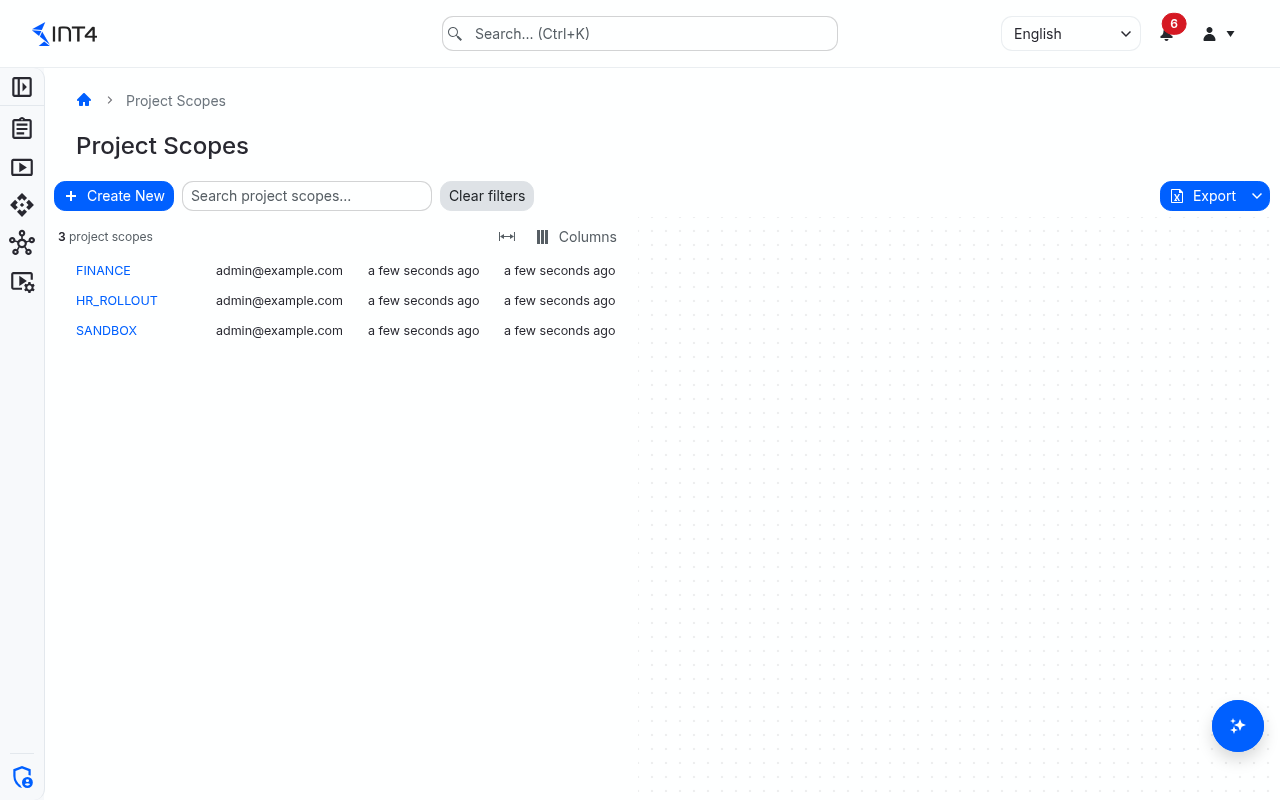
Open the screen from IAM → Project Scopes.
Tasks
How to set up a project scope for a team
- Create the scope: click Create New, enter a Name and click Save.
- On the Roles screen, create a role for the team — for example "Finance tester" — and add the permission groups it needs with the new scope in the Project Scope column. Add the same groups with Global as well if the team also needs records that have no scope, such as shared systems under test.
- Assign the role to the team members on the Users screen.
- Tag the team's records with the scope — typically their top-level folder, their automation objects and their systems under test.
How to rename a project scope
- Open the scope and click Edit.
- Change the Name and click Save.
Renaming is safe: records and role rows refer to the scope itself, not to its name, so access does not change.
How to delete a project scope
- Open the scope and click Delete.
- Confirm in the Delete Project Scope dialog.
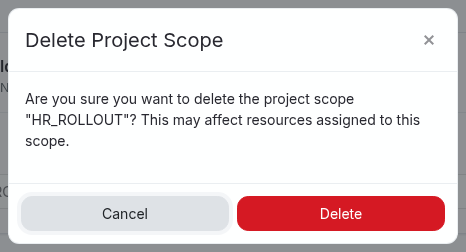
The deletion is refused with "Cannot delete: This project scope is referenced by other objects." while any record still carries the scope; move those records to another scope first. Role rows that point to the scope do not block the deletion — they are removed together with it, so check the affected roles afterwards.
Field reference
List columns
Search by name with Search project scopes.... Click a row to open the scope. The list can be exported to Excel or PDF from the toolbar.
| Column | Description |
|---|---|
| Name | The scope's name. |
| Created By | Who created the scope. |
| Created At | When the scope was created, as a relative time. |
| Updated At | When the scope was last renamed, as a relative time. |
Project scope page
| Field | Description |
|---|---|
| Name | Unique name, up to 255 characters. |
| Admin | Who created and last changed the scope, and when. |
Tips & edge cases
- A scope grants nothing by itself. It only matters once a role row points to it and the role is assigned to someone.
- "Global" means "no scope", not "all scopes". To reach records in every scope, a role needs one row per scope.
- Scope names are visible to everyone. Every signed-in user can see the list of scope names in pickers, so avoid names that reveal confidential information.
- Lists can show more than you can open. Depending on the screen, records of other scopes may still appear by name in lists and pickers, but their details stay closed to people without a grant in that scope.
- The shipped roles cover unscoped records only. Once you start tagging records with scopes, holders of the shipped roles lose access to those records unless they also hold a role for the scope.
Related features
Prerequisites & permissions
About permissions. What you can see and do is decided by the roles assigned to your user. Each role bundles permission groups, and each permission group allows activities — Read, Write, Delete, Execute and, for schedules, Change owner — on a kind of record (for example Test Case, Automation Object, System Under Test). A role grants its groups per project scope, so you may be allowed to change records in one project but only view, or not see, those of another.
If a button is disabled, a page says you don't have access, or a list comes back empty, missing permissions are the most likely cause — or, for whole product areas, the installed licence. You can review your own access under Profile → My access; an administrator can change your roles under IAM → Users.
To use this screen you need:
- Project Scope: Read — to open the list and a scope.
- Project Scope: Write — to create and rename scopes.
- Project Scope: Delete — to delete a scope.
Project scopes are not themselves tagged with a scope, so a grant in any project scope is enough. In the shipped roles, these permissions come with the Administrator role (permission group "Define authorization groups").