DB Rulesets
LicenseCustom add-onDetails
| Feature or limit | Int4 Shield Lite |
|---|---|
| Database validation | Add-on |
Anything a license model does not include can be added through a custom license. The license installed for you is shown in the app under Profile → License. All features by license
Overview
A DB Ruleset is a reusable recipe that describes which rows to read from an SAP backend database. Each ruleset is a tree of steps; every step names one SAP table, the columns to return, the filter conditions that select the rows, and optional sorting, de-duplication, and inner joins. Child steps read related tables driven by values from their parent's rows, so a single ruleset can capture a whole document graph — for example a header, its items, and their sub-items.
The point of a DB Ruleset is to let a test check the business outcome of an integration, not just the message that crossed the wire. After a document has been processed in the SAP backend, the message may have arrived correctly but still have produced the wrong document; database validation closes that gap. A ruleset is a model of a business document's database footprint — the tables that hold it, the parent-to-child relations between them (header to items to sub-items), and the fields that matter — so that when a test runs, the platform can read back the rows the document actually created and compare them, field by field, against the reference captured when the test case was built. The step tree mirrors how the document itself is structured: a top-level step reads the header, and each child step reads a related table keyed by values from its parent's rows. The sorting and de-duplication options line records up so that two reads of "the same" document compare cleanly even when the database returns them in a different order.
Rulesets are configuration only. A ruleset on its own does not read anything; it is consumed by a database-comparison automation object when a test case runs. At that point the named ruleset is executed against the test's SAP system, and the rows it returns become the payload that the comparison snapshots and checks for differences.
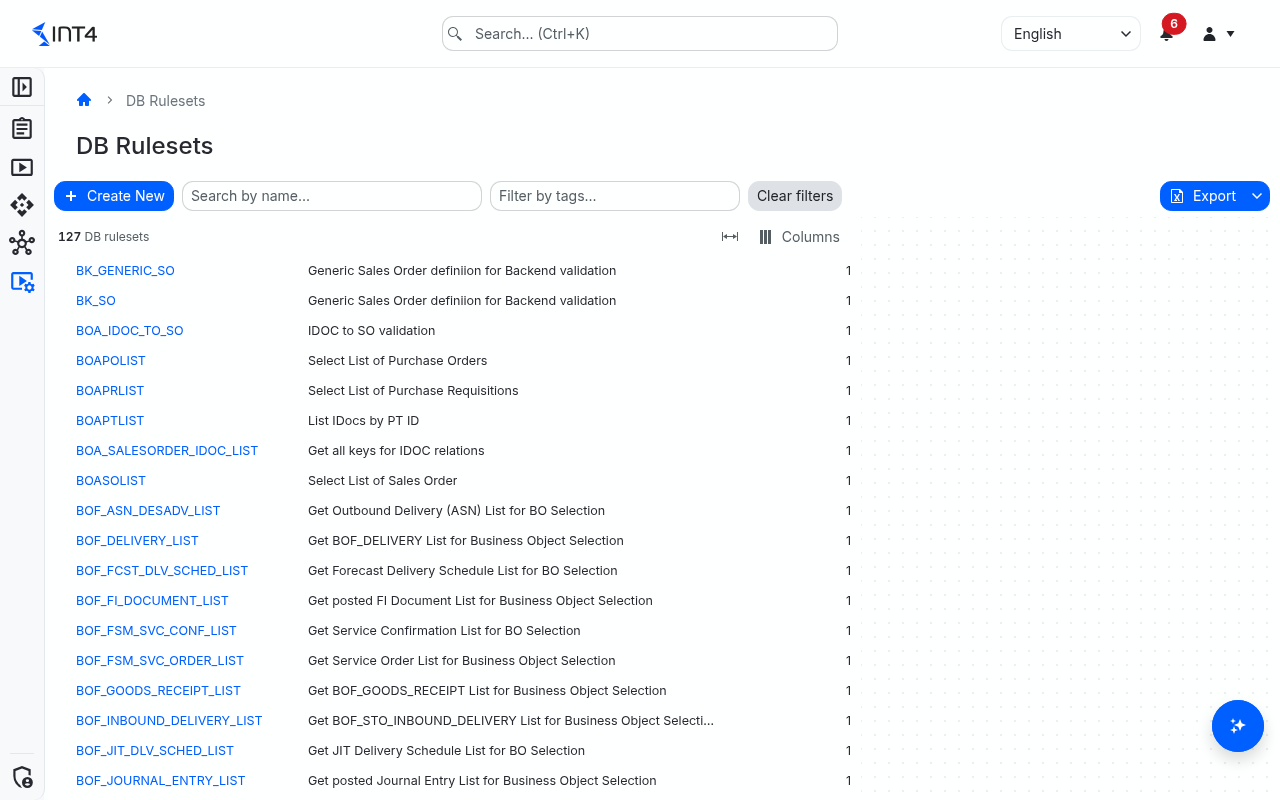
This page is the central list of all DB Rulesets. From here you can search for a ruleset, open one to view or edit it, and start a new one. Each ruleset keeps a full version history: editing a ruleset never overwrites the previous content — it creates a new version, and you can restore an earlier version at any time.
Rulesets are also used by Business Objects: a DB Selection connection in a Business Object runs a ruleset to read rows as part of its actions.
Tasks
How to create a ruleset
- Click Create New in the toolbar. If the button is greyed out, you do not have permission to create rulesets (see Prerequisites & permissions).
- In the Identification card, enter a Name (1–40 characters: letters, digits,
.,-and_, starting with a letter or digit) and an optional Description. - Choose a Project Scope, or leave it empty, and optionally add Tags.
- Build the step tree in the Steps section, as described in the next tasks. A ruleset needs at least one step, and every step needs a table and at least one output field.
- Click Save.
How to build the step tree
Each step reads one SAP table. Top-level (root) steps usually read a document header; child steps read related tables for each row their parent returned.
- Click Add Root Step to add a top-level step.
- In the Table cell, type the SAP table name, or click the search button (or press F4) to look it up in an SAP system — see How to look up tables and fields in SAP.
- Optionally enter a Label and a Row Limit (0 = no limit).
- To add a child step, select its parent in the tree and click Add Child Step.
- Use the move-up and move-down buttons to reorder steps on the same level, and Delete Step to remove the selected step together with its children.
- Select a step in the tree to edit its rules in the tabs below it: Selection Criteria, Output Fields, Sorting, Duplicates and Join Tables. Each tab title shows how many entries it holds.
How to define which rows a step reads
On the Selection Criteria tab of the selected step:
- Click Add Criterion.
- Enter the Field to filter on and pick an Operator — for example Equals (=), Contains (CS) or In list (IN).
- Choose the Type of the comparison value and fill in the Value:
- Constant — a fixed value. With In list (IN), enter several values separated by commas.
- Dimension — the code of a business dimension, such as the document number the test case is about. Its value is filled in when the test runs.
- Parent reference — the name of a field of the parent step's row. This is how a child step reads only the rows that belong to its parent, for example the items of this order.
- Set the Combiner (AND or OR) that links this criterion to the next one.
- Tick Optional on a dimension criterion that should simply be left out when the dimension has no value, instead of stopping the read.
How to choose the fields a step returns
On the Output Fields tab, click Add Field for each column you want in the result, or click Import fields... to pick several fields of the step's table at once from SAP. Imported fields bring their SAP short text as Label; you can change it. Labels and the step's table label are used as headings in the comparison table of a test result.
How to sort, de-duplicate and join
- Sorting — click Add Sort, pick a Field and a Direction. The order of the rows sets the sort priority.
- Duplicates — click Add Field to list the fields that identify a row; rows with the same values in all of them are shown once.
- Join Tables — click Add Join Table, enter the Table to join, then click Add Condition and pair a Base Field of the step's table with a Join Field of the joined table. Every joined table needs at least one condition; only rows with a match in the joined table are returned.
How to look up tables and fields in SAP
Table and field cells have a search button labelled Search (F4); pressing F4 in the cell opens the same search.
- Click the search button in a Table or Field cell.
- In the dialog, choose the System Under Test to read from. Only SAP ABAP backend systems can be used. The dialog remembers your choice while you edit the ruleset.
- Type at least two characters of a table name or description, or filter the field list, and pick the entry you need.
How to change, copy, restore or delete a ruleset
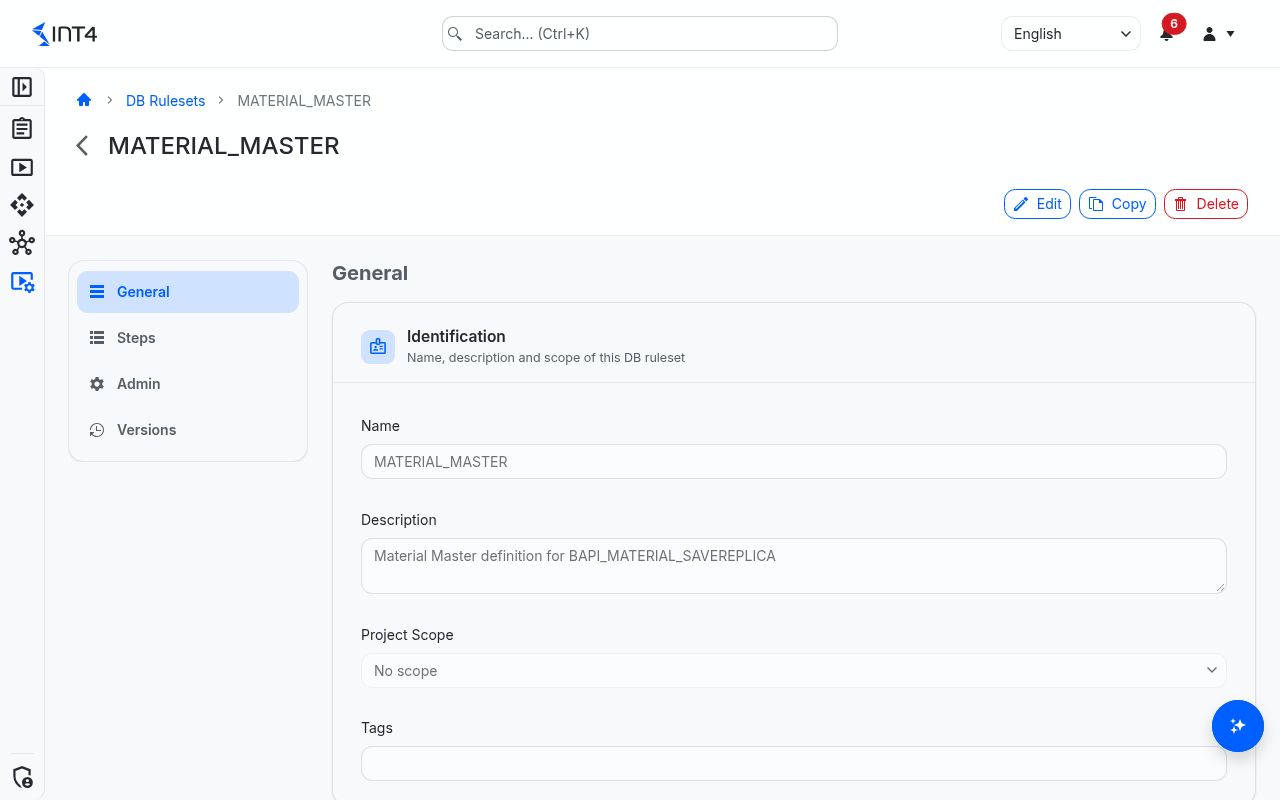
- Change — open the ruleset, click Edit, make your changes, optionally fill in the Version Description, and click Save Changes. A new version is saved; the Name cannot be changed.
- Copy — click Copy, enter a New Name (pre-filled with the current name followed by
_COPY) and confirm. The copy keeps the steps, description, project scope and tags. - Restore — in the Versions section, open an older version, click Restore This Version and confirm with Restore. Its content becomes a new current version.
- Delete — click Delete and confirm. The ruleset and all its versions are removed permanently.
How to export the list
Choose Export in the toolbar to download the rows loaded in the list to Excel or PDF.
Field reference
General
| Field | Description |
|---|---|
| Name | The ruleset's name — the value an automation object or a Business Object connection uses to run it. 1–40 characters: letters, digits, ., - and _, starting with a letter or digit. Unique among current rulesets regardless of case. Cannot be changed after creation. |
| Description | A free-text label describing what the ruleset reads. |
| Project Scope | The project scope that governs who can read, edit and delete the ruleset. Leave it empty for a ruleset without a scope; only users whose permission is granted without a project scope can then work with it. |
| Tags | Free-text labels for grouping and filtering. Tags belong to the ruleset as a whole, not to a version. |
| Version | The current version number. Every saved change creates a new version. |
| Version Description | Optional note describing what changed in the version being saved. |
Step
| Field | Description |
|---|---|
| Table | The SAP table the step reads (up to 30 characters). |
| Label | Optional readable name for the table, used as the section heading in the comparison table. |
| Row Limit (0 = no limit) | The maximum number of rows the step reads; 0 reads all matching rows. |
Selection criteria
| Field | Description |
|---|---|
| Field | The table field to filter on. |
| Operator | How the field is compared: equals, not equals, greater/less than (or equal), contains, starts with, ends with, or in list. |
| Value | The comparison value: a fixed value, a business dimension code, or a parent-row field name, depending on Type. |
| Type | Constant, Dimension or Parent reference. |
| Combiner | AND or OR — how this criterion combines with the next one. Ignored on the last criterion. |
| Optional | For a dimension criterion: leave it out when the dimension has no value. Without it, a missing value stops the read with an error. |
Output fields, sorting, duplicates and joins
| Field | Description |
|---|---|
| Output Fields | The fields the step returns, each with an optional Label. At least one is required; each field may appear once. |
| Sorting | Fields with a Direction (Ascending or Descending) that order the step's rows in the comparison table. Each field may appear once. |
| Duplicates | Fields whose combined values identify a row; repeated rows are shown once in the comparison table. Each field may appear once. |
| Join Tables | Tables joined to the step's table, each with one or more conditions pairing a Base Field with a Join Field. Each table may be joined once. |
Tips & edge cases
- A ruleset never reads anything by itself. The actual database read happens only when a database-comparison automation object (or a Business Object DB Selection step) runs the ruleset against an SAP ABAP backend. There is no "run" action on the ruleset itself.
- One ruleset, two testing intents. The same ruleset serves both regression and migration: in regression the reference and current rows come from one system; in migration the reference comes from the legacy system and the current from the new one. You do not build a separate "migration" ruleset — you point the test's reference and current systems at the two landscapes, and the ruleset reads each one the same way. This is what makes a ruleset worth maintaining as a shared, reusable asset rather than per-test configuration.
- Model the document the way it is structured. Build the step tree to follow the document's own shape — header at the top, items as its children, sub-items below those. A ruleset that mirrors the real parent/child relations keeps the comparison meaningful: each child step reads only the rows belonging to the specific parent document for this test run, not every row in the table.
- Sorting, duplicates and labels shape the result display. They are applied when the comparison table of a test result or run report is shown; they do not change which rows are read or stored. The display always uses the ruleset's current version, so changing these settings also changes how older results are shown.
- Mixed AND/OR conditions are not bracketed. The criteria are combined from top to bottom, and AND binds more strongly than OR. Keep each step's criteria simple, or use In list (IN) instead of a chain of OR conditions.
- A dimension with several values. With In list (IN) every value of the dimension is used; with any other operator only the first value is used.
- Values are compared as entered. Enter dates, times and numbers in the internal SAP format of the field (for example dates as
YYYYMMDDand numeric text fields with leading zeros). - References are by name. Automation objects and Business Object connections find the ruleset by its name, written exactly as saved. Deleting a ruleset is not blocked while it is referenced; the tests that use it fail when they run.
- The list shows every ruleset. The list is not filtered by project scope, but opening a ruleset checks your permission on its scope. The name search matches any part of the name; the tag filter shows rulesets that carry any of the selected tags.
Related features
- Automation objects — the database-comparison automation object references a ruleset by name.
- Business Objects — DB Selection connections run a ruleset.
- Systems under test — the SAP ABAP backend systems a ruleset reads from.
- Test cases
Prerequisites & permissions
You need the DB Ruleset: Read permission to see this list and open a ruleset, and the DB Ruleset: Write permission to create, copy, edit, or restore one. Deleting a ruleset requires the DB Ruleset: Delete permission. Where a ruleset is assigned a project scope, your permission must cover that scope; moving a ruleset to another scope needs Write on both scopes. There is intentionally no "execute" permission on rulesets — running a ruleset is controlled by the permissions on the automation object and test case that use it.
Looking up tables and fields in SAP requires System Under Test: Read on the system you search in.
The database-comparison automation object, which runs rulesets in tests, is available only when your license includes database validation.
About permissions. What you can see and do is decided by the roles assigned to your user. Each role bundles permission groups, and each permission group allows activities — Read, Write, Delete, Execute and, for schedules, Change owner — on a kind of record (for example Test Case, Automation Object, System Under Test). A role grants its groups per project scope, so you may be allowed to change records in one project but only view, or not see, those of another.
If a button is disabled, a page says you don't have access, or a list comes back empty, missing permissions are the most likely cause — or, for whole product areas, the installed licence. You can review your own access under Profile → My access; an administrator can change your roles under IAM → Users.